> ## Documentation Index
> Fetch the complete documentation index at: https://docs.sprig.com/llms.txt
> Use this file to discover all available pages before exploring further.
# Manually Adding Users
To manually add a team member to Sprig:
1. Click [**Settings > Team**](http://app.sprig.com/settings/team), then click **+ Add Member**.
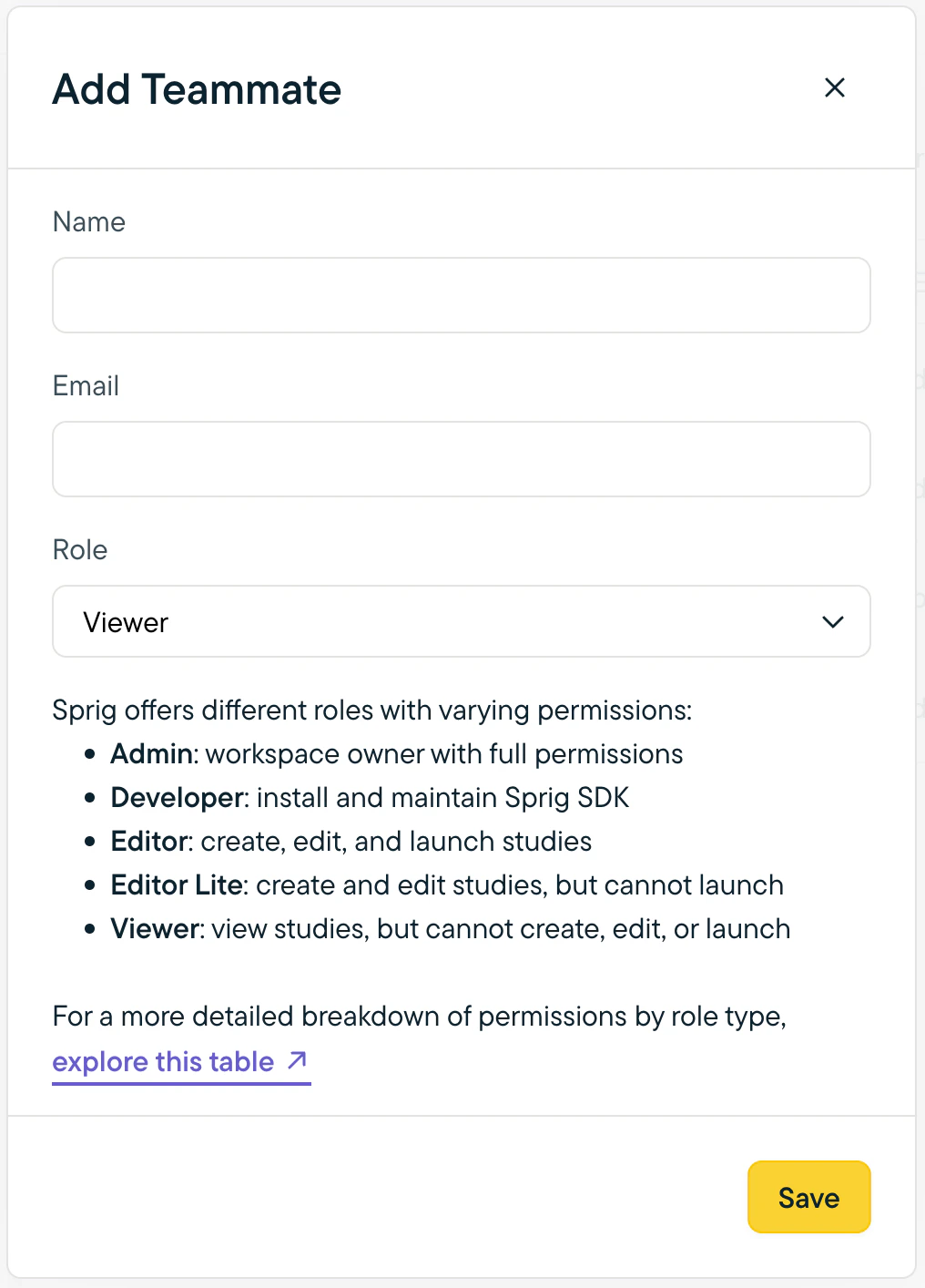
2. In the modal that opens, enter the team member's name, email address, and the [role](/docs/account-and-settings/team-management-roles/roles-permissions) you want them to have. Click Save.
 Note: Users with the Admin role can add team members at any role level. Users with other roles can add team members at their role level or below.
## Activating your Account
The new member will receive a verification email from Sprig. In the verification email, they should click **Activate your account** to be redirected to Sprig, where they will set a password for their account.
If they do not receive an email, ask them to check their spam/junk folder. If they still can't locate the email, please contact [support@sprig.com](mailto:support@sprig.com).
In the verification email, new members should click **Activate your account** to be redirected to Sprig and set a password for their account.
Note: Users with the Admin role can add team members at any role level. Users with other roles can add team members at their role level or below.
## Activating your Account
The new member will receive a verification email from Sprig. In the verification email, they should click **Activate your account** to be redirected to Sprig, where they will set a password for their account.
If they do not receive an email, ask them to check their spam/junk folder. If they still can't locate the email, please contact [support@sprig.com](mailto:support@sprig.com).
In the verification email, new members should click **Activate your account** to be redirected to Sprig and set a password for their account.