> ## Documentation Index
> Fetch the complete documentation index at: https://docs.sprig.com/llms.txt
> Use this file to discover all available pages before exploring further.
# Google Workspace
To enable SSO with Google Workspace, complete the following:
1. Contact [support@sprig.com](mailto:sso@sprig.com) to claim the email domain(s) that your SSO users will use to sign in.
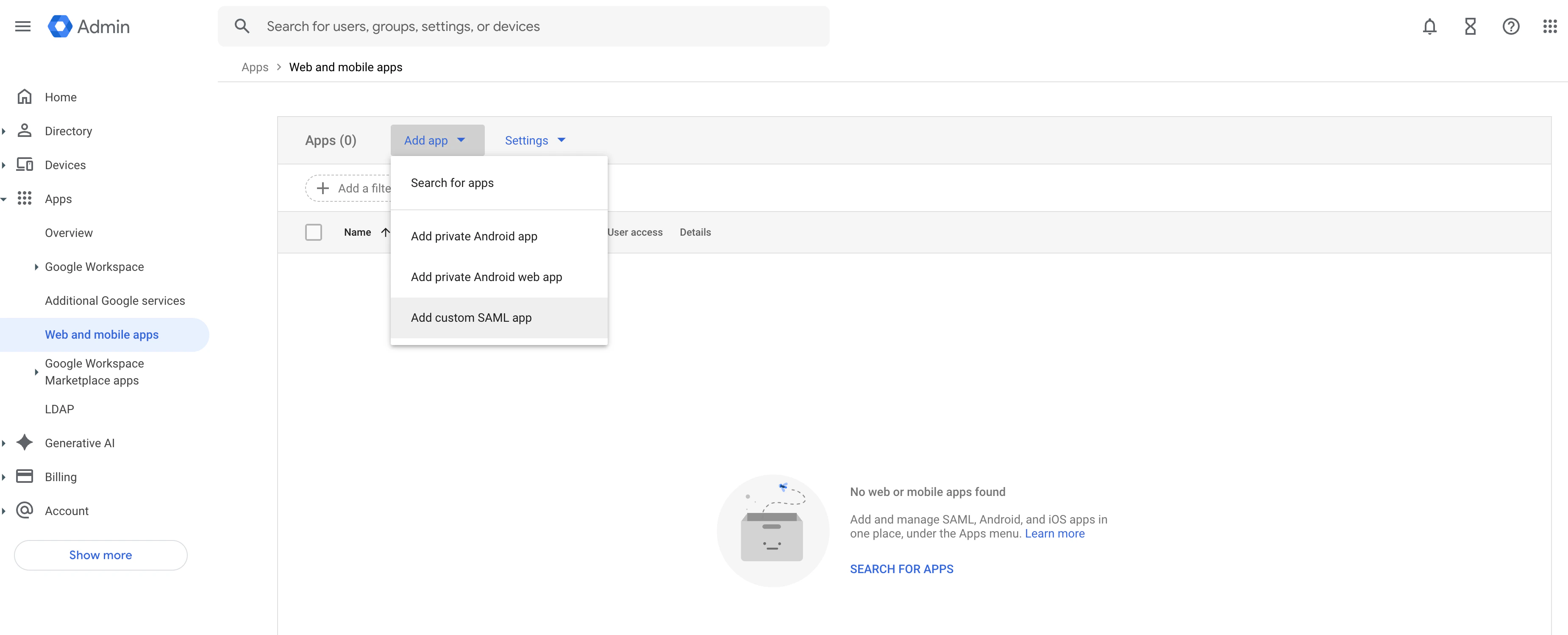
2. **Set up SSO with Google Workspace:** log in to the Google Admin console and navigate to Apps > Web and mobile apps > Add app > Add custom SAML app
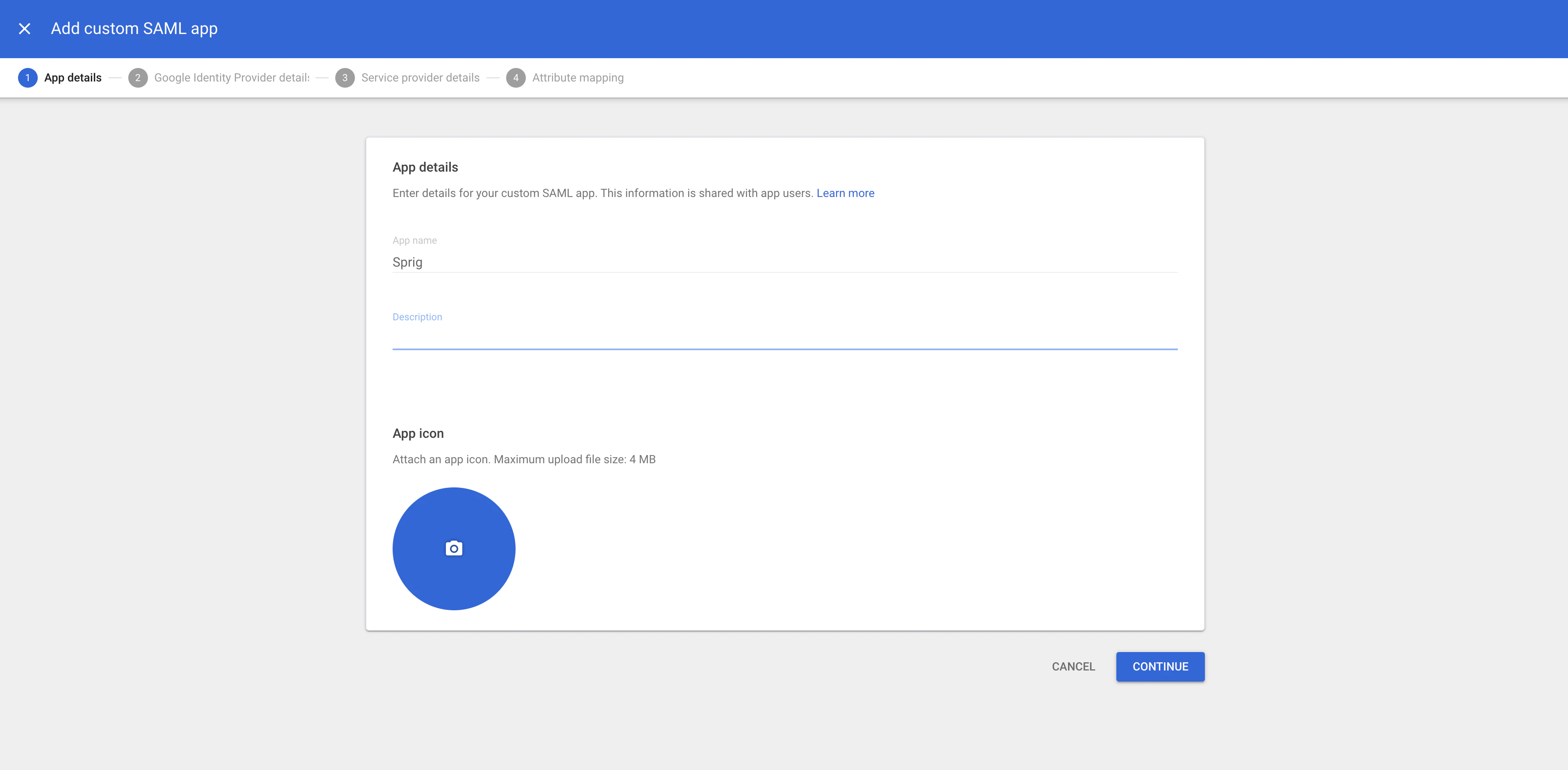
 3. Proceed through the custom SAML app creation steps, first entering an App Name and description.
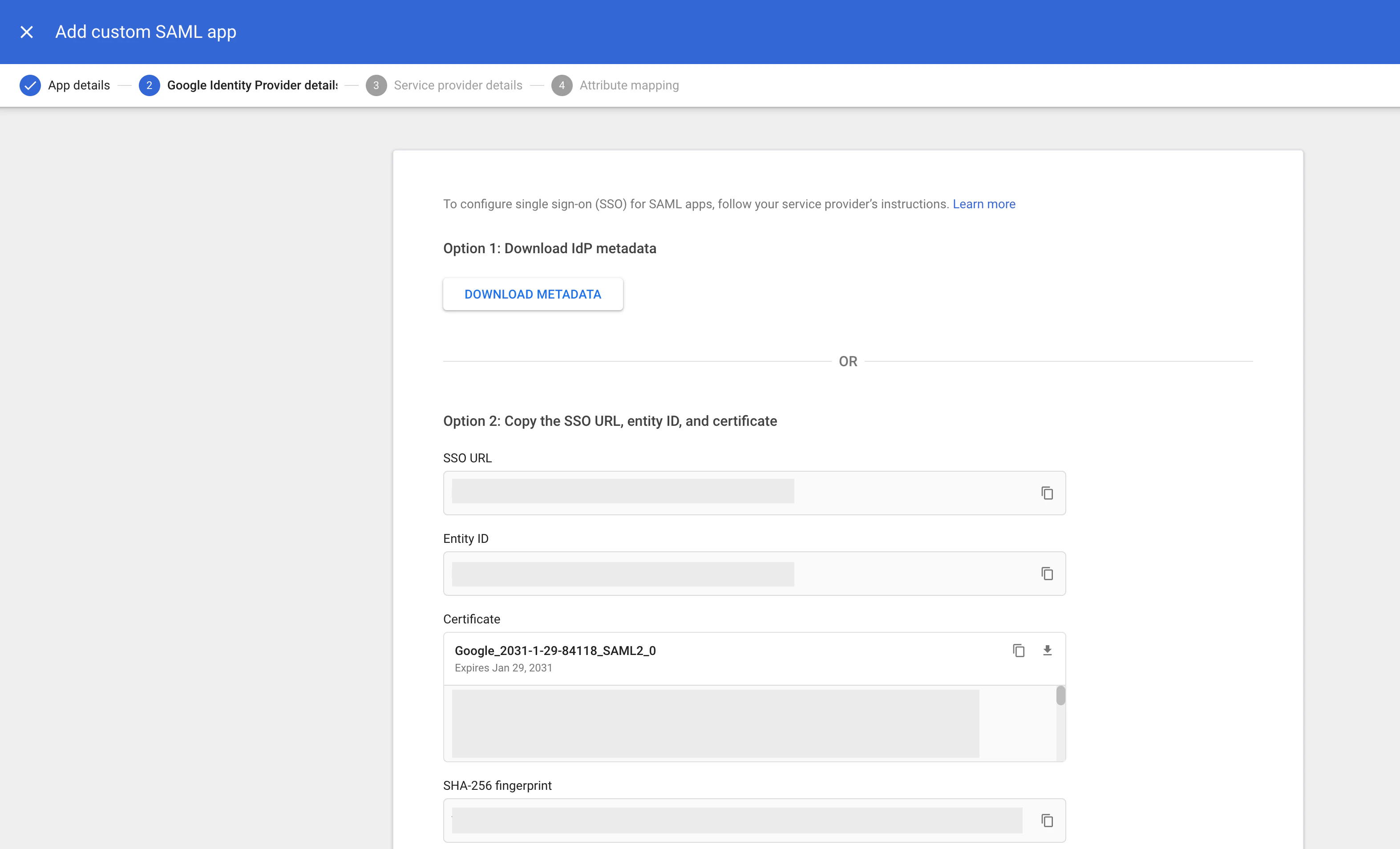
 4. **Download Metadata:** In the "Google Identity Provider details" window, download the IDP metadata file or copy the SSO URL, Entity ID, and Certificate
 5. Log in to your Sprig account and navigate to **Settings >** [**Single Sign-On**](https://app.sprig.com/settings/sso).
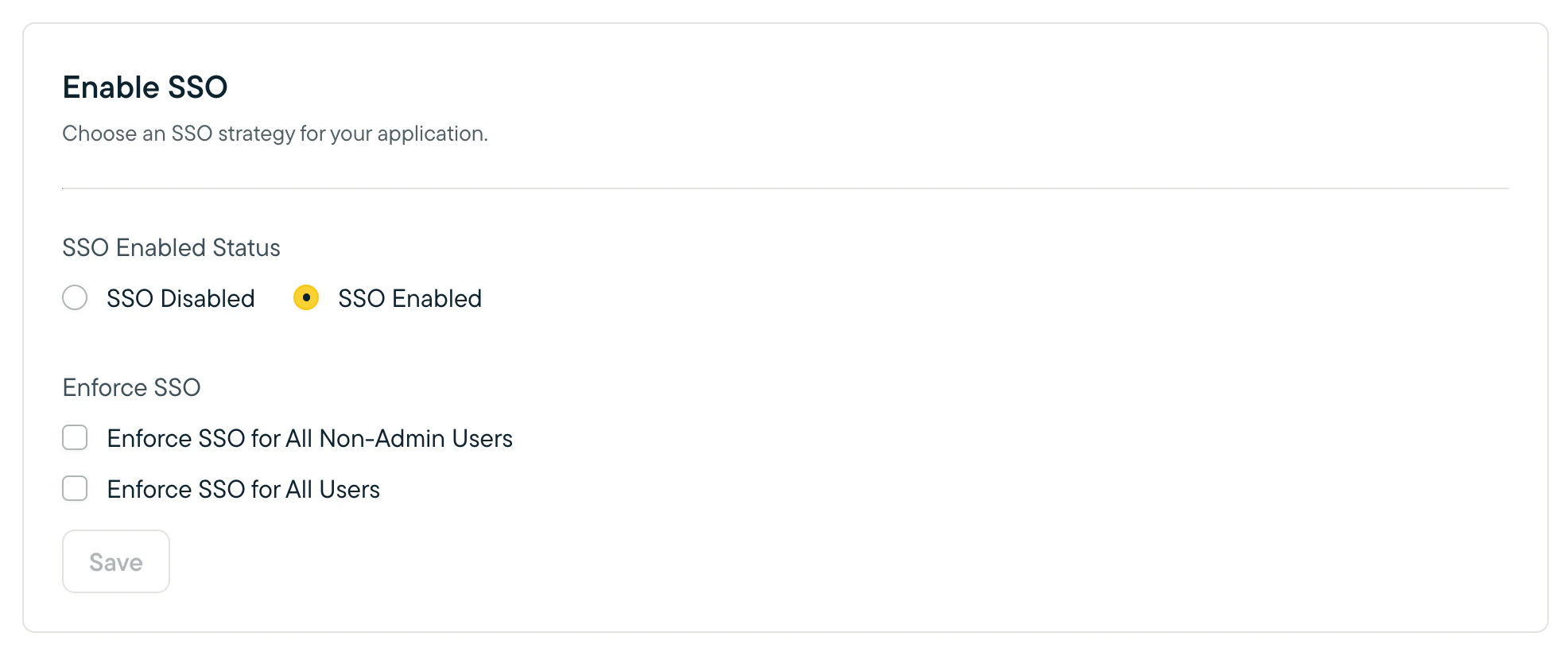
6. Select the **SSO Enabled** option, and click **Save**.
5. Log in to your Sprig account and navigate to **Settings >** [**Single Sign-On**](https://app.sprig.com/settings/sso).
6. Select the **SSO Enabled** option, and click **Save**.
 7. Navigate to the **Your Identity Provider** section at the bottom of the page.
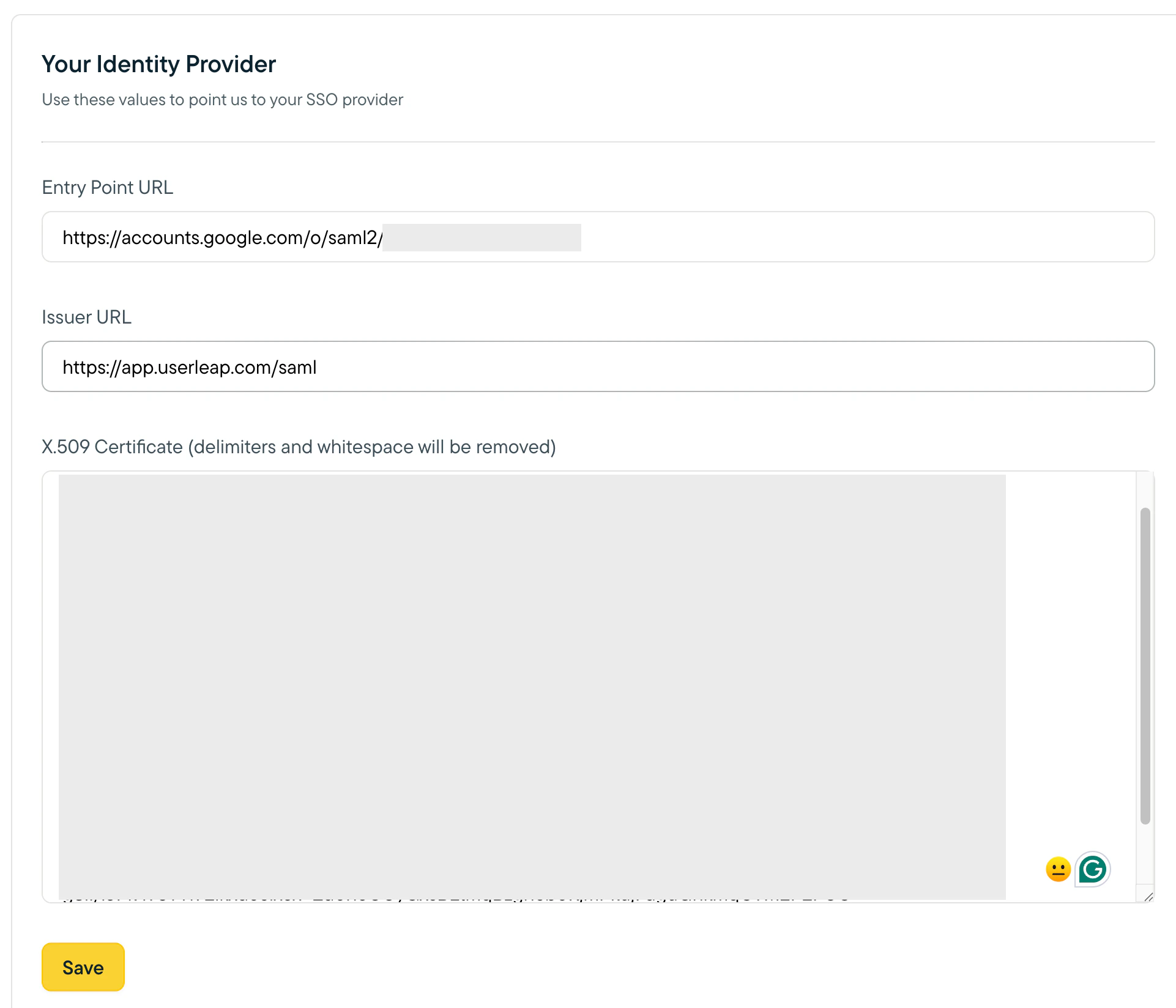
8. Set the value of **Entry Point URL** to be the **SSO URL** from your Google metadata
9. Set the **Issuer URL** to be the same value as the **Entity URI** from the **Important Values** section (this should be [https://app.userleap.com/saml](https://app.userleap.com/saml)).
10. Finally, copy the Certificate from your Google metadata into your Sprig SSO settings and click **Save**.
7. Navigate to the **Your Identity Provider** section at the bottom of the page.
8. Set the value of **Entry Point URL** to be the **SSO URL** from your Google metadata
9. Set the **Issuer URL** to be the same value as the **Entity URI** from the **Important Values** section (this should be [https://app.userleap.com/saml](https://app.userleap.com/saml)).
10. Finally, copy the Certificate from your Google metadata into your Sprig SSO settings and click **Save**.
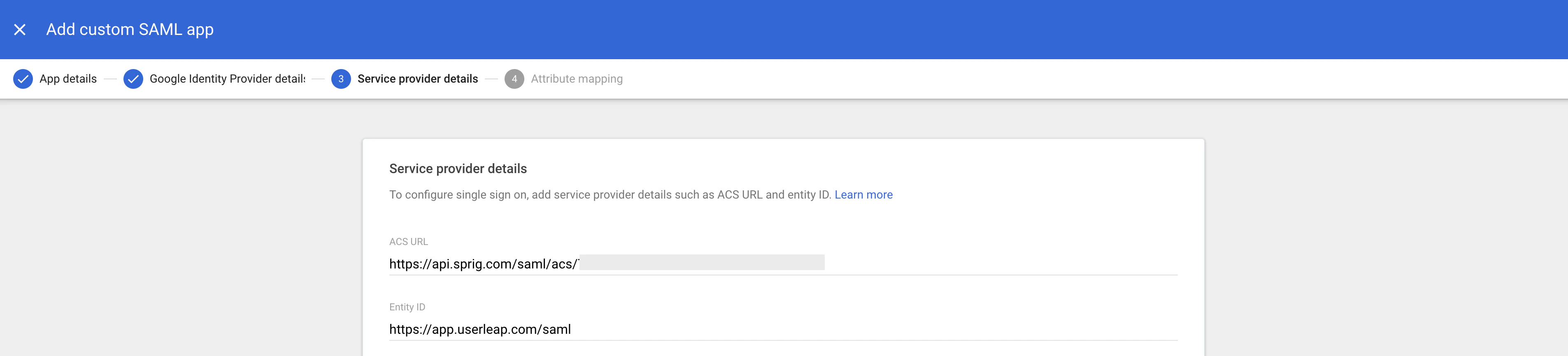
 11. Take note of the **Entity URI** and the **ACS URL** values provided by the **Important Values** section, as you will use them in your Google Workspace client configuration.
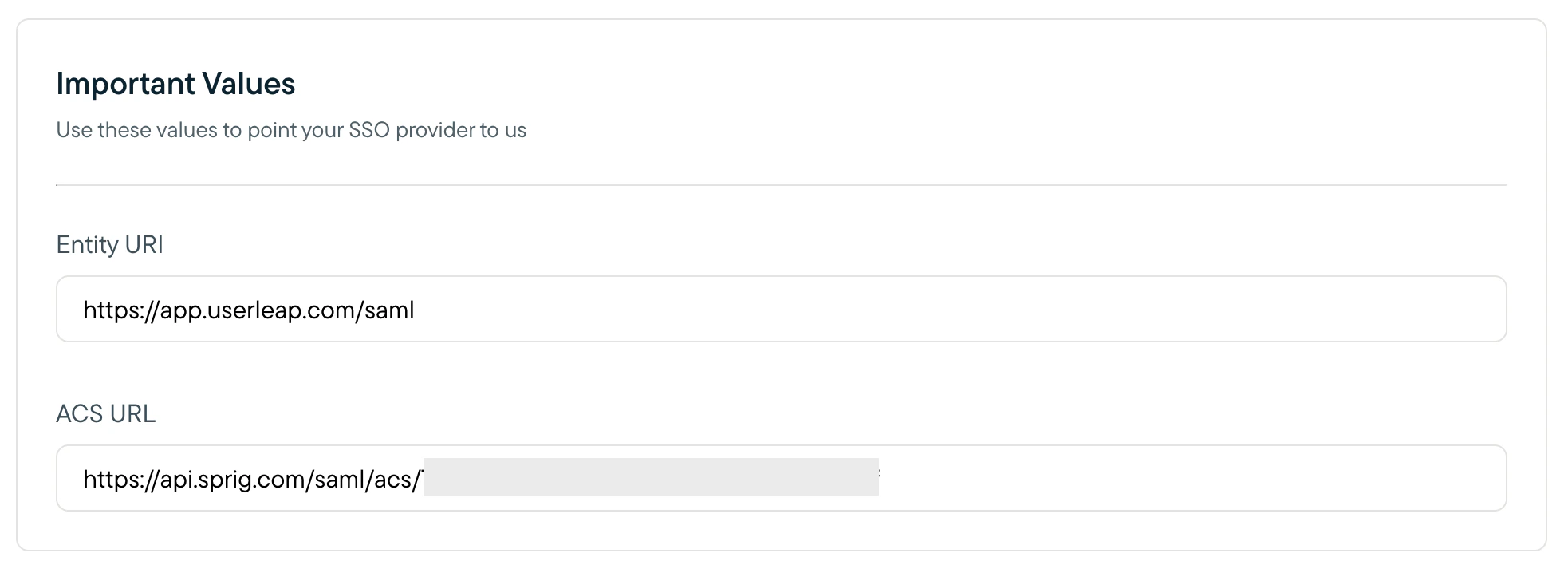 12. Back in your Google Workspace SAML App setup, enter the **Important Values** from your Sprig SSO settings.