> ## Documentation Index
> Fetch the complete documentation index at: https://docs.sprig.com/llms.txt
> Use this file to discover all available pages before exploring further.
# Domain-Based Team Discovery
> Allow team members to automatically join your Sprig workspace
Domain-based team discovery is an easy way to help your team get started in Sprig, allowing your colleagues to automatically join your team based on their email domain. Alternatively, if your company uses single sign-on (SSO) and you have a Sprig Enterprise plan, you can use SAML-based SSO instead. For more information, visit [Single Sign-On (SSO)](/docs/account-and-settings/account-and-login/sso-1/index).
# Getting Started with Team Discovery
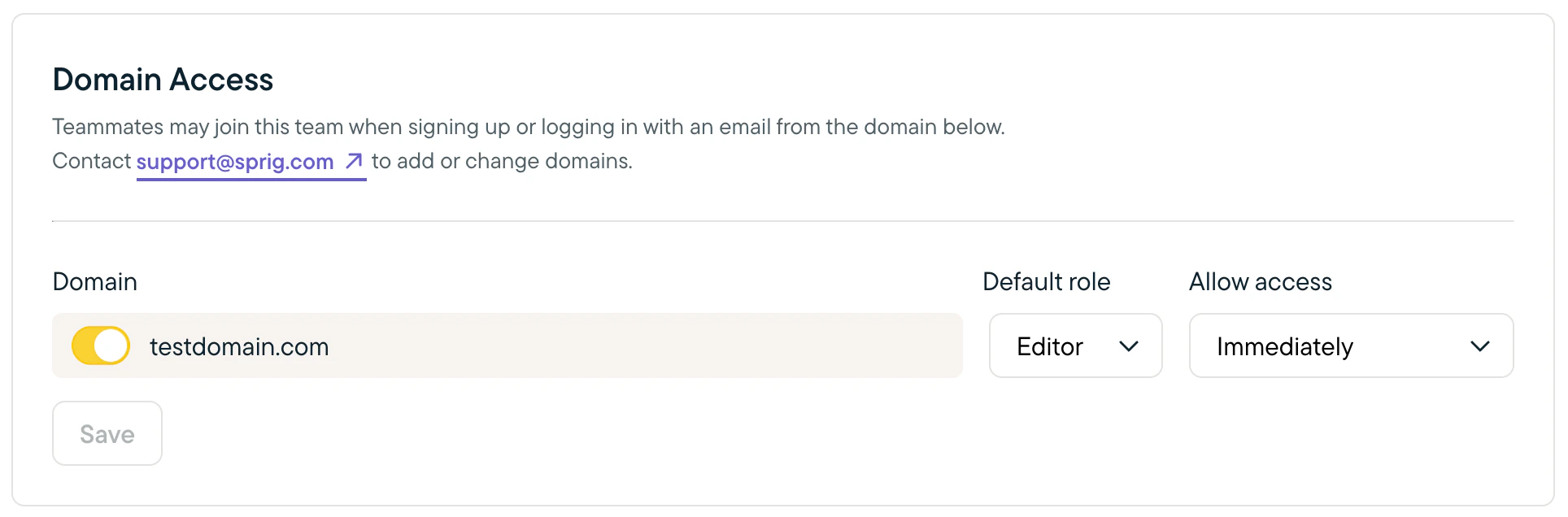
Please contact [support@sprig.com](mailto:support@sprig.com) to add your domain as a discoverable domain for your team. Once that's done, navigate to [Settings > Domains](https://app.sprig.com/settings/domains) in your team Admin account and confirm the domain was added. There, you can:
1. Set the default role new users will have.
1. We recommend Editor to empower your colleagues to create and launch studies, as well as create new dashboards, but feel free to choose any role depending on your team's needs. You can see and adjust role permissions for each user in [Settings > Team > Members](https://app.sprig.com/settings/team).
2. Determine whether users with matching email domains can automatically join your team or whether they must issue a request for you to approve or reject.
 Note: Team discovery only supports one domain.
# Team Discovery as a New Sprig User
## Automatically Join a Team
*If **"Immediately"** is selected as the access setting for your team:* When a colleague with a matching domain signs up for Sprig at [app.sprig.com/signup](https://app.sprig.com/signup) or any redirect from an authenticated dashboard page, they'll be prompted to join your team before setting up their password. They'll automatically see your team's account dashboard when they log in to Sprig.
## Request to Join a Team
*If **"Require Approval"** is selected as the access setting for your team:* When a colleague with a matching domain signs up for Sprig, they'll be prompted to "Request to join" your team. Then, team Admins will be sent an email notification about the request, which they'll be able to approve from [Settings > Team > Members](https://app.sprig.com/settings/team) in the Sprig dashboard. The new team member will then be notified via email that their request to join has been approved, and they'll see your team's account dashboard when they log in to Sprig.
Note: Team discovery only supports one domain.
# Team Discovery as a New Sprig User
## Automatically Join a Team
*If **"Immediately"** is selected as the access setting for your team:* When a colleague with a matching domain signs up for Sprig at [app.sprig.com/signup](https://app.sprig.com/signup) or any redirect from an authenticated dashboard page, they'll be prompted to join your team before setting up their password. They'll automatically see your team's account dashboard when they log in to Sprig.
## Request to Join a Team
*If **"Require Approval"** is selected as the access setting for your team:* When a colleague with a matching domain signs up for Sprig, they'll be prompted to "Request to join" your team. Then, team Admins will be sent an email notification about the request, which they'll be able to approve from [Settings > Team > Members](https://app.sprig.com/settings/team) in the Sprig dashboard. The new team member will then be notified via email that their request to join has been approved, and they'll see your team's account dashboard when they log in to Sprig.