> ## Documentation Index
> Fetch the complete documentation index at: https://docs.sprig.com/llms.txt
> Use this file to discover all available pages before exploring further.
# Slack
Sprig’s Slack integration allows customers to receive notifications about Sprig studies in their desired Slack workspace channels. Some highlights about the integration include:
* Per study configuration of Slack channels
* Three notification types: Study Connected, Study Responses, Study Completed
* Public and Private channels access
* Default catch-all Slack configuration
## Before getting started
* The Sprig Slack integration is available to all plans.
* Only a Sprig Admin, Developer, or Editor role can enable the Slack integration in Sprig, while in Slack, channel creation and application integration are determined by your [Slack administrator](https://slack.com/help/articles/201314026-Permissions-by-role-in-Slack).
* You may need to add your Slack administrator to the Sprig account so that they can install the integration. If you have added more than one product in Sprig, you may configure separate Slack channels for each product.
* Only completed survey responses will be sent to Slack through this integration. A user must click the "finish" button at the end of a survey to be considered a complete survey response, though they may skip questions within the survey.
* Users that close a survey without finishing or leave the browser tab without finishing the active survey will not have their responses sent to Slack.
Once you have the right Slack channels available and have verified the permissions for integrating Slack, you can map specific studies to specific Slack channels, or send all your study notifications to a single Slack channel for a given environment. Listed below are some general recommendations:
* Study-level channels: a channel with a working group or stakeholders who are interested in responses for a specific study
* Default channel for all study notifications: a channel with your whole product team or stakeholders to see when any study is connected to Slack, completed, or receives a response. This is set at an environment level.
## Connecting Sprig with Slack
There are three ways to grant Sprig authorization to your Slack Workspace.
### Method 1: Integrations > Slack
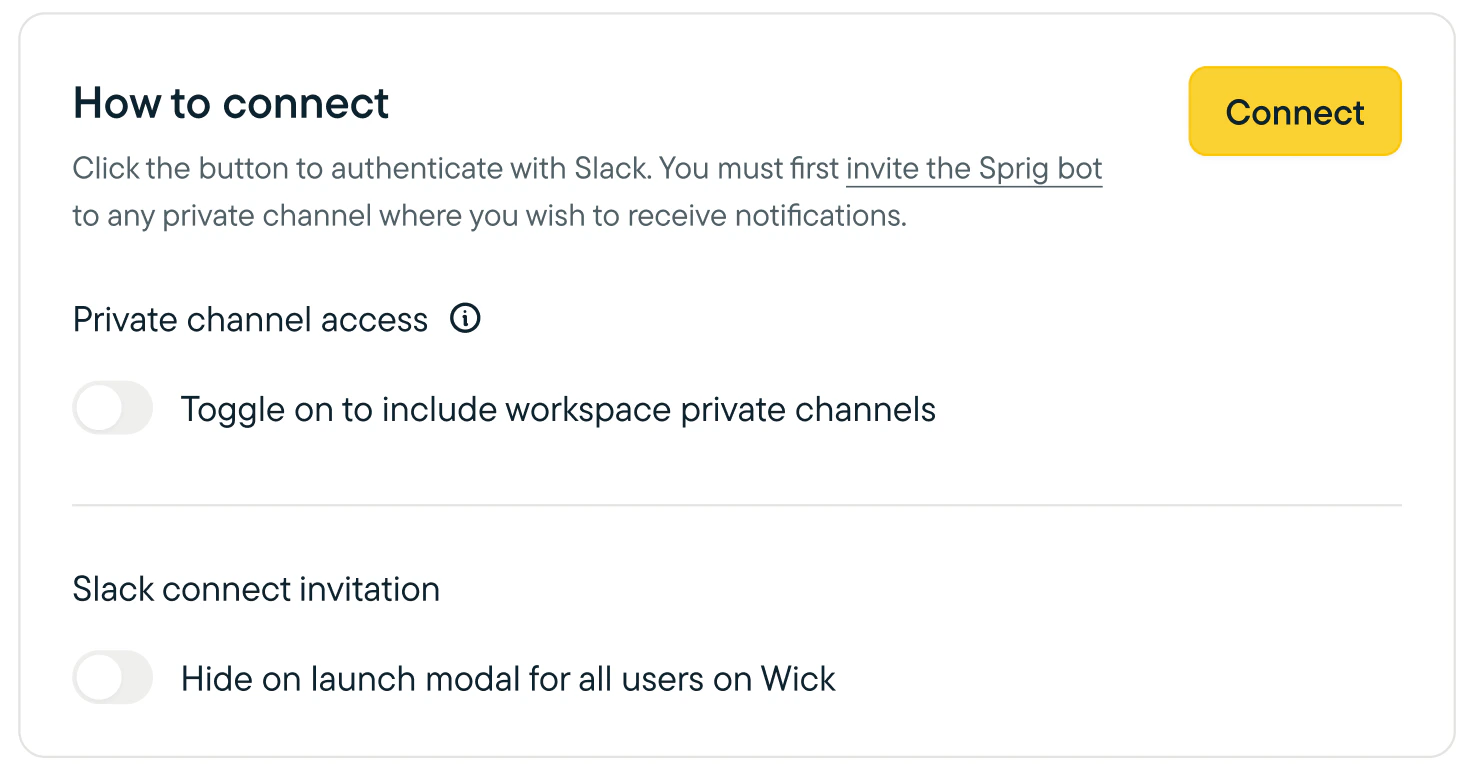
1. In the Sprig app, navigate to the Slack Integrations page (Integrations > Collaboration > Slack) and click the **Connect** button.
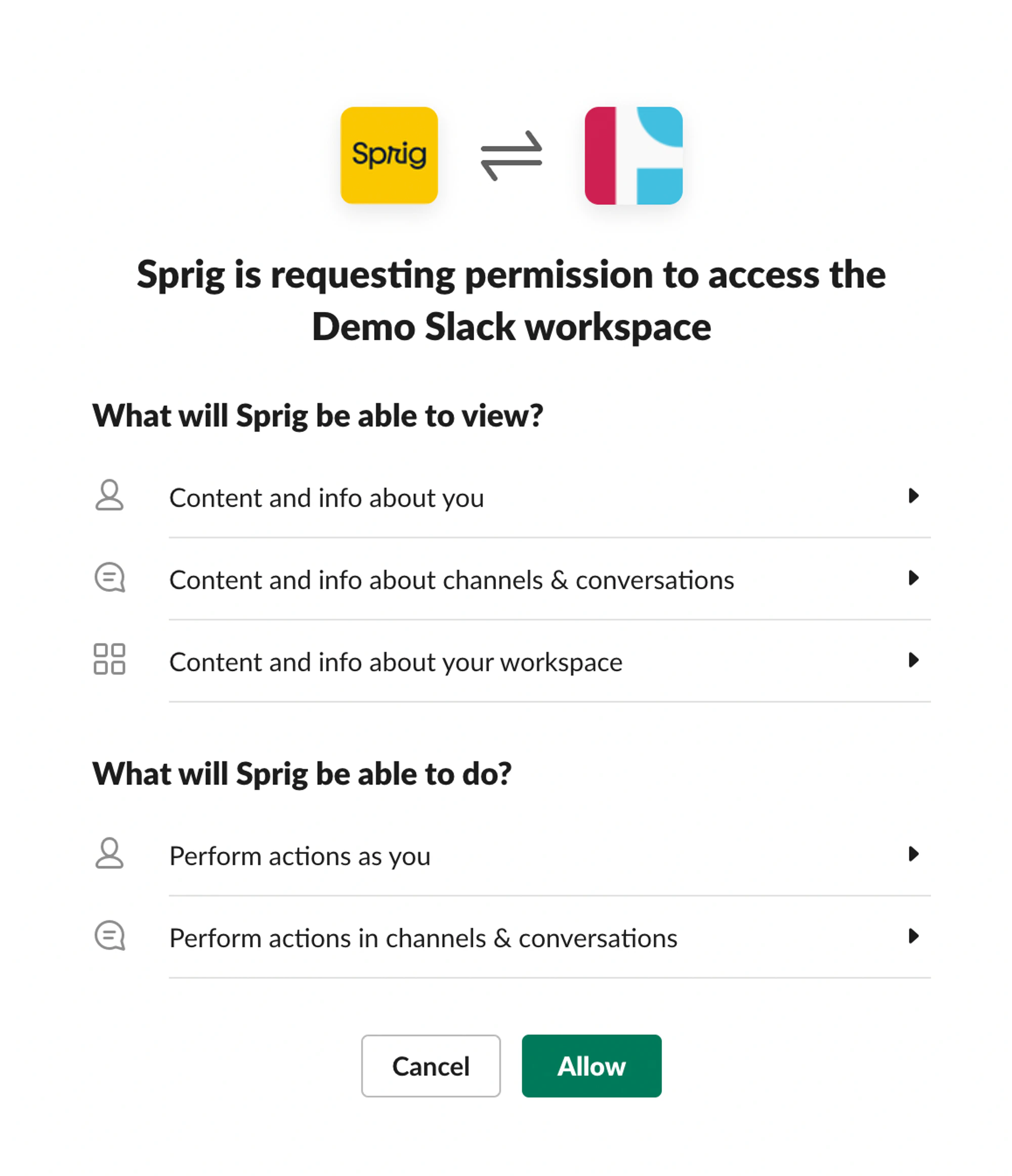
 2. Slack will ask for permission to connect with Sprig. Please make sure you have the intended workspace selected and then click **Allow.**
1. Sprig will request the following bot scopes: `channels:read`, `chat:write`, `team:read`, `chat:write.public`
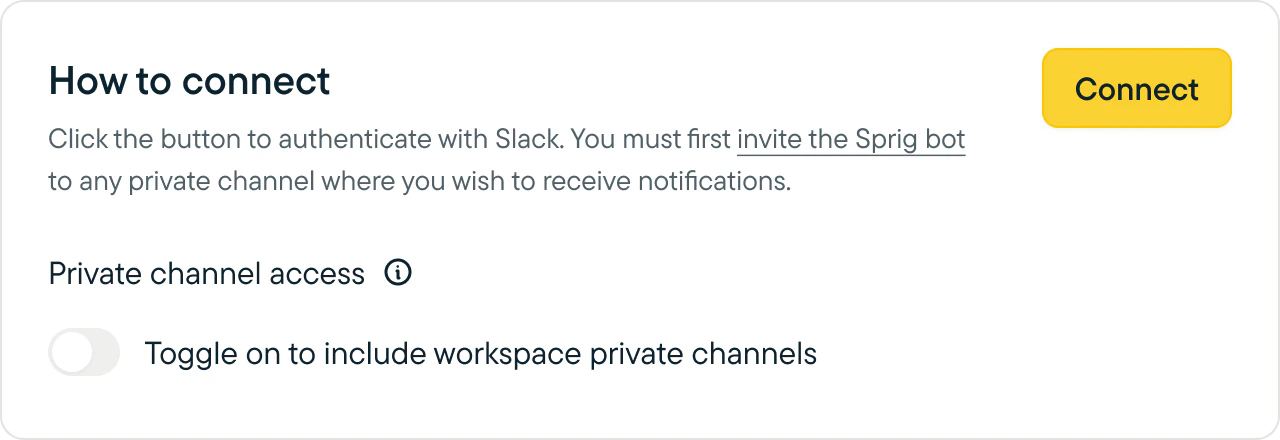
2. If you’d like Sprig to send notifications to a private channel, toggling “Private channel access”, will also request the `groups:read` and `group:write` scopes.
3. For more information on Slack Oauth2 scopes, please feel free to refer to the [Slack documentation](https://api.slack.com/scopes).
2. Slack will ask for permission to connect with Sprig. Please make sure you have the intended workspace selected and then click **Allow.**
1. Sprig will request the following bot scopes: `channels:read`, `chat:write`, `team:read`, `chat:write.public`
2. If you’d like Sprig to send notifications to a private channel, toggling “Private channel access”, will also request the `groups:read` and `group:write` scopes.
3. For more information on Slack Oauth2 scopes, please feel free to refer to the [Slack documentation](https://api.slack.com/scopes).
 3. Once authorized, you will be redirected to the **Slack Integration page.** To turn on study-level notifications, navigate to an in-progress study’s Connect tab to choose a channel.
### Method 2: Study launch modal
1. Once a study is launched, click **Connect** on the launch modal’s Slack banner.
3. Once authorized, you will be redirected to the **Slack Integration page.** To turn on study-level notifications, navigate to an in-progress study’s Connect tab to choose a channel.
### Method 2: Study launch modal
1. Once a study is launched, click **Connect** on the launch modal’s Slack banner.
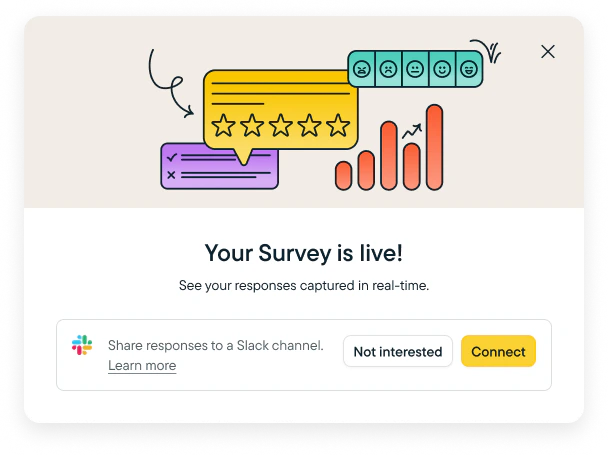 2. Slack will ask for permission to connect with Sprig. Please make sure you have the intended workspace selected, then click **Allow.**
3. Once authorized, you will be redirected to the **Connect tab** for your recently launched study. From here, you can set one or more Slack channels to receive response notifications.
### Method 3: Results page
1. For any in-progress study, navigate to the study’s results page and click on the **Connect tab**. From here, click **Connect.**
2. Slack will ask for permission to connect with Sprig. Please make sure you have the intended workspace selected, then click **Allow.**
3. Once authorized, you will be redirected back to the **Connect tab** for your recently launched study. From here, you can set one or more Slack channels to receive response notifications.
## Connect to private Slack channels
The Sprig bot must be invited to any private Slack channel that you wish to receive notifications.
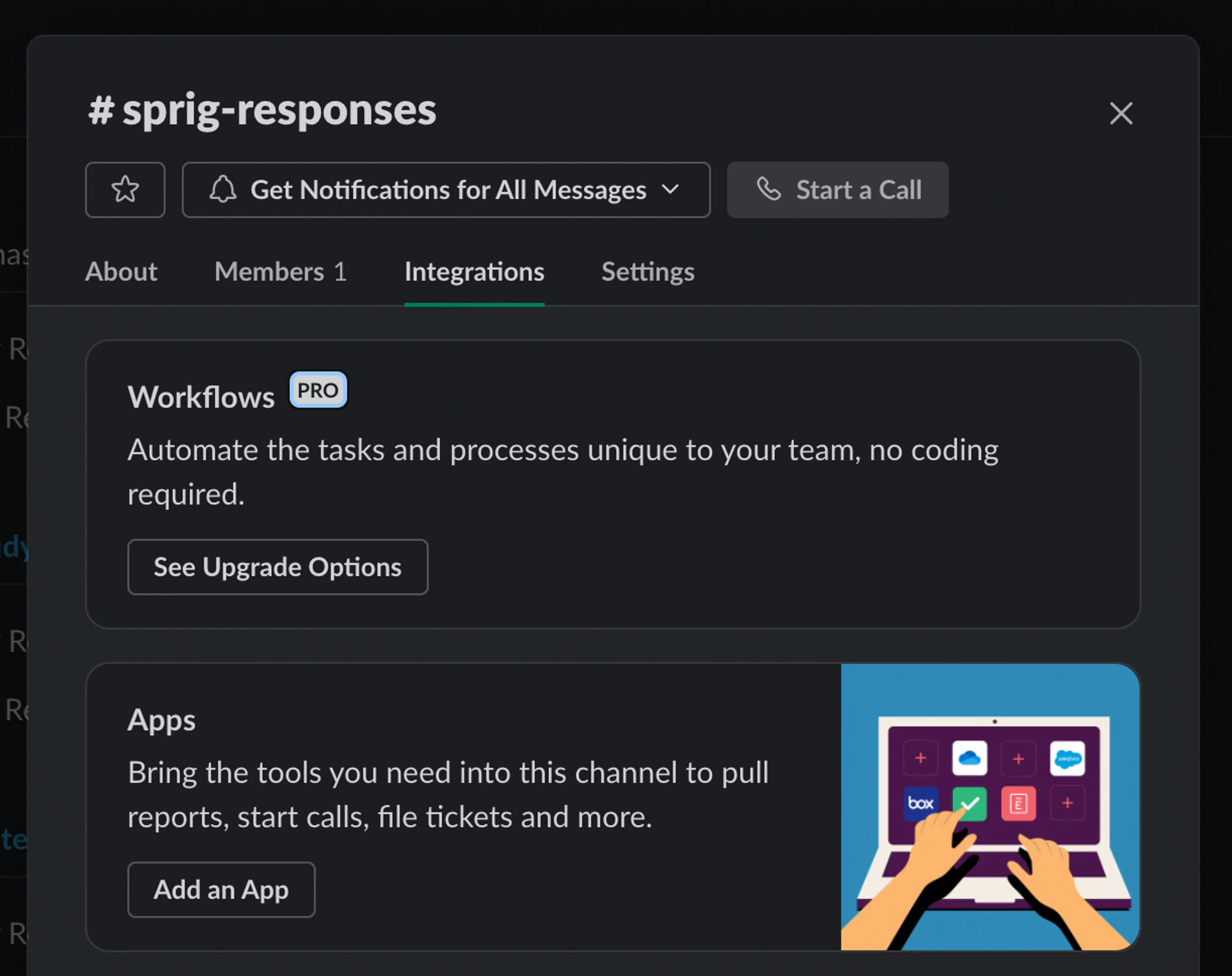
1. In Slack, navigate to the private channel and click on the channel name to **Get channel details.**
2. In the modal that appears, select the **Integrations** tab, and click **Add an App.**
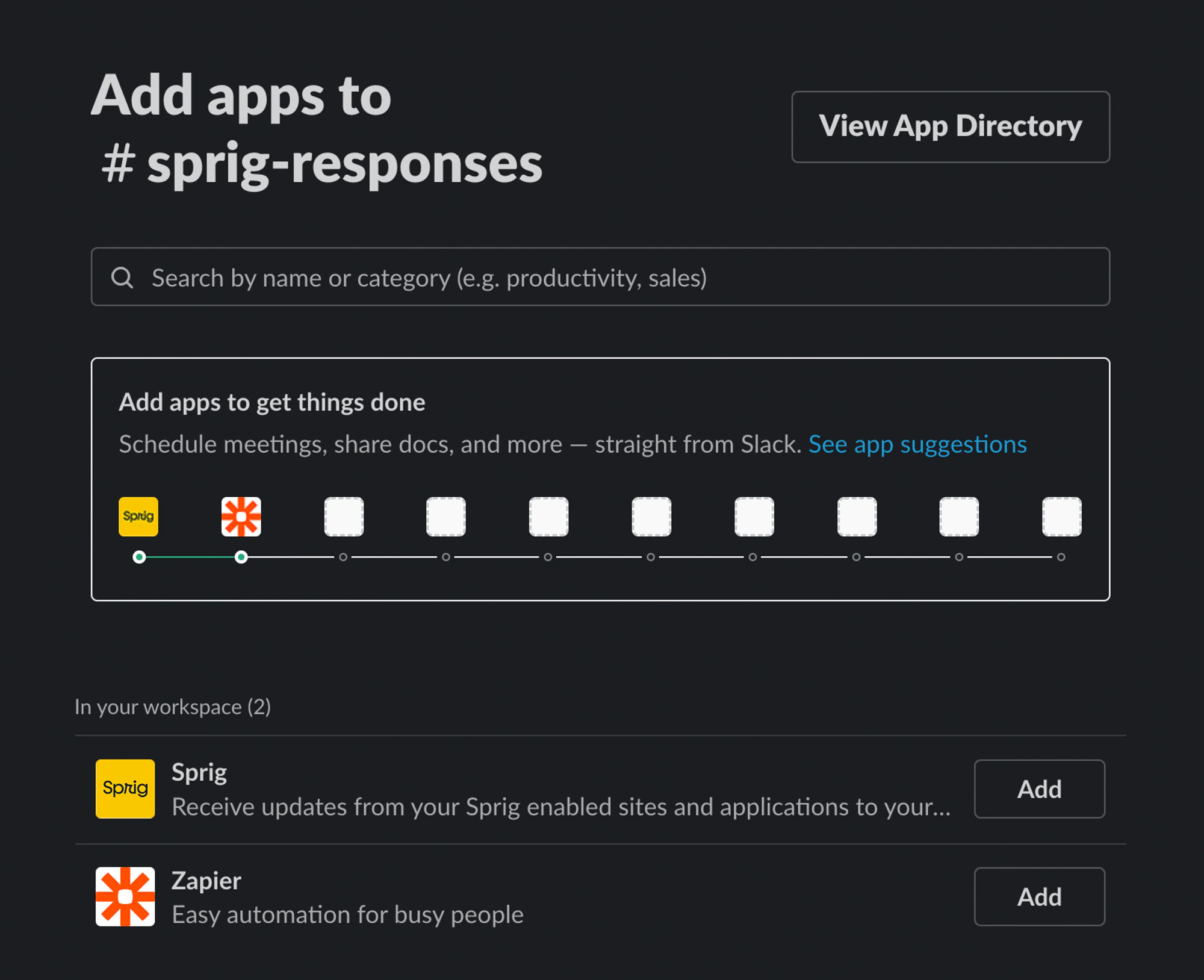
2. Slack will ask for permission to connect with Sprig. Please make sure you have the intended workspace selected, then click **Allow.**
3. Once authorized, you will be redirected to the **Connect tab** for your recently launched study. From here, you can set one or more Slack channels to receive response notifications.
### Method 3: Results page
1. For any in-progress study, navigate to the study’s results page and click on the **Connect tab**. From here, click **Connect.**
2. Slack will ask for permission to connect with Sprig. Please make sure you have the intended workspace selected, then click **Allow.**
3. Once authorized, you will be redirected back to the **Connect tab** for your recently launched study. From here, you can set one or more Slack channels to receive response notifications.
## Connect to private Slack channels
The Sprig bot must be invited to any private Slack channel that you wish to receive notifications.
1. In Slack, navigate to the private channel and click on the channel name to **Get channel details.**
2. In the modal that appears, select the **Integrations** tab, and click **Add an App.**
 3. **Sprig** should be listed in the **In your workspace** section. Click **Add** to invite the Sprig bot to your private channel.
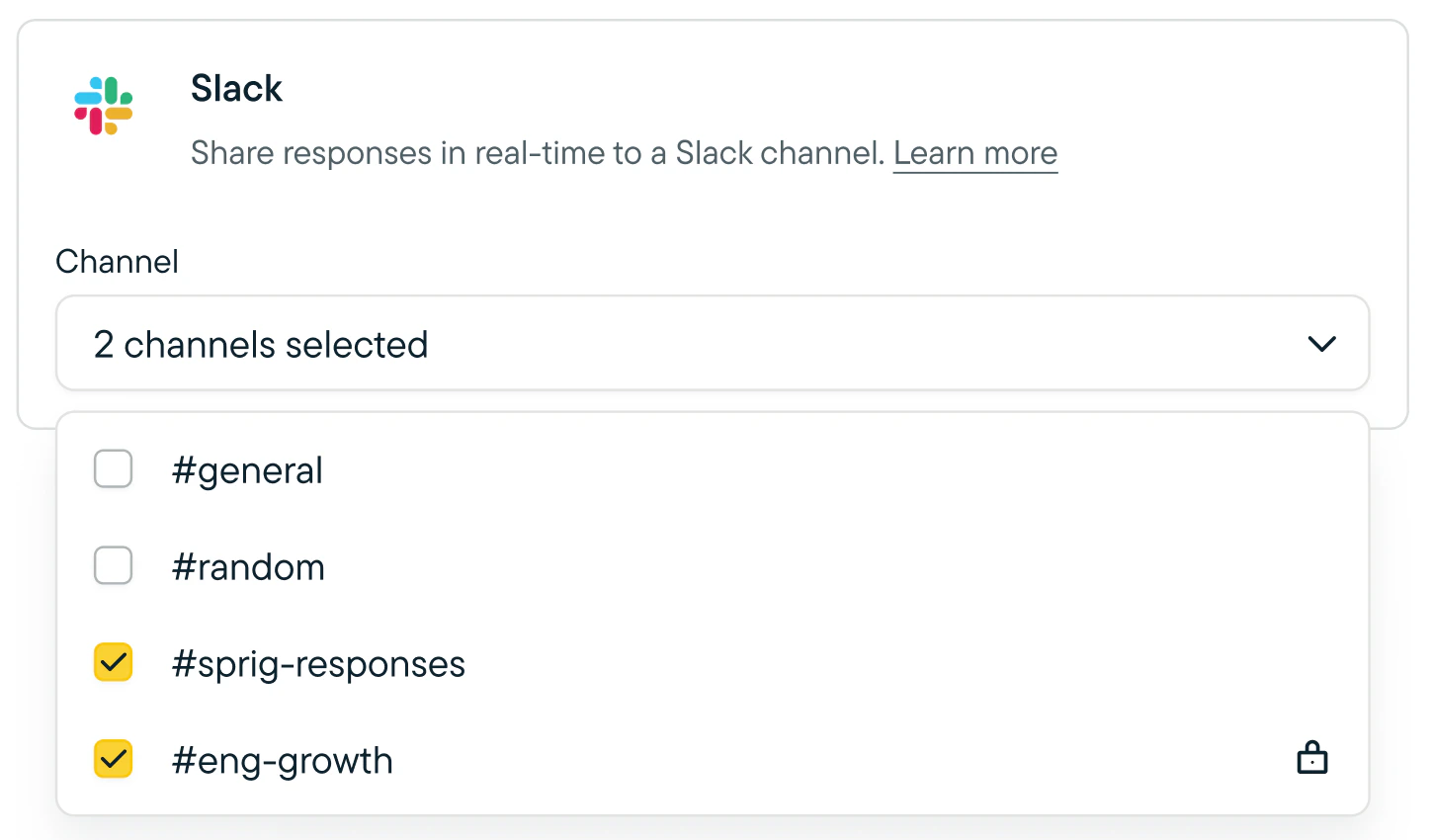
 4. In Sprig, you will now see your private channel as an option in the Select Channel dropdown. Private channels are denoted with a lock icon.
 * Note: If you have trouble connecting private Slack channels, your Slack connection may not have Private Channel Access enabled. This setting must be enabled prior to connecting your Slack workspace to Sprig. In order to fix this, on the Slack Integrations page, you must disconnect Slack, toggle on **Private Channel Access**, and re-connect Slack.
 ## Notification settings
 ### Default Channel (Optional)
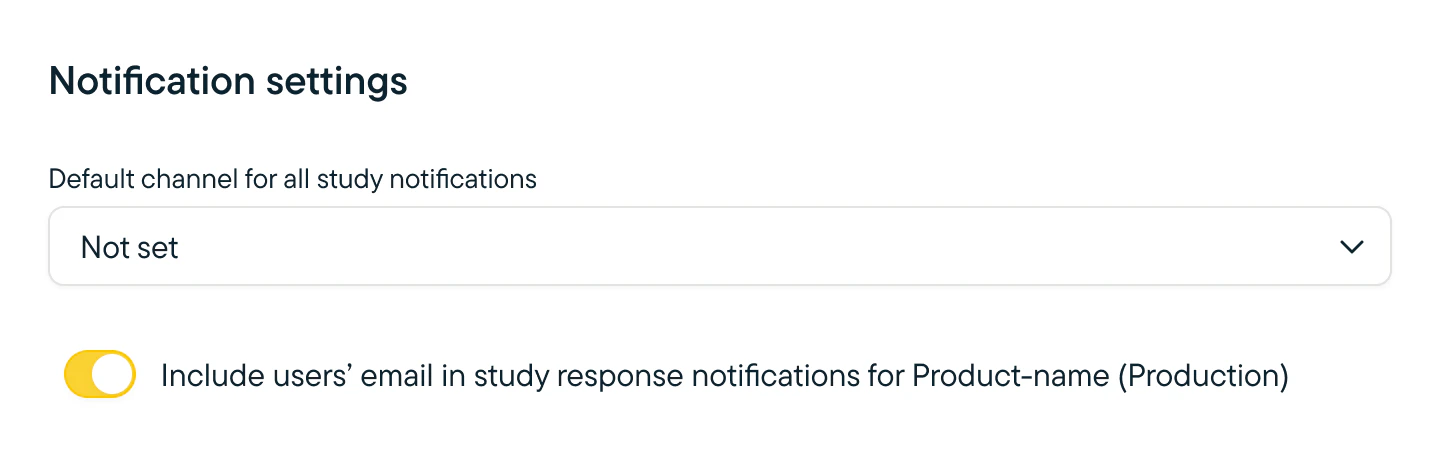
You can set a **Default channel for all study notifications**. This channel will receive a notification when any study is connected to Slack, completed, or receives a response. This is set at an **environment** level. If you do not wish to receive messages across all studies, leave it as Not Set.
### User Emails (Optional)
You can include a respondent’s email address in study response notifications by toggling it on under Notification Settings. The email address is populated from visitor attributes. This is set at an environment level.
## Disconnecting Slack
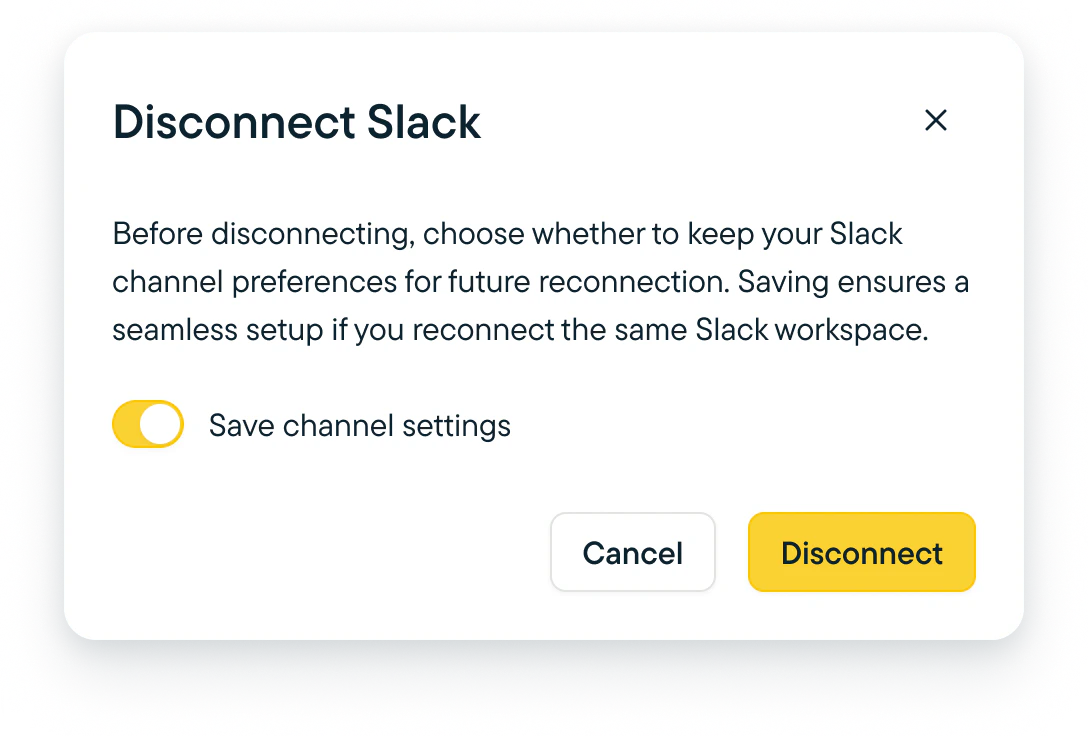
To remove the Slack integration, click the **Disconnect** button on the Slack Integration page, and on the modal, choose whether to save your channel settings and click **Disconnect**. This will remove the Sprig App from your workspace and stop all Sprig notifications from being sent to Slack.
For more information, visit the [Sprig Privacy Policy](https://sprig.com/privacy-policy).
### Default Channel (Optional)
You can set a **Default channel for all study notifications**. This channel will receive a notification when any study is connected to Slack, completed, or receives a response. This is set at an **environment** level. If you do not wish to receive messages across all studies, leave it as Not Set.
### User Emails (Optional)
You can include a respondent’s email address in study response notifications by toggling it on under Notification Settings. The email address is populated from visitor attributes. This is set at an environment level.
## Disconnecting Slack
To remove the Slack integration, click the **Disconnect** button on the Slack Integration page, and on the modal, choose whether to save your channel settings and click **Disconnect**. This will remove the Sprig App from your workspace and stop all Sprig notifications from being sent to Slack.
For more information, visit the [Sprig Privacy Policy](https://sprig.com/privacy-policy).