> ## Documentation Index
> Fetch the complete documentation index at: https://docs.sprig.com/llms.txt
> Use this file to discover all available pages before exploring further.
# Events
In Sprig, *Events* are used to [Trigger](/docs/shared-study-foundations/main-tasks/study-triggers-user-filters-and-groups-copy#study-triggers) a Study. They cause your Study to be displayed to the user. All Web and Mobile studies require an event as a Trigger. *Events* can also be employed as an audience [Filter](/docs/shared-study-foundations/main-tasks/study-triggers-user-filters-and-groups-copy), allowing you to refine further who is eligible to respond to the Study.
An *Event* is an action or occurrence in your website or application that allows you to track your users' behavior. Examples of *Events* include:
* Visiting a page
* Clicking or interacting with a button
* Scrolling to a specific point on a page
#### How to determine what kind of event you need?
Sprig offers several different solutions on ways to deploy events in your environment. Deciding what kind of event to implement is dependent on study requirements and technological factors:
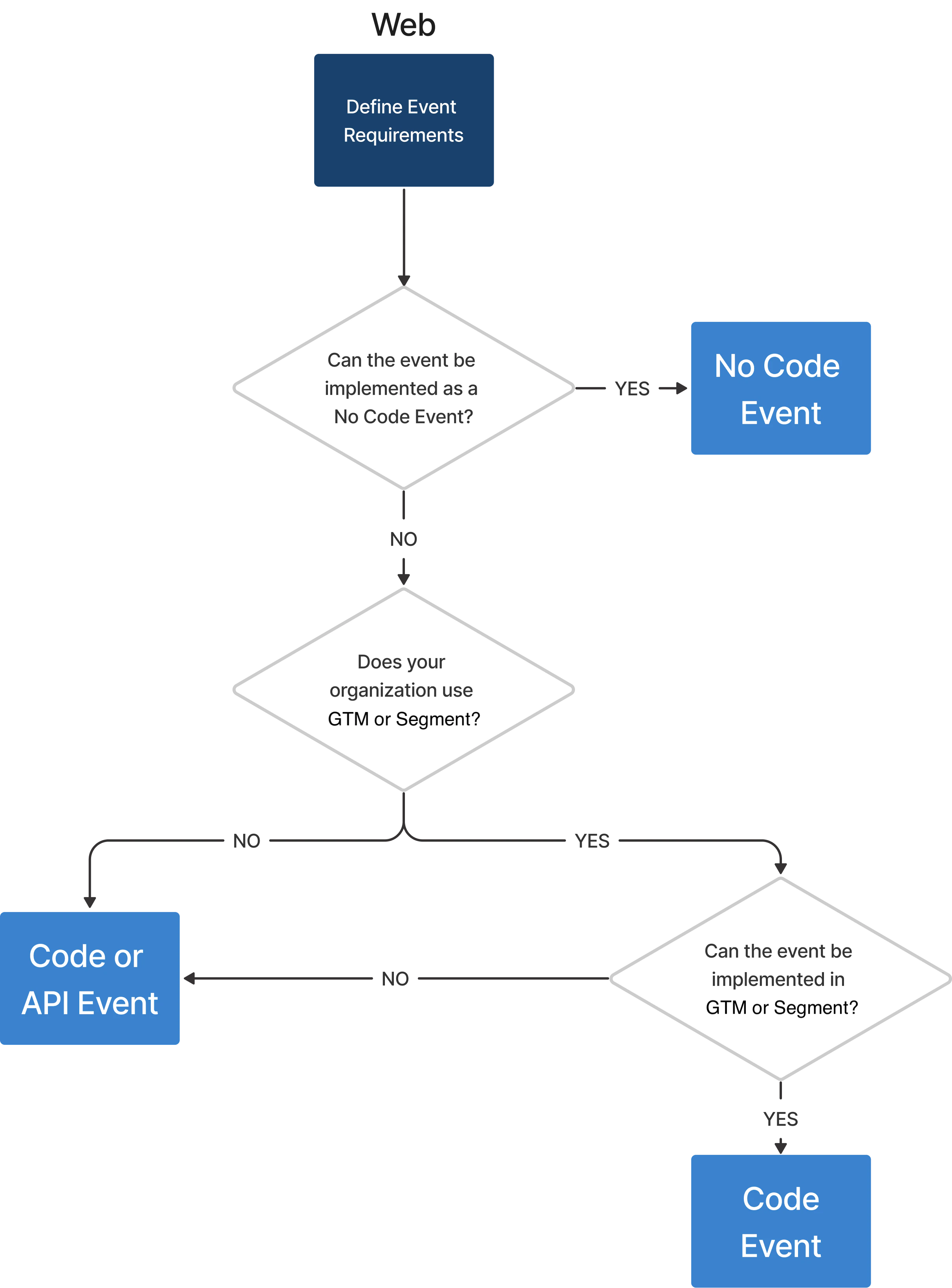
* What kind of action is it? Is it in a simple UI action like clicking a button or some higher-level concept like signing up for a new subscription? A [No-Code event](/docs/shared-study-foundations/events/no-code-events) might support simple UI action but might not support a more complex semantic.
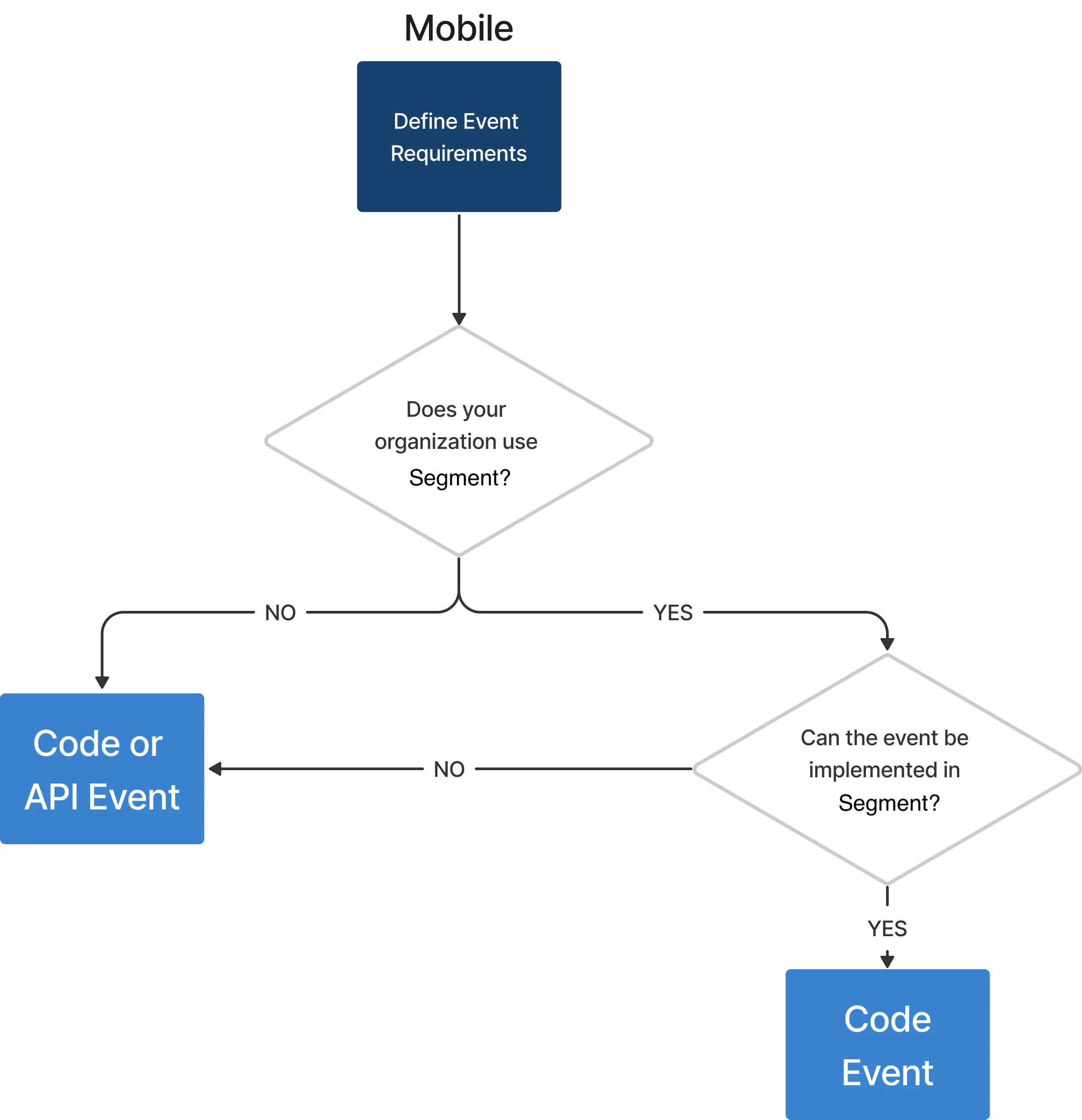
* What platform do you intend to launch your Study? Web studies support No-Code events, but mobile studies do not. Sprig Surveys and Sharable Link Studies do not support events.
* How good are your coding skills, and do you have access to the code? You may have to rely on a developer to implement your [code event](/docs/shared-study-foundations/events/code-events), or you may have access to GTM or other integration and not depend on a developer.
* Is it an event or an attribute? For example, do you want the Study to be triggered when the visitor completes the new subscription action, or would you like it to occur at a different time and only study those customers who have recently enrolled in a new subscription?
You could use two example workflows to determine what event type you need for Web and Mobile studies.
 ## Where You Can Use Events
Configuring Trigger and Filtering events are supported in the Sprig Application (No-Code), the Web and Mobile SDKs, Google Tag Manager, and Segment. The API only supports events for filtering. CSV Import does not support events.
| Event Type | Trigger | Filter |
| :-------------------------- | :------ | :----- |
| Sprig Application (No-Code) | ✅ | ✅ |
| Web SDK | ✅ | ✅ |
| Google Tag Manager | ✅ | ✅ |
| Mobile SDK | ✅ | ✅ |
| API | ❌️ | ✅ |
| Segment Actions | ✅ | ✅ |
| Segment Classic | ❌️ | ✅ |
## Adding Events
*Web* and *Mobile* studies require events to track user behavior to display studies at the appropriate moment. *Link* studies do not require events because they are delivered to respondents asynchronously. You can configure Sprig to listen for or receive events in two ways; either:
1. Using the Sprig app, or
2. Directly in the Website or App code where you launch your studies.
Events configured through the Sprig app are [No-Code](/docs/shared-study-foundations/events/no-code-events) events. Events configured in the Website or App where you want to launch your studies are [Code](/docs/shared-study-foundations/events/code-events) events.
## Editing and More Info
1. In the Navigation Pane, click **Events**.
2. Click on the Event that you want to view.
* The **Display Name** and **Description** may be changed.
* For [No-Code](https://docs.sprig.com/docs/shared-study-foundations/events/no-code-events) events, the trigger interaction can be toggled between **Page URL**, **InnerText,** and **CSS**. The **Page URL pattern** can also be edited.
* For [**Code**](/docs/shared-study-foundations/events/code-events) events, the **Key** cannot be modified as an external source generates it.
The **Display Name** updates the event label throughout Sprig; you can use it to provide a more readable label than **Key**.
## Archiving
Archiving an event stops the Event, triggering studies. Events cannot be archived when associated with an in-progress study. You will need to pause, archive, or complete the study related to that Event to archive the Event. You can unarchive a previously archived study.
Unlike pausing a Study, archiving an Event also halts the MTU count.
1. In the Navigation Pane, click **Events**
2. Make sure the filter is set to **Active Events**.
3. Click the check box next to the Event.
4. Click **Archive**.
5. Click **Archive** a second time when prompted.
## Unarchiving
Similarly, if you want to restart using an event, you can unarchive a previously archived event.
1. In the Navigation Pane, click **Events**
2. Make sure the filter is set to **Archived Events**.
3. Click the check box next to the Event.
4. Click **Unarchive**.
## Sorting
1. In the Navigation Pane, click **Events**
2. Click on the column header to sort the **Events**
3. Click on the column header a second time to reorganize the sorting order of the **Events**
## Filtering and Searching
1. In the Navigation Pane, click **Events**
2. Click **All Sources** and select the source to view.
3. Click **Active** or **Archived** to select which events to view.
If you select Web No Code Events as a source to view, if present, events from Segment Web and Google Tag Manager sources will also be included.
## Inspecting and Diagnosing
1. In the Navigation Pane, click **Events**
2. To learn more about how often the event is firing, hold the pointer over the diagnostics icon in **Usage**.
3. If the diagnostics icon is grey, your event is either not added correctly or has been turned off from your website, web application, or mobile application.
4. If the diagnostics icon is green, your event is being tracked and is available for triggering or filtering a study.
5. The following tooltip will be displayed:
## Where You Can Use Events
Configuring Trigger and Filtering events are supported in the Sprig Application (No-Code), the Web and Mobile SDKs, Google Tag Manager, and Segment. The API only supports events for filtering. CSV Import does not support events.
| Event Type | Trigger | Filter |
| :-------------------------- | :------ | :----- |
| Sprig Application (No-Code) | ✅ | ✅ |
| Web SDK | ✅ | ✅ |
| Google Tag Manager | ✅ | ✅ |
| Mobile SDK | ✅ | ✅ |
| API | ❌️ | ✅ |
| Segment Actions | ✅ | ✅ |
| Segment Classic | ❌️ | ✅ |
## Adding Events
*Web* and *Mobile* studies require events to track user behavior to display studies at the appropriate moment. *Link* studies do not require events because they are delivered to respondents asynchronously. You can configure Sprig to listen for or receive events in two ways; either:
1. Using the Sprig app, or
2. Directly in the Website or App code where you launch your studies.
Events configured through the Sprig app are [No-Code](/docs/shared-study-foundations/events/no-code-events) events. Events configured in the Website or App where you want to launch your studies are [Code](/docs/shared-study-foundations/events/code-events) events.
## Editing and More Info
1. In the Navigation Pane, click **Events**.
2. Click on the Event that you want to view.
* The **Display Name** and **Description** may be changed.
* For [No-Code](https://docs.sprig.com/docs/shared-study-foundations/events/no-code-events) events, the trigger interaction can be toggled between **Page URL**, **InnerText,** and **CSS**. The **Page URL pattern** can also be edited.
* For [**Code**](/docs/shared-study-foundations/events/code-events) events, the **Key** cannot be modified as an external source generates it.
The **Display Name** updates the event label throughout Sprig; you can use it to provide a more readable label than **Key**.
## Archiving
Archiving an event stops the Event, triggering studies. Events cannot be archived when associated with an in-progress study. You will need to pause, archive, or complete the study related to that Event to archive the Event. You can unarchive a previously archived study.
Unlike pausing a Study, archiving an Event also halts the MTU count.
1. In the Navigation Pane, click **Events**
2. Make sure the filter is set to **Active Events**.
3. Click the check box next to the Event.
4. Click **Archive**.
5. Click **Archive** a second time when prompted.
## Unarchiving
Similarly, if you want to restart using an event, you can unarchive a previously archived event.
1. In the Navigation Pane, click **Events**
2. Make sure the filter is set to **Archived Events**.
3. Click the check box next to the Event.
4. Click **Unarchive**.
## Sorting
1. In the Navigation Pane, click **Events**
2. Click on the column header to sort the **Events**
3. Click on the column header a second time to reorganize the sorting order of the **Events**
## Filtering and Searching
1. In the Navigation Pane, click **Events**
2. Click **All Sources** and select the source to view.
3. Click **Active** or **Archived** to select which events to view.
If you select Web No Code Events as a source to view, if present, events from Segment Web and Google Tag Manager sources will also be included.
## Inspecting and Diagnosing
1. In the Navigation Pane, click **Events**
2. To learn more about how often the event is firing, hold the pointer over the diagnostics icon in **Usage**.
3. If the diagnostics icon is grey, your event is either not added correctly or has been turned off from your website, web application, or mobile application.
4. If the diagnostics icon is green, your event is being tracked and is available for triggering or filtering a study.
5. The following tooltip will be displayed:
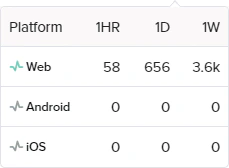 If you are using other platforms, for example, [Segment](/docs/Installation/introduction-web/segment-web), they will also be displayed in the tooltip.