

Overview
Draw further insights from your data by exporting a CSV file. CSV exports will be delivered to the user who requested them through a link in an email.Note: Exporting CSV files is available for Surveys, In-Product-Surveys, and Feedback studies.
Download a CSV File
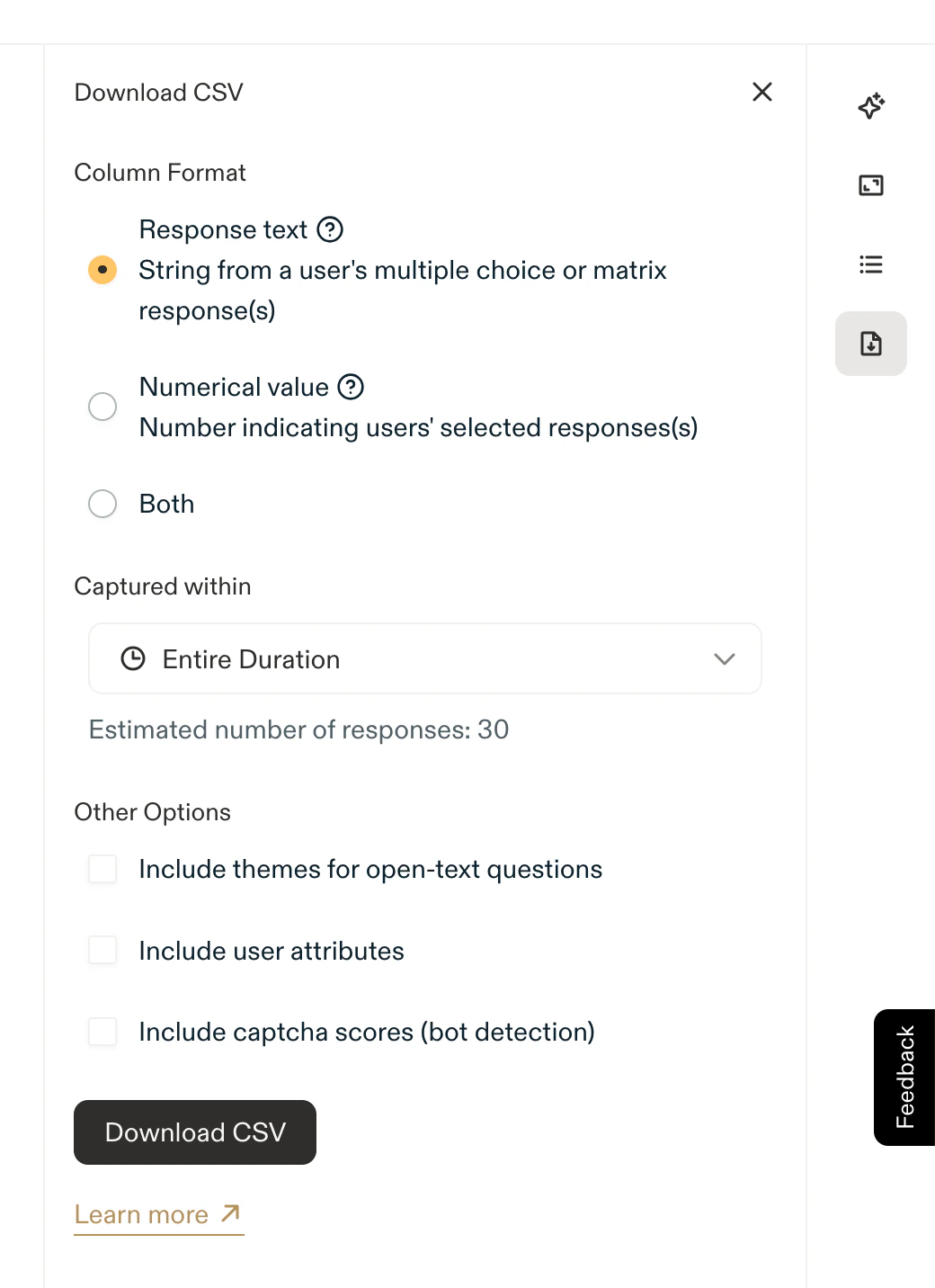
- Open a Survey, In-Product Survey, or Feedback study
- In the right sidebar, select Download CSV
- Choose a Column Format:
- Response text (Recommended) - a string describing the selected choice or theme
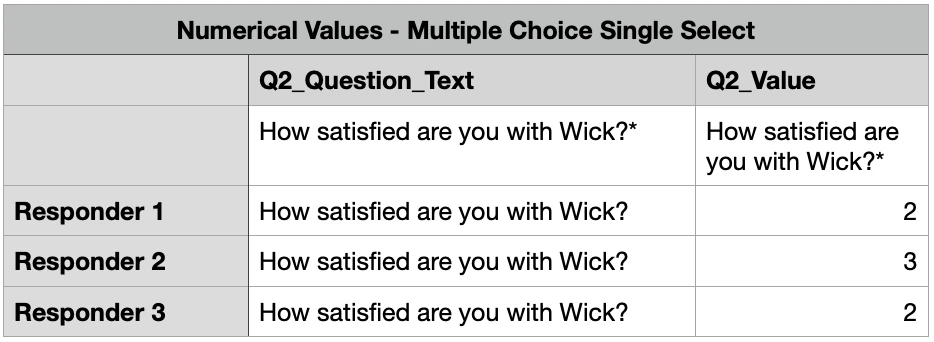
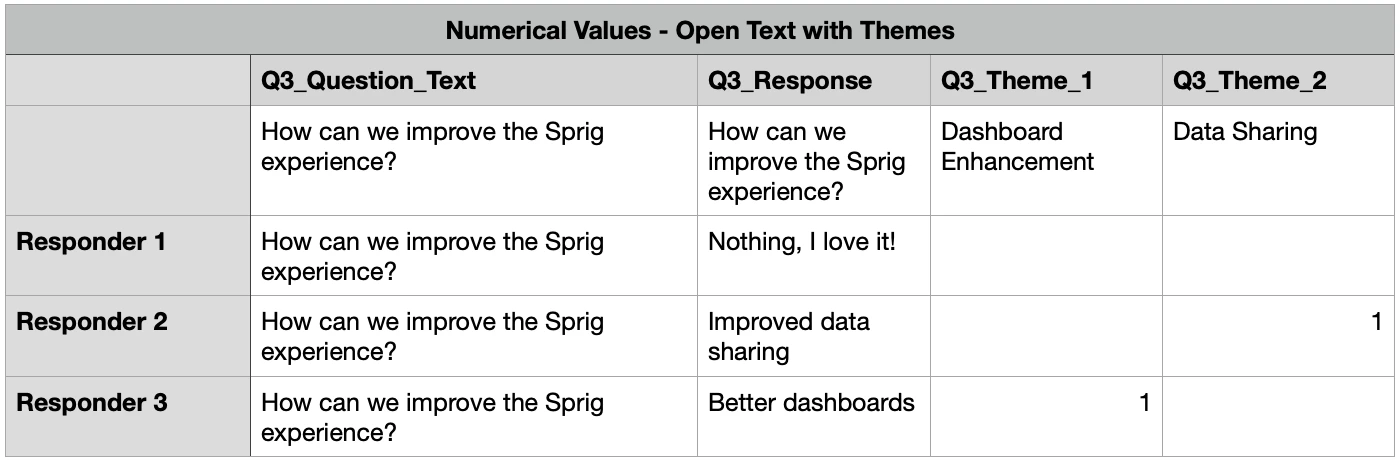
- Numerical value (preferred by Data Scientists) - an integer describing the selected choice or theme
- Both
- (Optional) Select a timeframe to export a specific set of responses
- CSV exports support up to 950,000 rows. The Download CSV button will be disabled when viewing surveys that have more than this number of responses. Date filters can be used to narrow the number of responses and continue with exporting the data.
- (Optional) Include themes generated by Sprig AI for open-text question responses
- (Optional) Include user attributes (that were used for survey targeting) alongside responses
- (Optional) Include bot detection captcha scores for manual review
- Bot Detection must be enabled for the Sprig account to see the “Include captcha scores (bot detection)” checkbox.
- Select Download CSV - An email with a link to download the CSV will be delivered to your email inbox when the file is ready
- For surveys with a large number of responses, it could take time for the email to arrive.
- The link will expire after 1 week.
Column Format Options
Response Text
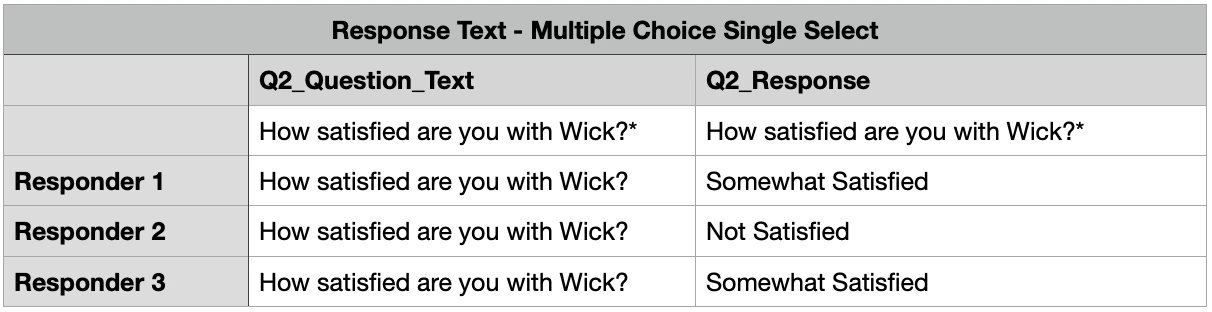
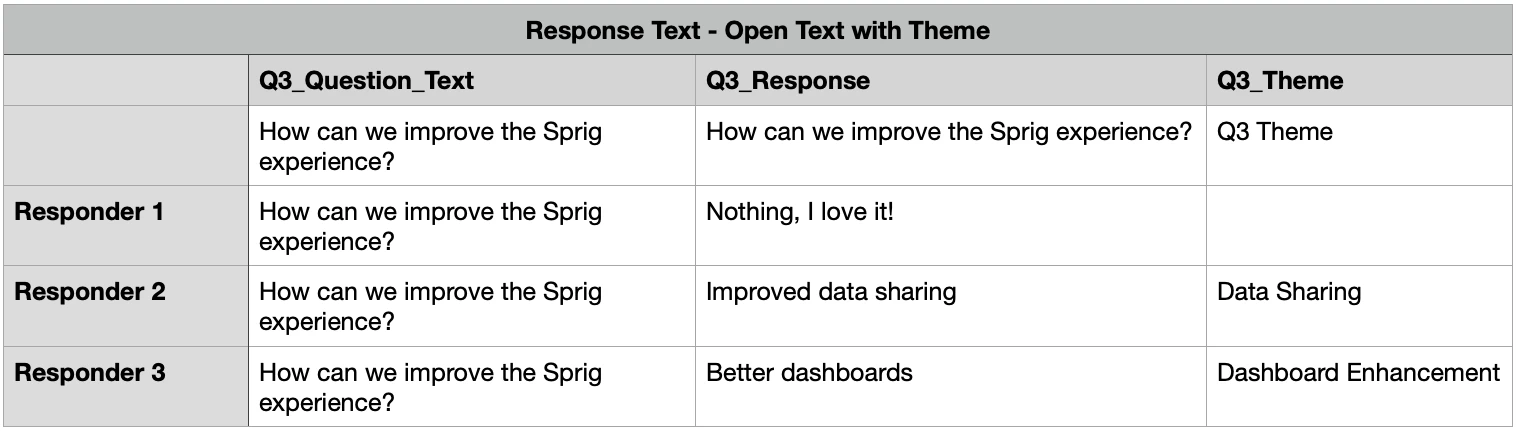
Below are examples of what responses to Multiple Choice Multi-Select, Multiple Choice Single-Select, and Open Text questions with Themes will look like when exporting a CSV using the Response text Column Format: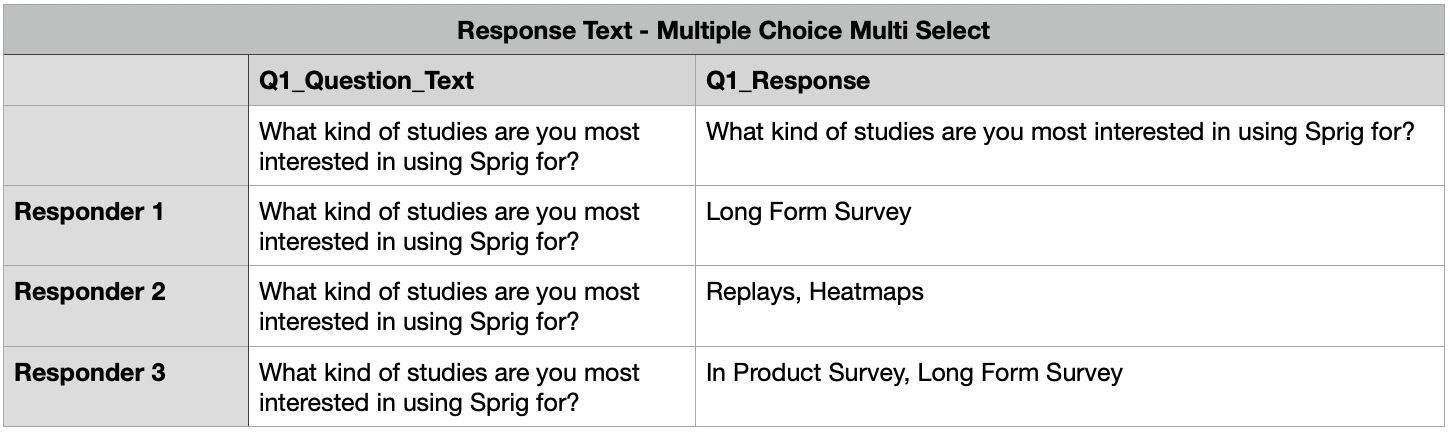
Numerical Values
When selecting the Numerical value Column Format, Multiple Choice Multi-Select questions will have answers indicated by a 1 that corresponds to a selection or 0 if a choice was not selected. Multiple Choice Single-Select and Matrix questions will have a number corresponding to the choice selected. If the third choice is selected, for example, the cell will have a 3 in it. Below are examples of what responses to Multiple Choice Multi-Select, Multiple Choice Single-Select, and Open Text questions with Themes will look like when exporting a CSV using the Numerical value Column Format: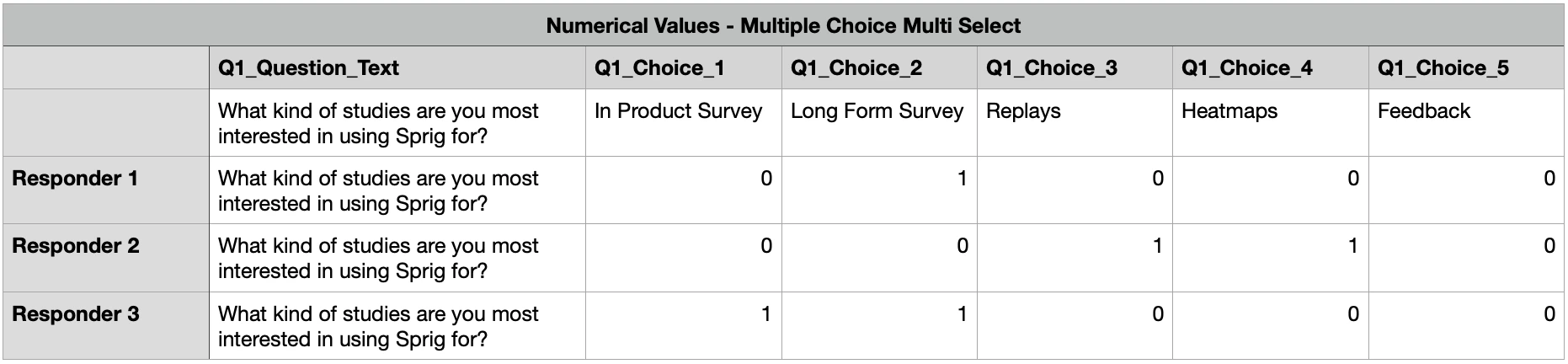
Note: All other question types will have their data structure displayed the same, regardless of column format choice.
File Columns
The following columns will be provided in the export:- surveyId: Number
- surveyName: String
- visitorId: UUID
-
href: String
- For Surveys: the URL used to access the study
- For In-Product Surveys and Feedback studies: the page URL on which the study appeared
-
createdAt: Datetime
- The study response start time/date in UTC
-
completedAt: Datetime | Nullable
- The study completion time/date, if available, in UTC
- userId: String | Nullable
- partnerAnonymousId: UUID
-
os: String
- The client OS
- browser: String
-
userAgent : String
- Information about the user’s browser and client
-
captchaScore : Number | Nullable
- When the “Include captcha scores (bot detection)” checkbox is toggled, Sprig will return a column for captcha scores
-
customMetadata: Object
- This will be an empty Object
{}if there is no available custom metadata
- This will be an empty Object
-
triggeringEvent: String
- The event that triggered the study for In-Product Surveys and Feedback studies
- responseGroupUid: UUID
-
eventProperties: Object
- This will be an empty Object
{}if there are no available event properties
- This will be an empty Object
-
Q#_Question_Text: Text Object
- This is the stringified output of the question text. Due to the variable nature of AI follow-up question text and piping in questions, the text shown to the user is presented in this column
-
Q#_Response: Response Object
- This is the stringified output of the response. The response data comes in number, string, and object data types
-
Themes: String
- When the “Include themes” checkbox is toggled, Sprig will return columns with theme data after an Open Text question response
-
Attributes_#: String
- When the “Include user attributes” checkbox is toggled, Sprig will append columns for all attributes included in CSV export