

1. Locate Your Study
- Navigate to your Studies.
- Browse, sort by, or search for the study you wish to view. Simply click into the study to review results and AI insights.
2. Review Responses, Results, and Recordings
- Scroll down, scan, and hover on elements on the Summary, “Clips”, and “Responses” tabs.
- Sprig will automatically generate charts for each question in In-Product Surveys, Surveys, and Feedback studies on the “Summary” tab. Individual responses can be read and segmented on the “Responses” tab.
- Sprig will provide multiple visualizations automatically for Heatmap studies on the “Summary” tab (heatmaps, scroll maps, and click maps)
- Sprig will provide a filterable table view of all replay clips on the “Clips” tab, and automatically generate replay themes using AI on the “Summary” tab
- Use the filters on the Summary, Clips, and Responses tabs to refine the dataset if desired.
- Filter by attributes, question responses, date range, events, etc., depending on the study type
- For more information on filtering study results, see here
3. Exclude a Response from Analysis
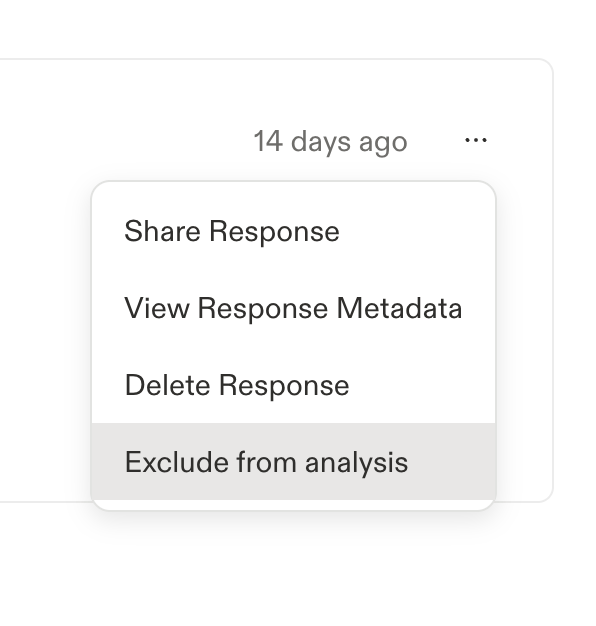
If a response is skewing your results (a test submission, spam, or an answer that doesn’t reflect a real user), you can exclude it from analysis without deleting it.- Go to the Responses tab of a study.
- Find the response you want to hide and click the ellipsis (…) on the right side of it.
- Select Exclude from analysis.

- The Data tab
- The AI Study Report (and Study Summary)
- Theme counts
- The Responses tab
- Total Responses (the count in the study header)
- Open text analysis (theme generation)
- AI Insights
- CSV exports
- The public API and MCP
4. Share Results
- Toggle over to the Responses or “Clips” tab at the top
- Scroll and scan the individual responses and Replay recordings.
- Share results:
- Export survey and feedback responses by choosing Download CSV from the right-hand toolbar
- Share replay clips by selecting “Share clip” from the playback window
- Share individual survey and feedback responses by clicking the ellipsis (…) on any response and selecting “Share Response.”
- Use any of Sprig’s APIs, Webhooks, or pre-built integrations to export survey response data to other platforms or internal tools