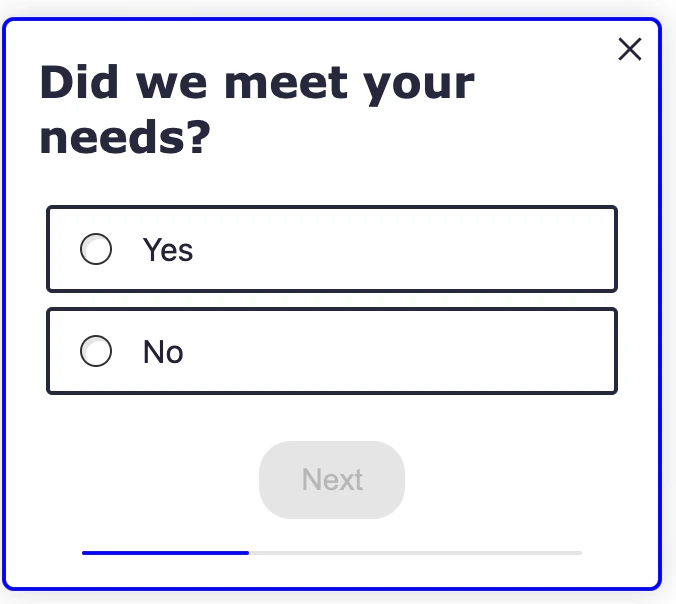
- Settings > Surveys > Look & Feel > CSS OR
- Settings > Feedback > Look & Feel > CSS
Note: currently Sprig only supports 1 CSS styling theme per Sprig Product. Per study styling is coming soon!
Styling for dark mode? Sprig studies can follow the respondent’s system appearance. The code shown in the editor below is a light-mode-only snapshot and does not include the CSS variables the dark stylesheet relies on. See Dark Mode before adding any color rules.
Introduction
A single CSS file applies to all survey question types, although some CSS selectors only apply to HTML elements on specific survey types. Any un-commented out CSS you add will override the default styling to all surveys when saved, including any in-progress studies. Do proceed with caution when applying. When you open the Custom CSS editor, you’ll see a block of commented-out code. These aren’t “extra” styles you need to delete or modify, they’re simply the default Sprig styles shown for reference. You can ignore them if you like or choose to clear the window.Basic instructions:
- Add your own CSS below the comments, or replace selectors with your own.
- The default file is organized by general styles and question-type-specific styles.
- You can make modifications directly in this editor or paste in your own CSS.
- Use the preview panel to test changes across question types.
- The preview will update with the changes you make to your CSS. You can select each of the question types from underneath the preview to see how your custom CSS changes their appearance. Note that not all changes will be shown in previews until the CSS styling configurations are saved. We encourage testing in a development environment and then copy and pasting the curate styling into production.
- Defaults will remain unless overridden.
- Custom CSS applies to all surveys within a product, including active surveys.
CSS variables
Underneath the selectors shown in the editor, Sprig’s stylesheets are built on CSS custom properties (variables) for color, e.g.--text-color, --background-color, --selection-background-color. Every selector below reads its color from one of these variables rather than a hardcoded value.
You don’t need to touch variables to use custom CSS; overriding a selector directly (as shown throughout this page) works fine. Variables matter once you want the same color change to apply automatically in both light and dark mode, since a variable you set once is picked up everywhere Sprig uses it.
The full variable reference, and the three patterns for using them, live on the Dark Mode page rather than duplicated here.
The Practical Guide
The 600+ lines of default CSS have JSDoc style comments that organize all the selectors.- Base Typography
- Universal Elements
- Card Component
- Rich Text
- Choice Elements
- Buttons
- Matrix Questions
- One to Five Scale (Likert)
- NPS Question
- Open Text Card
- Text or URL Prompt
- Consent or Legal Card
- Rank Order
- AI Follow-Up & AI Dynamic Question
- Thank You Card
- Feedback Button & Container
Base Typography
What it controls: global text feel.Try:
All selectors in this section
All selectors in this section
html, body, b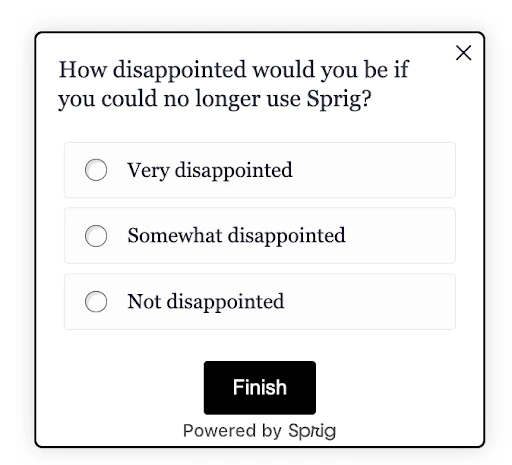
Universal Elements
What it controls: the little bits around the card (footers, dots, close button).Try:
All selectors in this section
All selectors in this section
.ul-footer, .ul-footer-bubble, .close-container, .close-btn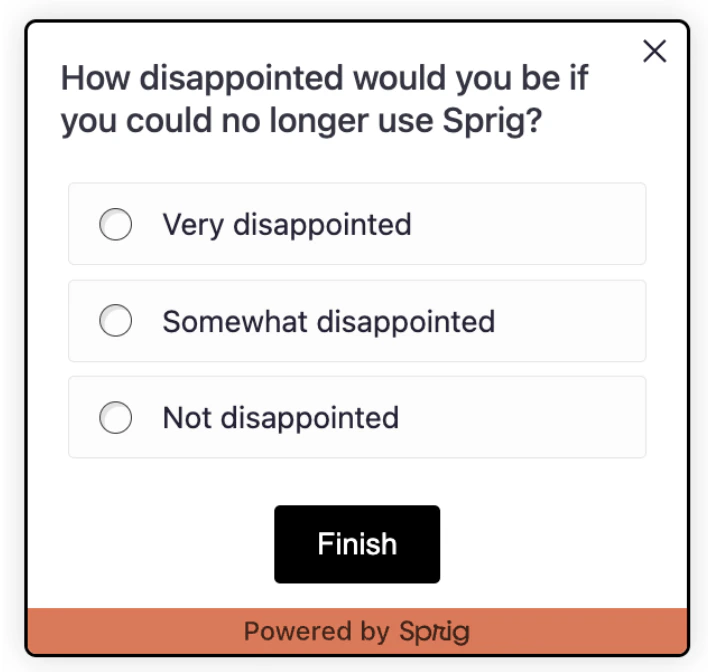
Card Component
What it controls: the survey “card”, padding, shadow, radius.Try:
All selectors in this section
All selectors in this section
.ul-card, .ul-card__container--desktop, .ul-card__container--mobile, .ul-card__container, .ul-card-main-content, .ul-question, .ul-caption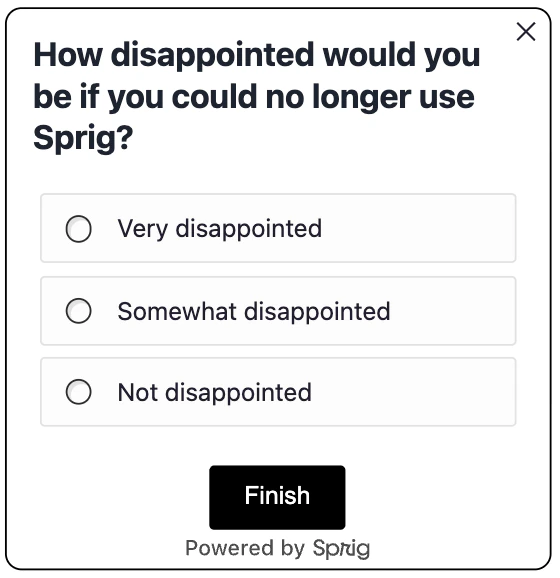
Rich Text
What it controls: paragraphs and lists in rich text cards.Try:
All selectors in this section
All selectors in this section
.ul-rich-text-body, .ul-rich-text-body p, .ul-rich-text-body li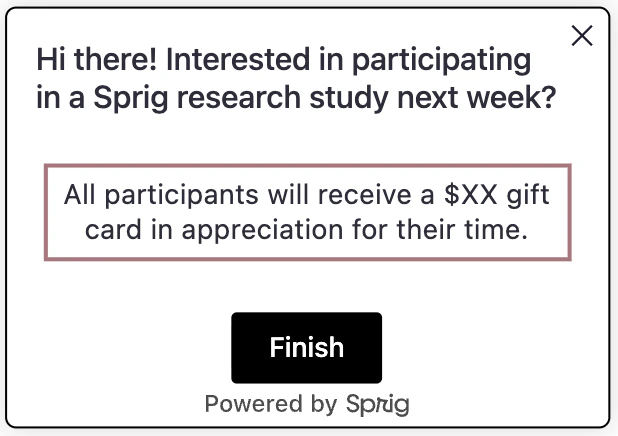
Choice Elements
What it controls: option “buttons,” spacing, radio dots, labels (multiple choice, multi-select, matrix options).Try:
All selectors in this section
All selectors in this section
.ul-card--multiple, .ul-card__choices--desktop, .ul-card__choices--mobile, .ul-card__choices, .choice--mobile, .choice--desktop (has :hover/:active states), .choice, .select-label, .select-radio, .ul-select-active-dynamic-style .select-radio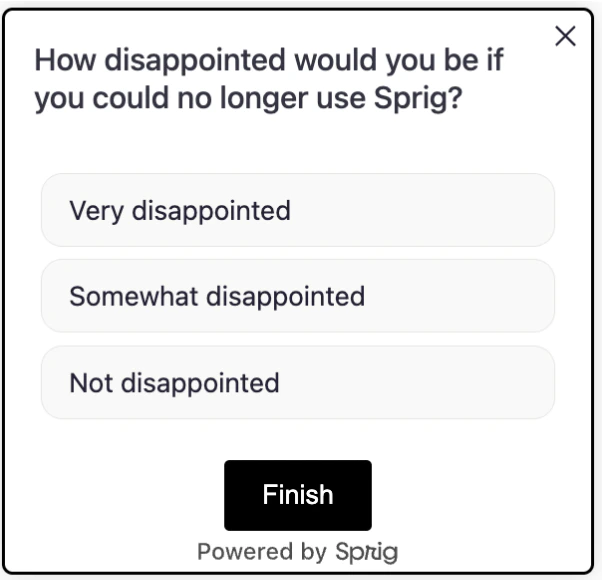
Buttons
What it controls: primary/secondary actions (finish/submit). Buttons appear across nearly every question type, not just one, so this section sits with the other general-purpose selectors above.Try:
All selectors in this section
All selectors in this section
.ul-card-text__button, .ul-card-text__button:disabled, .ul-card__button-wrapper, .ul-card-skip__button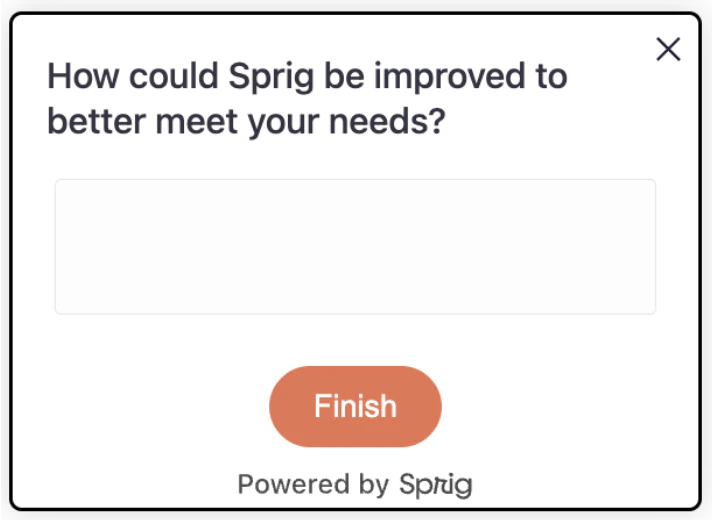
Matrix Questions
What it controls: row/column labels and cells.Try:
All selectors in this section
All selectors in this section
.ul-card--matrix_grid, .ul-card--matrix_container, .ul-matrix-column-label, .ul-matrix-option-wrapper, .ul-matrix-last-option, .ul-matrix-row-label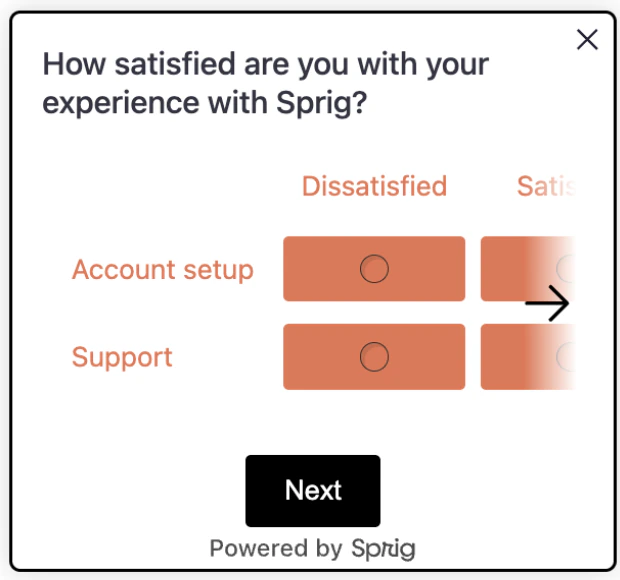
One to Five Scale (Likert)
What it controls: the row of numbers and labels beneath.Try:
All selectors in this section
All selectors in this section
.ul-card--likert, .ul-card--likert__numbers, .likert-number--mobile, .likert-number--desktop (has :hover/:active states), .likert-number, .ul-card--likert__labels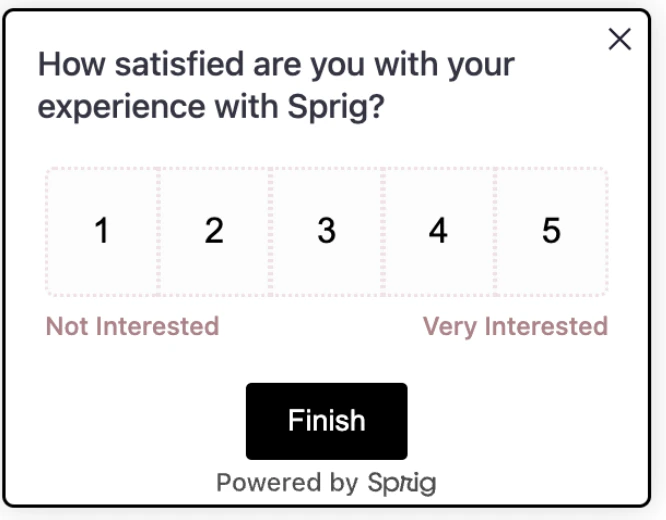
NPS Question
What it controls: the number grid and label row.Try:
All selectors in this section
All selectors in this section
.ul-card--nps, .ul-card--nps__numbers, .nps-number--mobile, .nps-number--desktop (has :hover/:active states), .nps-number, .ul-card--nps__labels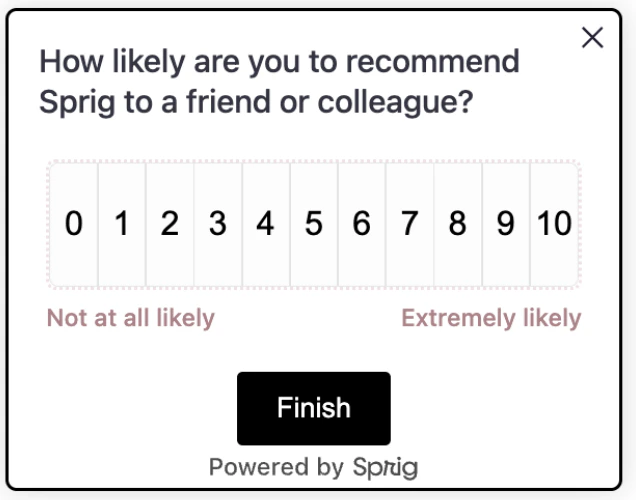
Open Text Card
What it controls: text areas and their container.Try:
All selectors in this section
All selectors in this section
.ul-card--text, .ul-card-text, .ul-card-text__container, .ul-card-text__input--mobile, .ul-card-text__input--desktop (has a :hover state), .ul-card-text__input (has ::placeholder/:focus states)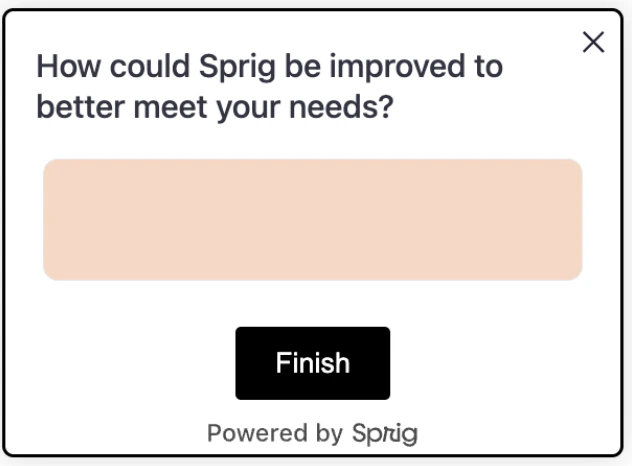
Text or URL Prompt
What it controls: the prompt button styling.Try:
All selectors in this section
All selectors in this section
.ul-card__text-url-prompt, .ul-card__text-url-prompt-button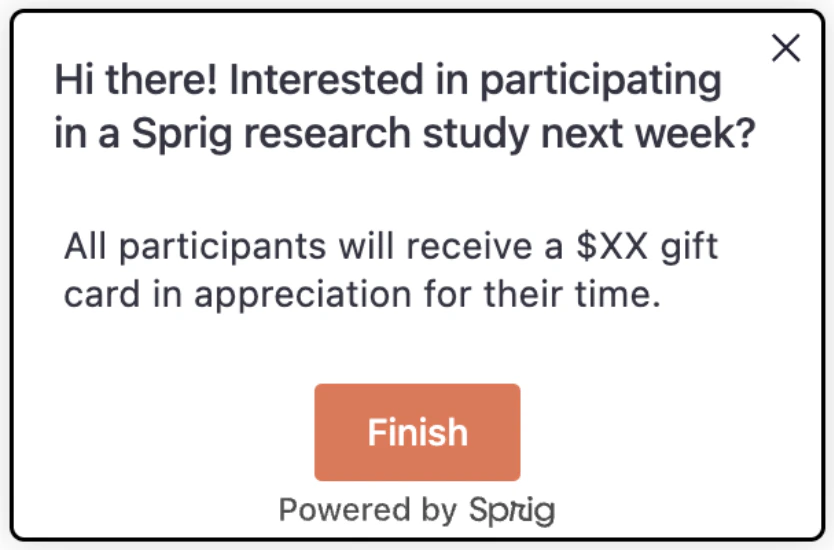
Consent or Legal Card
What it controls: name input and consent choices.Try:
All selectors in this section
All selectors in this section
.ul-consent-legal__name-input--mobile, .ul-consent-legal__name-input--desktop (has a :hover state), .ul-consent-legal__name-input (has ::placeholder/:focus states), .ul-card__consent-legal .choice, .ul-card__consent-legal .choice--desktop (has :hover/:active states), .ul-card__consent-legal .choice--mobile (has an :active state)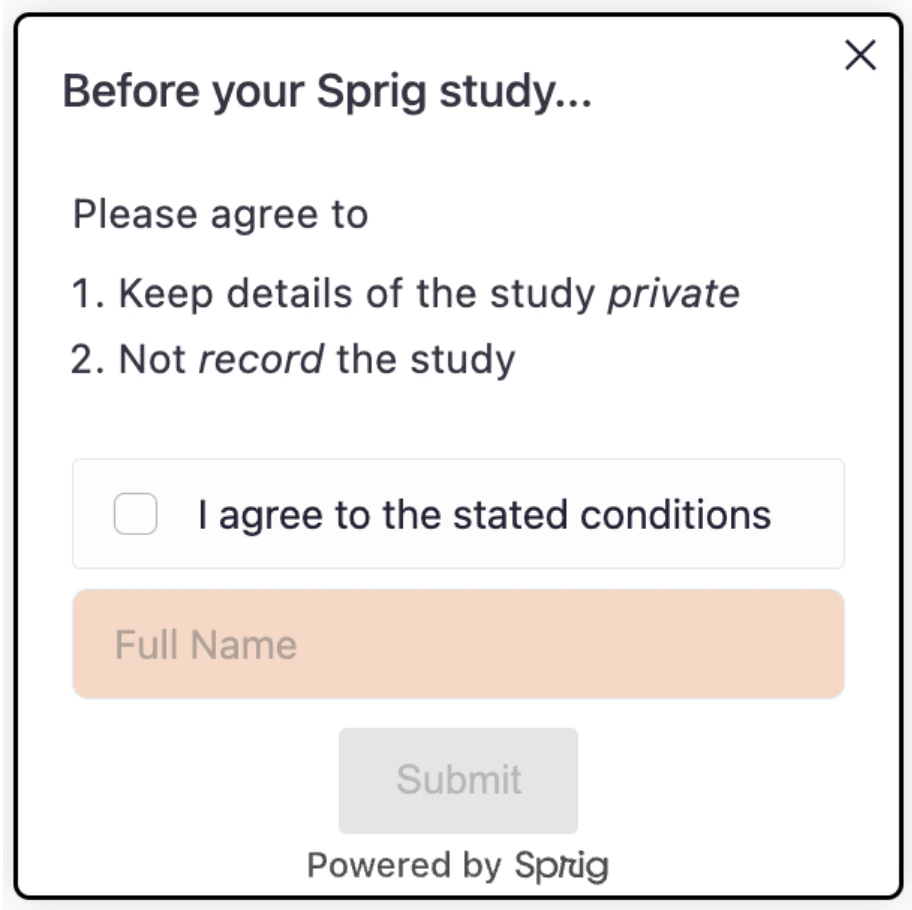
Rank Order
What it controls: draggable rows, drag handle, and the rank select dropdown.Try:
All selectors in this section
All selectors in this section
.ul-card-rank__labels, .ul-card--rank__question-inner-container, .ul-card-rank__list, .ul-card-rank__option (has an :active state, plus .is-dragging and .is-drop-target modifier classes), .ul-card-rank__option.is-drop-target select, .ul-card-rank__option.is-drop-target span, .ul-card-rank__option.is-drop-target button, .ul-card-rank__drag-btn (has an :active state), .ul-card-rank__option svg, .ul-card-rank__option span, .ul-card-rank__select, .ul-card-rank__select.ul-card-rank__select--placeholder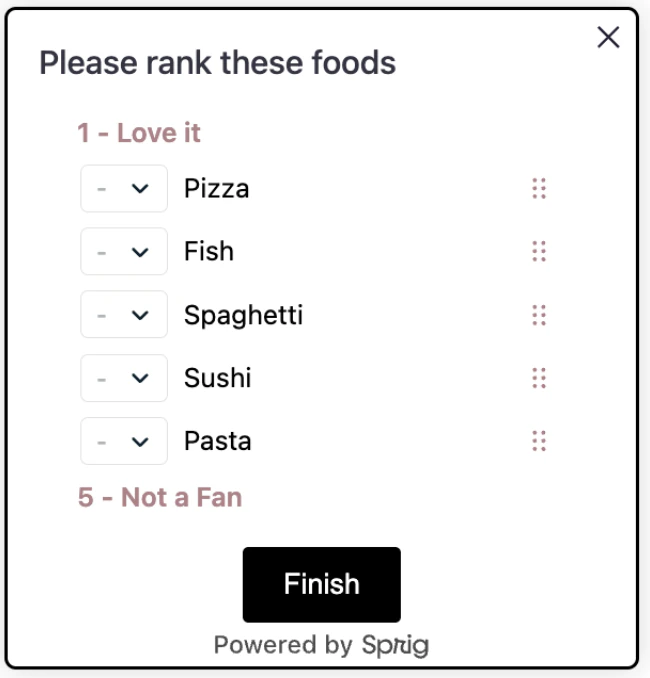
AI Follow-Up & AI Dynamic Question
What it controls: the loading indicator shown while an AI Follow-Up or AI Dynamic Question is generated. Everything else on these question types shares styling with the Open Text Card.Try:
All selectors in this section
All selectors in this section
.ul-card-text__input__loadingThank You Card
What it controls: closing screen layout and text.Try:
All selectors in this section
All selectors in this section
.ul-card--thanks, .ul-thanks-check, .ul-card--thanks-content, .ul-card--thanks .ul-question, .ul-card--thanks .ul-caption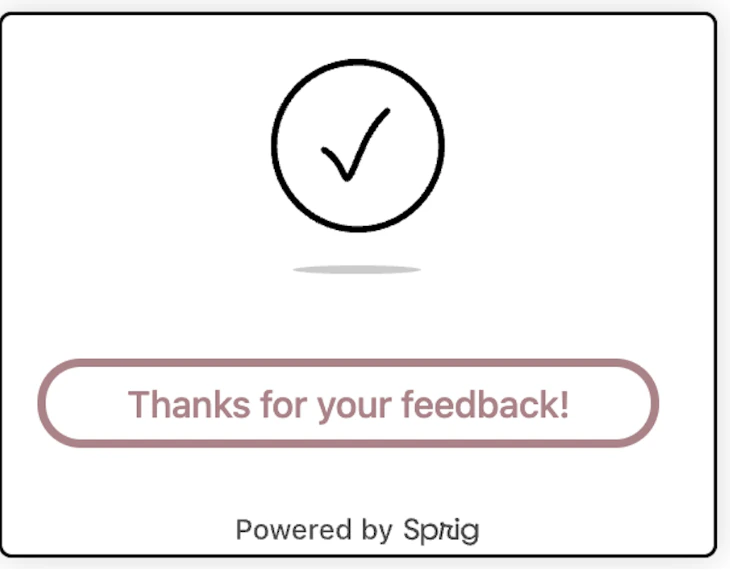
Feedback Button & Container
What it controls: the floating Feedback button and the container it opens into. These selectors are only relevant to the Feedback tab’s CSS editor, not surveys.Try:
.sprig-feedback-button-light / .sprig-feedback-button-dark are not the same as the dark mode covered on the Dark Mode page. These two classes correspond to the Feedback button’s own Light/Dark theme setting in Look & Feel — a manual choice you make once for the button, not something that responds to the respondent’s system appearance. If you want the Feedback button itself to follow prefers-color-scheme, you’ll need to write that media query yourself against these selectors.All selectors in this section
All selectors in this section
#sprig-feedback-button, .sprig-feedback-button-label, .sprig-feedback-button-right, .sprig-feedback-button-bottom, .sprig-feedback-button-light, .sprig-feedback-button-dark, #sprig-feedback-container, .sprig-feedback-container-left, .sprig-feedback-container-center, .sprig-feedback-container-bottomQuick Recipes
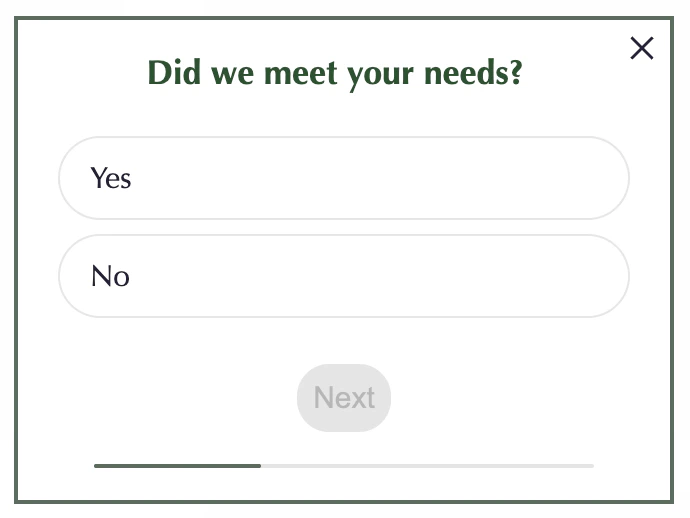
“Choose-Your-Own-Theme” recipes designed to help you tailor the look and feel of your studies.These recipes are light-mode only. If dark mode is enabled for your product, pair them with a
@media (prefers-color-scheme: dark) block — see Dark Mode for the patterns to use.Minimal Branded Look
High Contrast for Accessibility