

Overview
Sprig supports sending study responses to Segment (via Segment Streams) each time a response is received. These responses can then be exported to one or more of Segment’s Destination integrations. First, you will need to create the Sprig Source in Segment, and then you can configure one or more Segment destinations.Connecting Sprig to Segment
- Sprig currently does not appear as a Source in Segment, but you can set an HTTP endpoint as a source in Segment’s workspace to receive Sprig’s data as a stream. In Segment, click Connections, then click Sources.
- Search for HTTP in the Sources Catalog and click Add Source.
- Next, type in a Source name. As well as project-specific labels, consider incorporating the Sprig production and development environments in your naming convention.
- Type in the URL of your website and click Add Source.
- Click Copy Snippet and paste the code so that it is referenced in the
<head>section of all the pages that can display Studies. - Click Settings and API Keys.
- Click Copy next to Write Key.
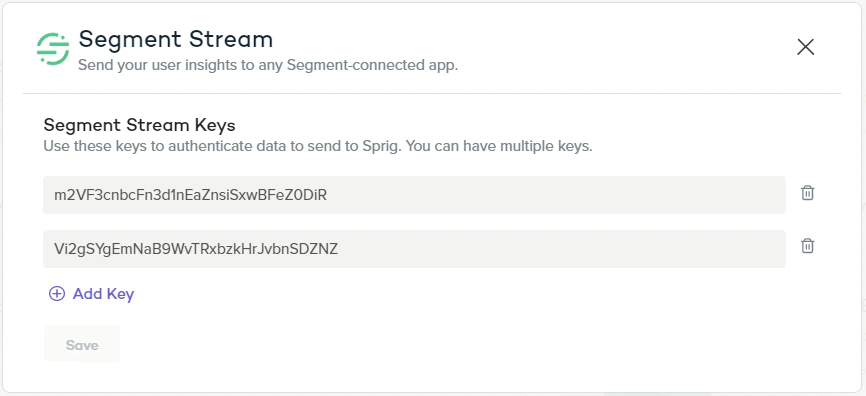
- In the Sprig app, click Integrations > Segment Stream.
- Click Add Key and paste the Write Key into the field.
- Click Save.
- Returning to the Source you just created in the Segment app, click Overview > Add Destination and follow the steps for creating a destination where you’d like to send study response data.
Troubleshooting installation
The Segment Write Key is unique to each source connected to Segment, so please check to make sure you add the right one, and that the environment in the Sprig Integrations page in which the Write Key is set matches the Segment Source for that Write Key. For example, a source for your app’s Production environment should be added to Sprig’s Integrations page viewed in Production.A User ID is required to receive Sprig data in Segment. Sprig cannot respond to Segment if the study taker is anonymous: if the visitor does not have a User ID.