

SCIM is only available for customers on the Enterprise plan.
SCIM
Sprig supports SCIM 2.0 for deprovisioning users who are already on your team. The SCIM 2.0 base URL is/scim/v2/<locator>/Users:
/Users suffix. On production it looks like https://api.sprig.com/scim/v2/<locator>. The provider adds /Users to reach the users resource above.
Authentication is the header:
userName must be the person’s existing Sprig email, the same address they use to sign in to the Sprig dashboard.
Sprig does not create users through SCIM. The person must already be on the team. Sprig does not sync passwords. Deprovisioning sets the user inactive. Sprig soft-deletes the dashboard user when the identity provider sends active: false.
SCIM updates do not change the login email. When Sprig soft-deletes a user, the login email becomes <uuid>@deleted.com and the previous email is kept as scimUserName.
Import and groups are not supported. Name updates are not available yet.
Generate the token
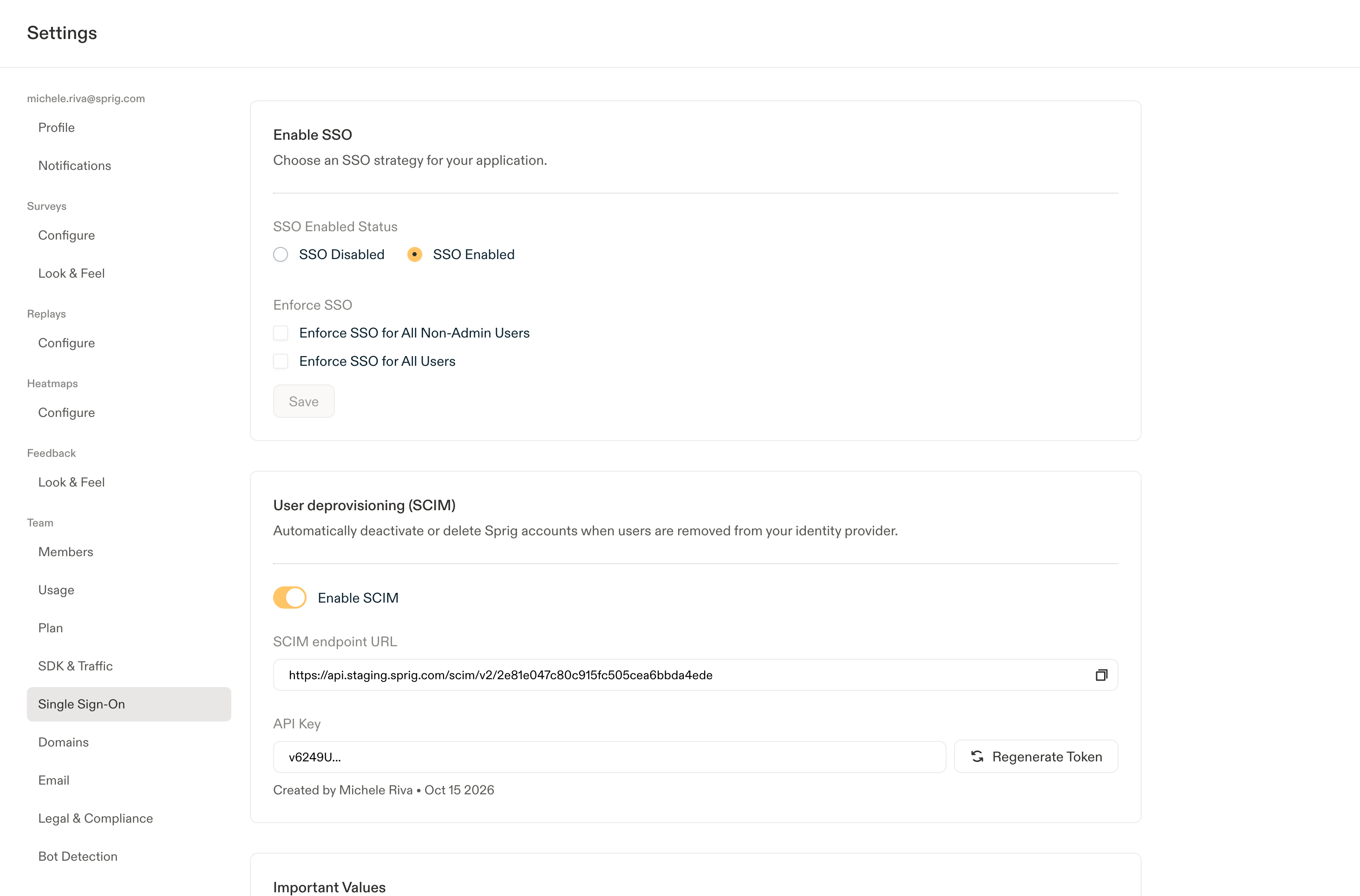
- Open Settings > Single Sign-On.
- In User deprovisioning (SCIM), turn on Enable SCIM. This creates the locator and the SCIM endpoint URL. It does not create a token.
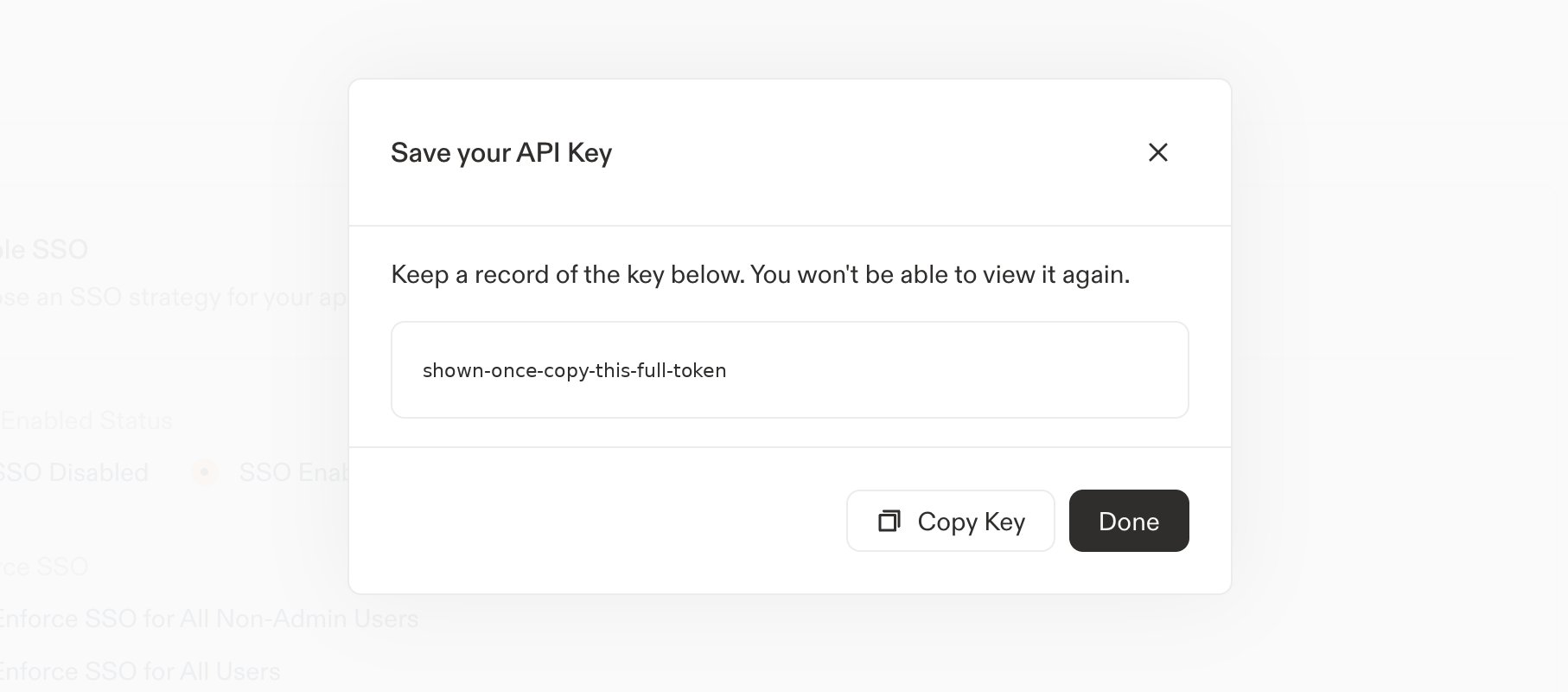
- Create the API key. Sprig opens Save your API Key and shows the full key once. Copy it with Copy Key, then click Done. You won’t be able to view the full key again.
- After Done, the API Key field shows a six-character preview, who created the key, and Regenerate Token. That preview will not authenticate.
Okta
Use a private Okta SCIM 2.0 Test App (Header Auth). This is the setup that was tested. Add the app for your own organization. Do not submit the app to the Okta Integration Network.- In the Okta Admin Console, add a private SCIM 2.0 Test App (Header Auth).
- Set the username format to Email, so Okta sends the person’s existing Sprig dashboard email as SCIM
userName. - Set the SCIM connector base URL to the endpoint from Sprig’s SCIM settings. Include the locator. Leave off the
/Userssuffix. The value looks likehttps://api.sprig.com/scim/v2/<locator>. - In Okta’s API Token field, enter
Bearer <full token>. That is the whole Authorization header value: the wordBearer, a space, and the full one-time token.
Authorization: Bearer <token>.
- Open Provisioning > To App and set:
- Create Users: On. This only lets Okta link an existing Sprig user by email. Sprig still does not create the user. The person must already exist on the team.
- Deactivate Users: On. Unassigning a user, or deactivating them in Okta, sends
active: false. Sprig soft-deletes the dashboard user. - Update User Attributes: Off. Leave this off. Name updates are not available yet. If it is on, Okta sends a full-profile
PUT /Users/:idwhen you assign the user. Sprig responds501 Not Implemented, Okta marks the assignment as failed, and unassigning the user later sends no deactivation request. - Sync Password: Off. Sprig does not sync passwords.
Verify the Okta setup
- Assign a test user who already has a Sprig account. Use that person’s Sprig email.
- Confirm Okta shows no provisioning error.
- Unassign that user and confirm they lose access to Sprig.
Microsoft Entra ID
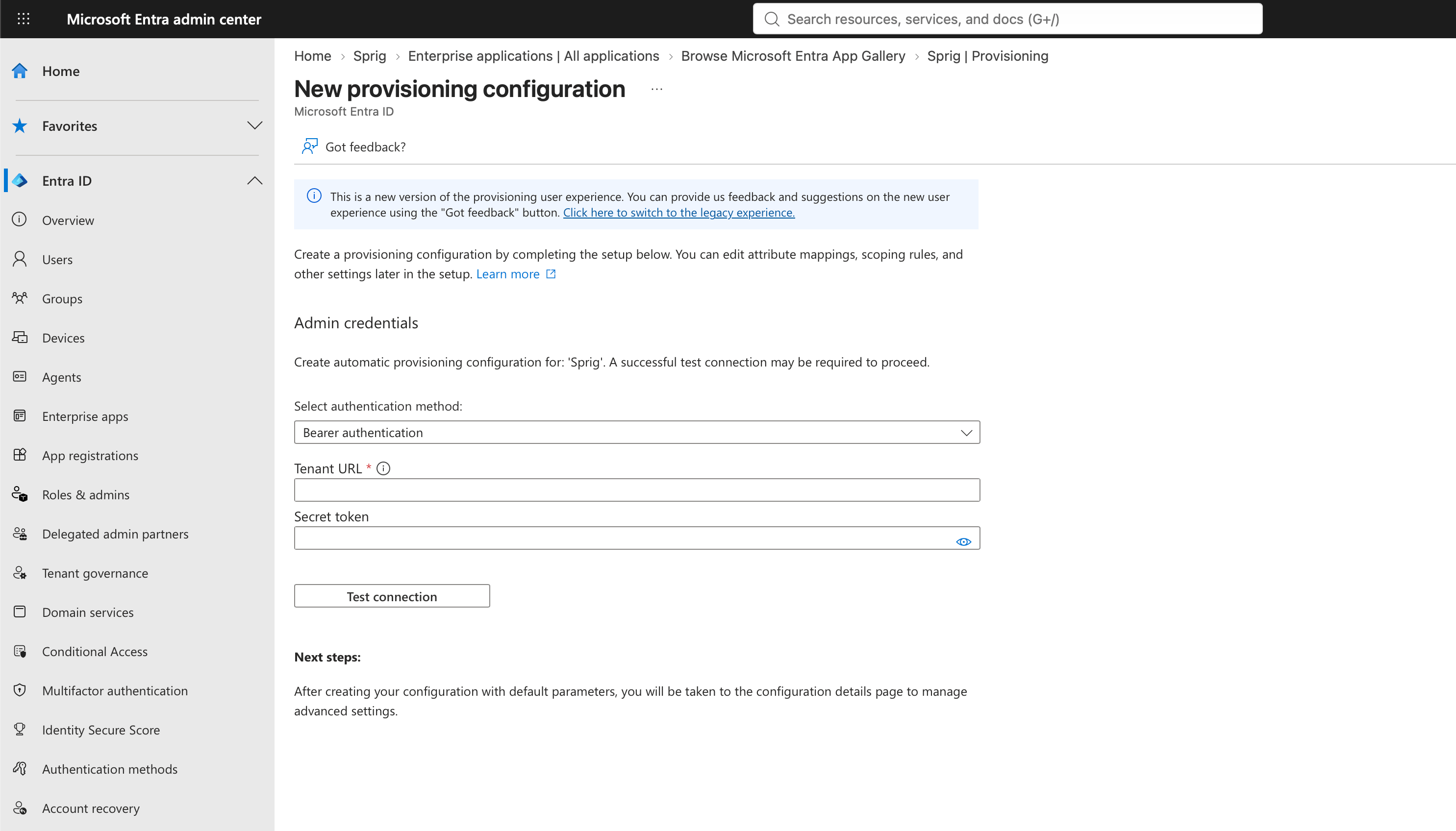
Use a non-gallery enterprise application in Microsoft Entra ID with automatic provisioning.- In the Microsoft Entra admin center, open Enterprise apps, click New application, then Create your own application. Name it (for example,
Sprig) and choose the option to integrate an application that is not in the gallery. - Open Provisioning and start a new provisioning configuration.
- Set Select authentication method to Bearer authentication.
- Set Tenant URL to the endpoint from Sprig’s SCIM settings. The path stops at the locator. Leave off the
/Userssuffix. The value looks likehttps://api.sprig.com/scim/v2/<locator>. - Set Secret token to the full one-time Sprig token, with no prefix. Entra adds
Beareritself. - Click Test connection.
Configure attribute mapping
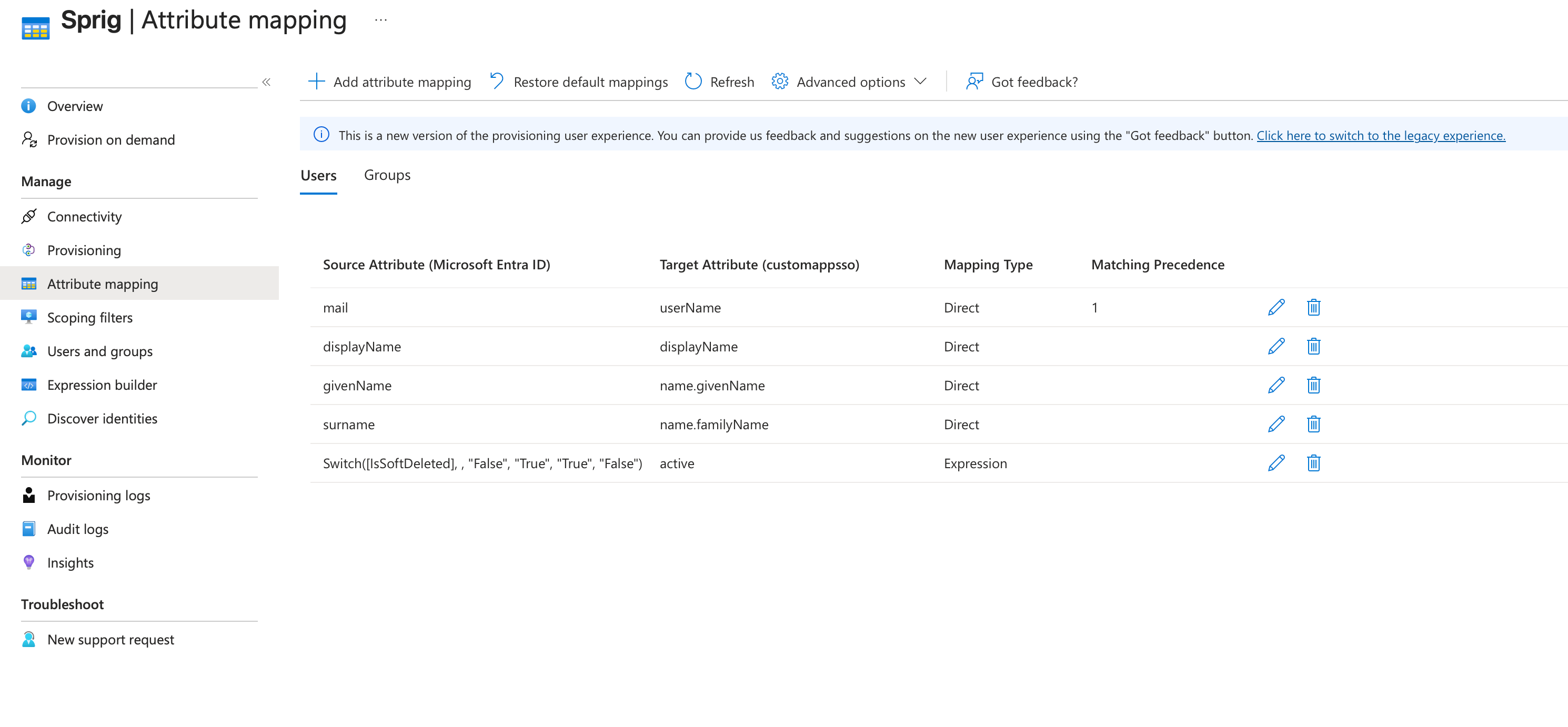
Open Attribute mapping for users.- Edit the
userNamerow. Set the source attribute tomail, check Match objects using this attribute, and set Matching precedence to1.
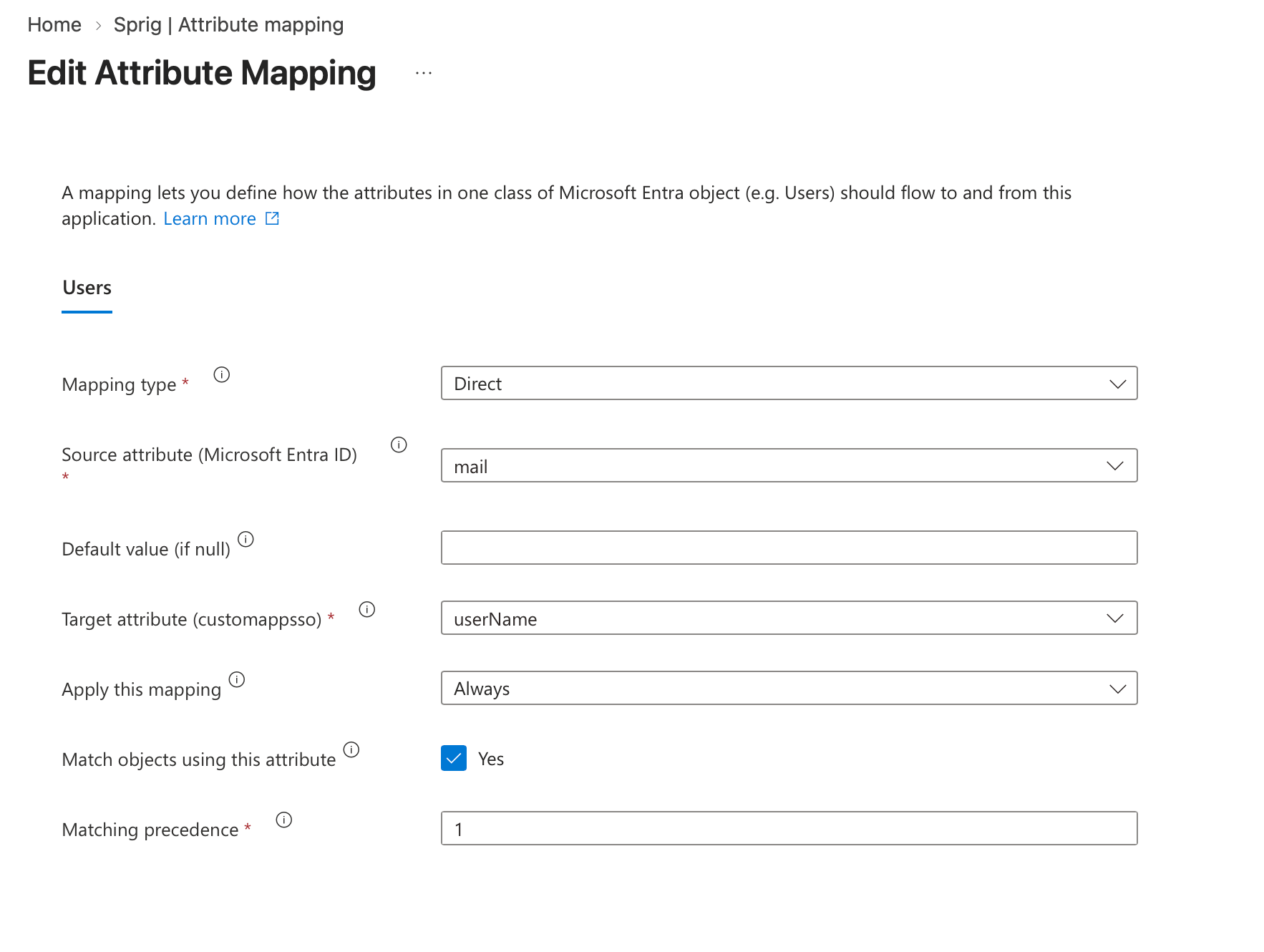
onmicrosoft.com sign-in name is not enough. Set the Email property on the Entra user.
- Keep only these five mappings:
- Delete Entra’s other default rows.
- Under Target object actions, leave Create unchecked. Sprig does not create users through SCIM.
POST /Usersreturns501 Not Implemented. The person must already exist in Sprig.
Configure scope
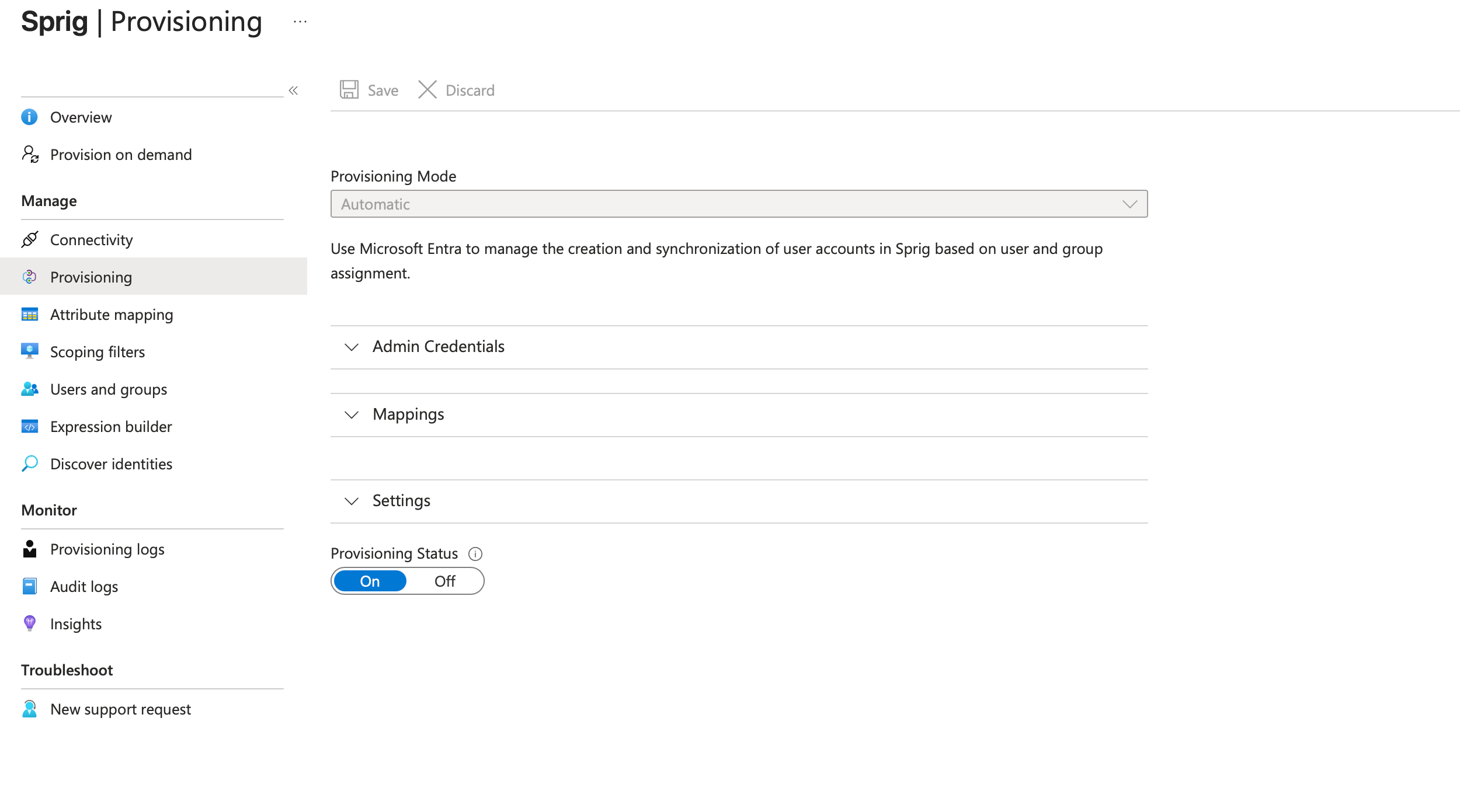
- In Provisioning, keep Provisioning Mode on Automatic.
- Under Settings, set Scope to Sync only assigned users and groups.
- Leave Provisioning Status Off until Provision on demand succeeds.
- Open Users and groups and assign a test user who already has a Sprig account.
Verify the Entra setup
- Open Provision on demand and run it for the test user. Entra matches the user by email. A match shows as an update, not a create.
- If the user’s Email is empty, Entra skips them with
UnprocessableEntry. Set the Email property and run it again. - When Provision on demand succeeds, set Provisioning Status to On and save.
Deprovision with Entra
With theIsSoftDeleted mapping above, deleting the user in Entra sends active: false. Blocking sign-in for the user does not.
Sprig soft-deletes the dashboard user. The login email becomes <uuid>@deleted.com, and the previous email is kept as scimUserName.
Deactivating the only organization admin returns
409 Conflict. Make another person an admin first.Other providers
Only Okta and Microsoft Entra ID have been verified. A SCIM 2.0 provider can deprovision an existing Sprig user when it sends:- Base URL: the Sprig endpoint including the locator, with no
/Userssuffix (https://api.sprig.com/scim/v2/<locator>). The users resource is/scim/v2/<locator>/Users. - Authorization:
Authorization: Bearer <full one-time token>. The six-character preview will not authenticate. - userName: the person’s existing Sprig email.
- Deprovision:
active: false. Sprig soft-deletes the user.