

You can use any native Google Drive file (Docs, Sheets, Slides) or hosted media (PDFs, Images, Videos) as a Sprig prototype. To ensure your test runs smoothly, you must address two requirements: prototype permissions and the embed link.Documentation Index
Fetch the complete documentation index at: https://docs.sprig.com/llms.txt
Use this file to discover all available pages before exploring further.
Permissions
Before fetching your link, ensure the file is accessible to your participants. Set the file sharing settings to “Anyone with the link can view.” If the file is restricted, participants will see a “Request Access” screen instead of your prototype.Finding the Embed Link
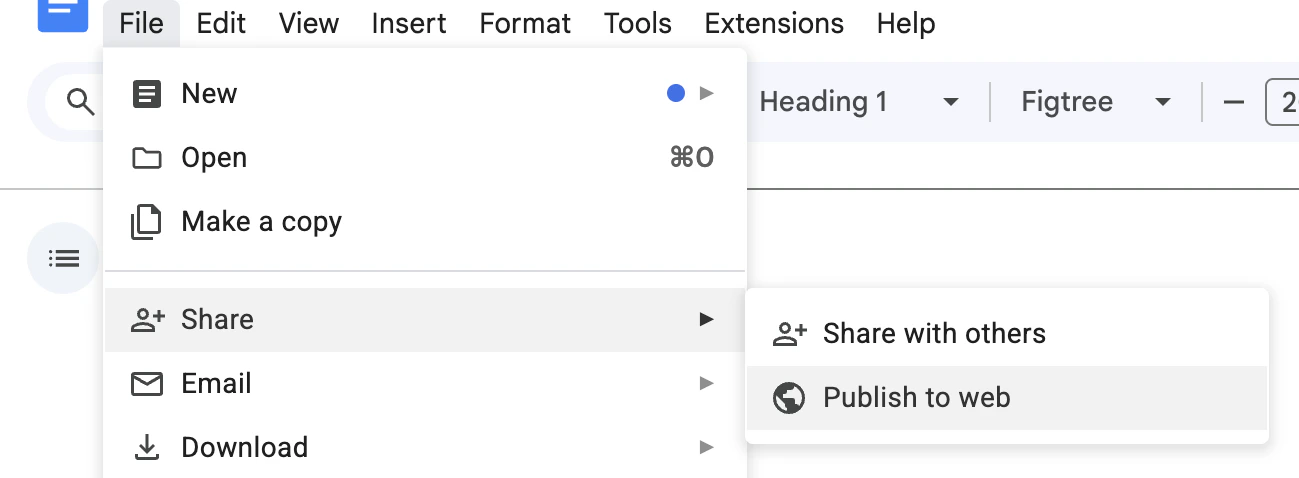
The process varies depending on your file type:For Google Docs, Sheets, or Slides:
- Open the file and go to File > Share > Publish to Web.
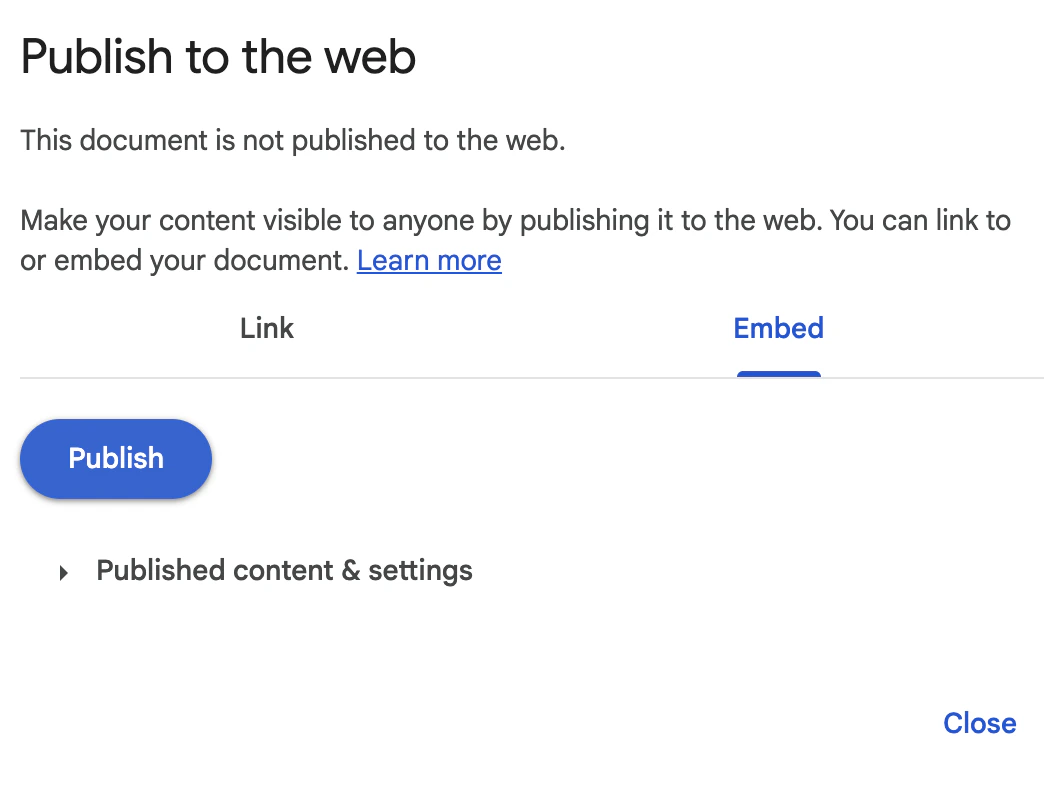
- Select the Embed tab and click Publish.
- Copy only the link inside the quotes (starting with
https://and ending with?embedded=true)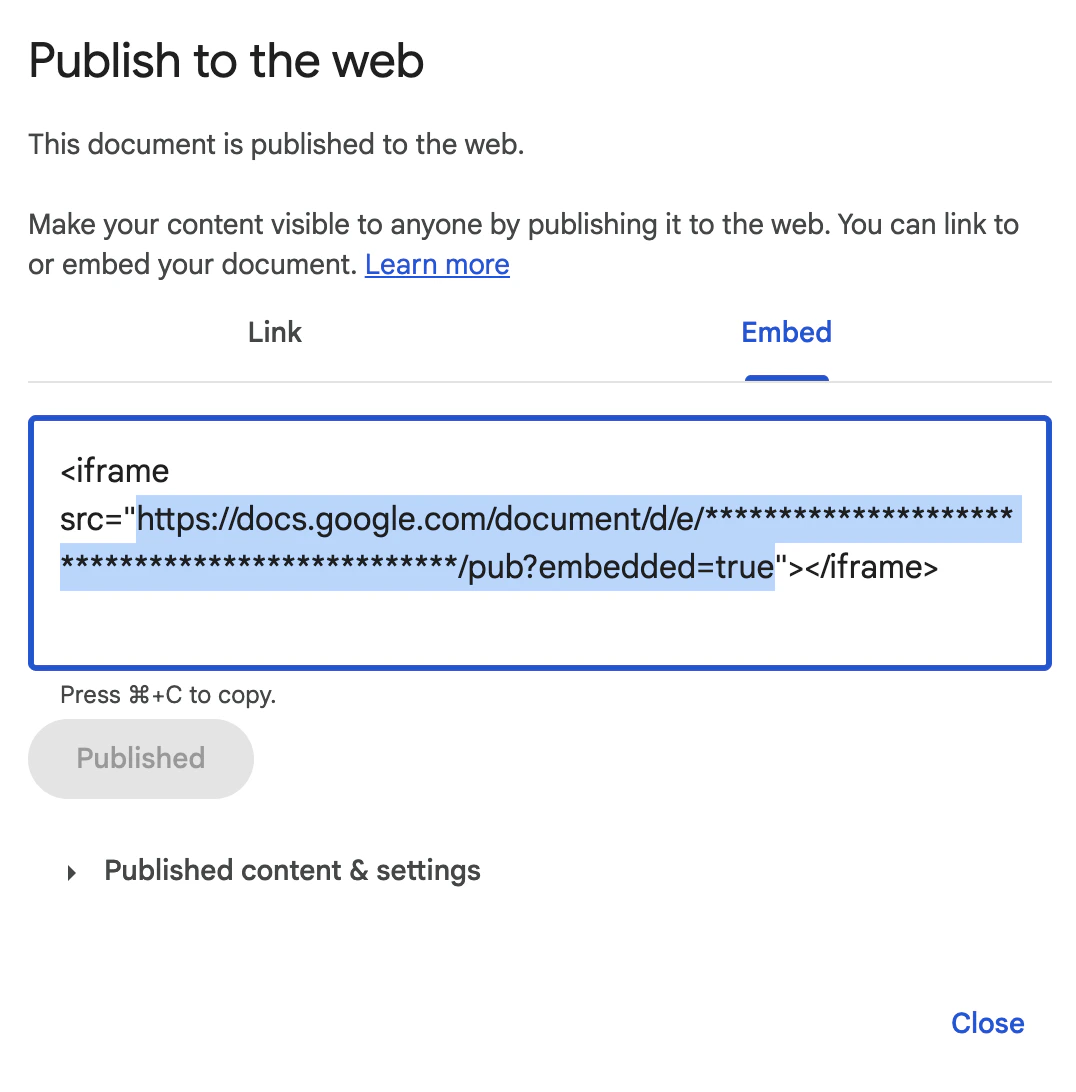
For Images, Videos, or PDFs:
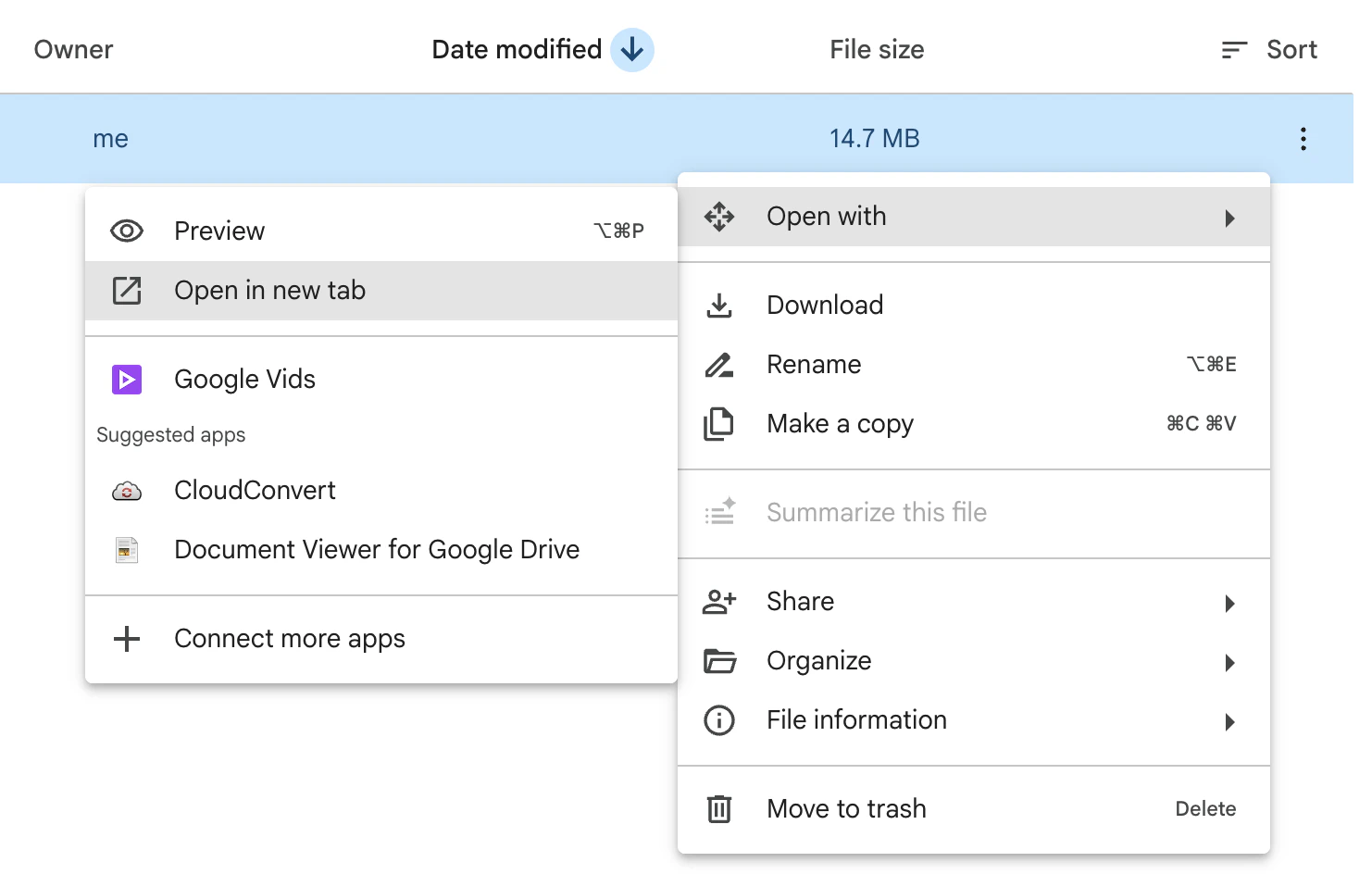
- Standard previews do not show embed options. To find the embed link, you will need to select the three-dot menu > Open with > Open in new tab.
- From the opened file, select File > Share > Get embed link.
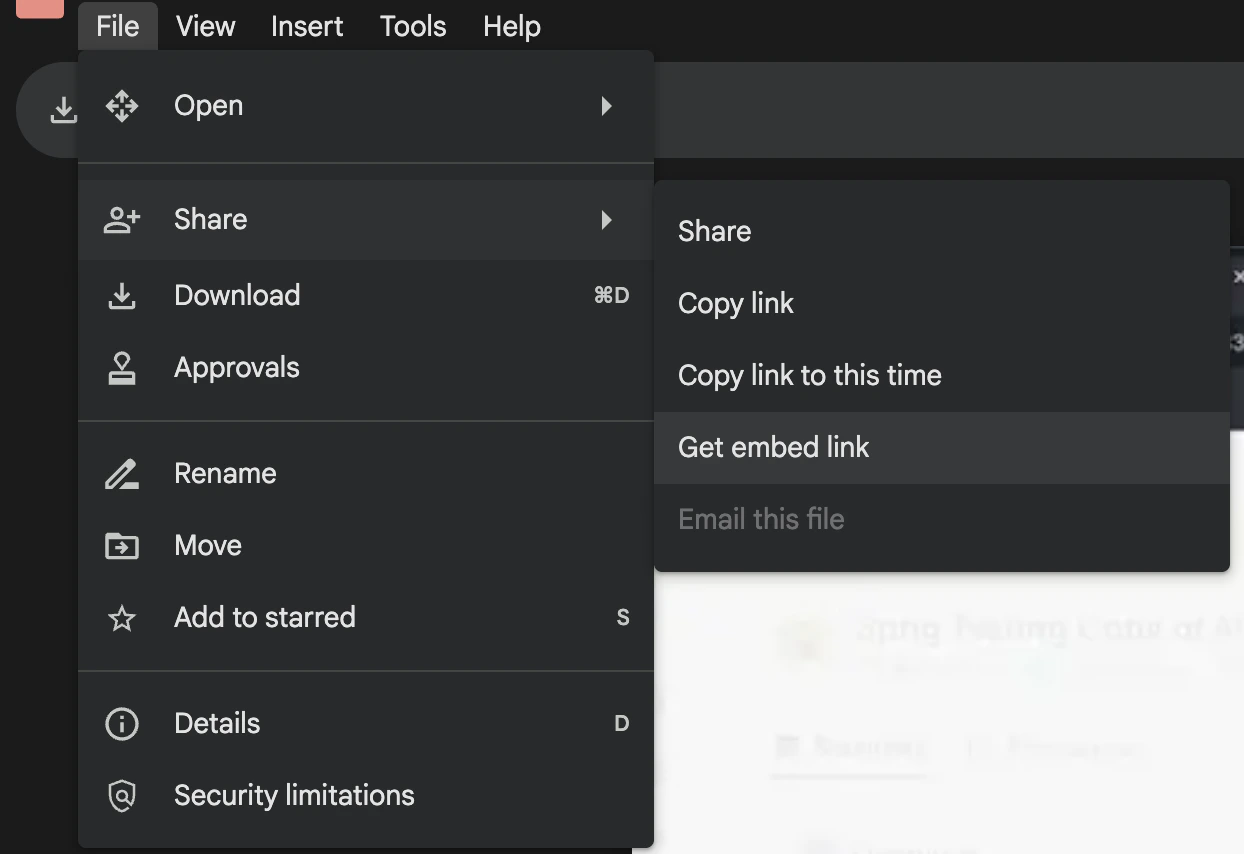
- Copy only the link inside the quotes (starting with
https://and ending with?preview).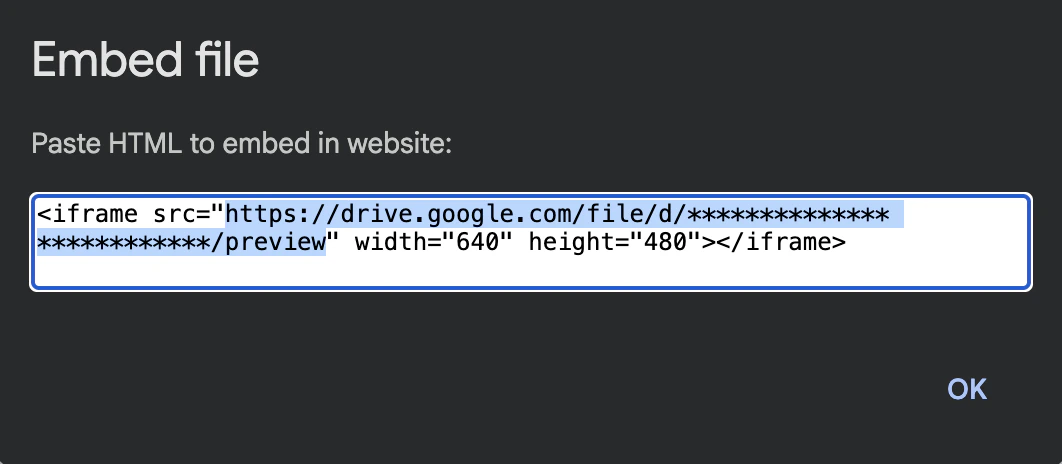
Your Google Drive hosted URL should end with either
?embedded=true or preview.