

Overview
Use Sprig MCP and Design Agent to draft studies directly from Claude, ChatGPT, or any connected AI client. Describe what you want to learn and let your AI client build the study for you. You can then ask the AI client to create it within Sprig.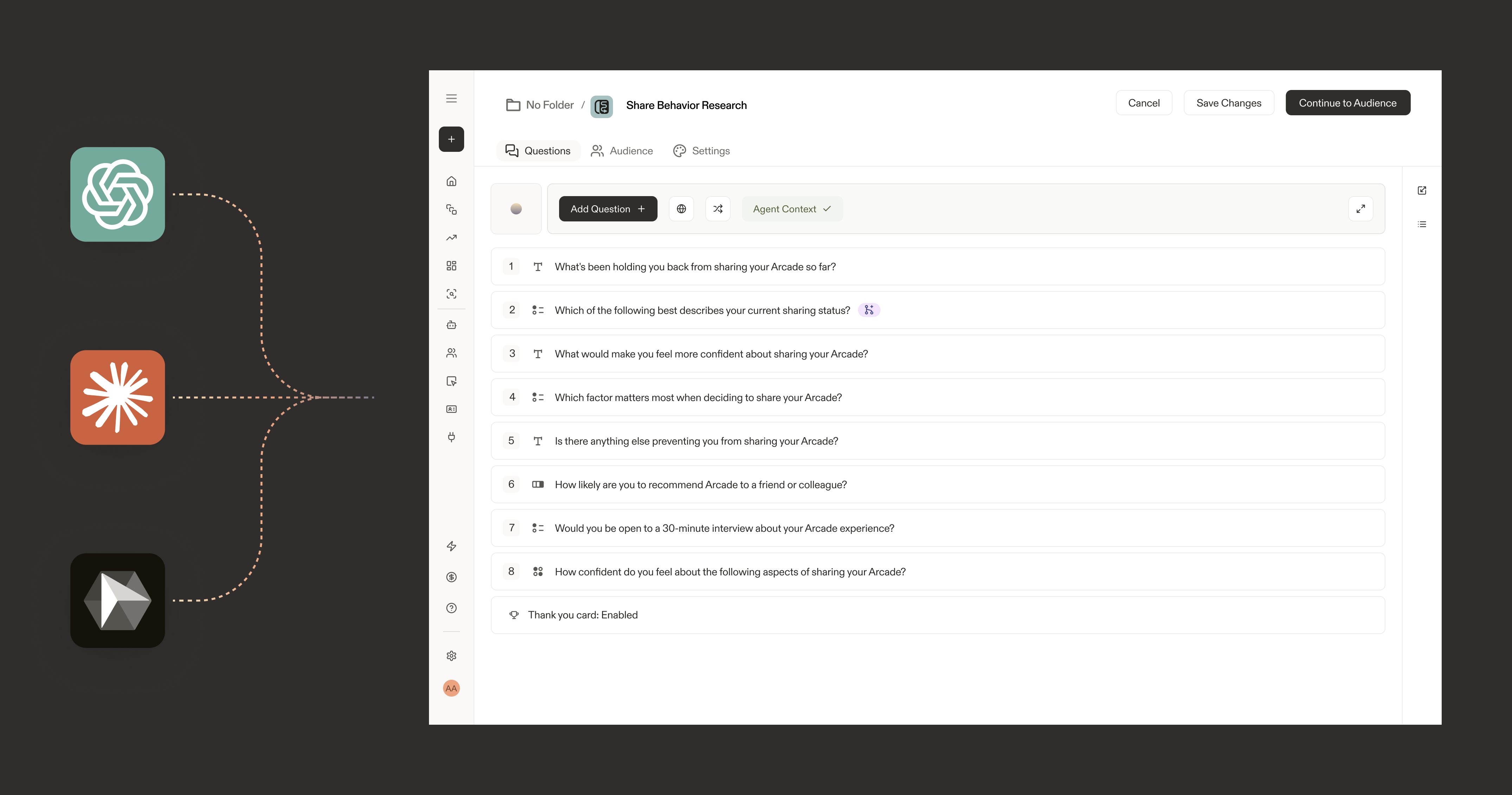
How it works
When Sprig MCP is connected, your AI client can call Sprig’s study creation tools on your behalf. You describe your research goal in plain language. The AI drafts the study, configures the settings, and after you prompt it creates it in Sprig as a draft ready for your review. You stay in control. No study is launched from the AI client. It is always done via the Sprig UI.Before you start
- Sprig MCP must be connected in your AI client. See Connect Sprig via MCP for setup instructions.
- You need Editor or Admin access in your Sprig workspace to create studies.
- Studies created via MCP are saved as drafts. You review and launch from the Sprig UI.
Create a study
Step 1: Describe your research goal
Open your connected AI client and tell it what you want to learn. You do not need to write questions yourself describe the goal and let the AI handle the structure. Example prompts: Basic study“Create a Sprig study to understand why users are dropping off during onboarding. Use a 5-question format with a mix of rating scales and open text.”NPS study
“Create an NPS study in Sprig for users who completed their first purchase. Include the standard NPS question and two follow-up questions asking for the reason behind their score.”Feature feedback
“Create a Sprig study to collect feedback on our new dashboard redesign. Target users who have logged in at least three times in the last 30 days.”Post-cancellation
“Create a short exit survey in Sprig for users who just cancelled their subscription. Keep it under three questions and focus on the primary reason for leaving.”
Step 2: Review the draft in Sprig
Once the AI creates the study, it will appear as a draft in your Sprig workspace.- Go to Sprig → Studies and open the draft.
- Review the questions, settings, audience targeting, and delivery channel.
- Make any edits directly in the Sprig study editor.
- When ready, click Launch to field the study.
Studies created via MCP are always saved as drafts first. Your AI client cannot launch a study without your explicit action in the Sprig UI.
Step 3: Iterate with your AI client
If the draft needs changes, you can ask your AI client to create another study and recreate it in Sprig. The current study cannot be modified at this time.Prompt tips
- Be specific about your audience The more context you give, the better the study. Include user segment, product area, and any behavioral context (e.g. “users who signed up in the last 7 days”).
- Name the study type If you have a specific format in mind: NPS, CSAT, usability, feature feedback. The AI will apply the right structure automatically.
- Set a question limit Shorter studies get higher completion rates. Ask for a maximum number of questions upfront: “Keep it to five questions or fewer.”
- Ask for a bias check Before reviewing the draft in Sprig, ask your AI client to audit the questions first:
What gets created
When your AI client creates a study via MCP, the following are set automatically:
Audience targeting, delivery channel, and advanced settings are best configured in the Sprig study editor after the draft is created.
Frequently asked questions
- Can my AI client launch a study without me reviewing it? No. All studies created via MCP are saved as drafts. Launching requires a manual action from you in the Sprig UI. This is by design.
- Can I create studies in bulk? No. It is one by one for now.
- What question types are supported? All standard Sprig question types are supported: rating scales, NPS, open text, multiple choice, and ranking.
- Can I use a template? No. This is only based on the prompt you entered in the AI client.
- Who can see drafts created via MCP? All workspace members with access to your Sprig workspace can see the drafts created via MCP.
- Will I know a study was created with MCP? Yes the Design Agent chain-of-thought will indicate if a study was generated using MCP.
Troubleshooting
- Study did not appear in Sprig Check that Sprig MCP is connected and authorized in your AI client. Go to Settings → Agents → Sprig MCP to verify the connection status.
- AI created the study but questions look off Open the draft in Sprig and edit directly, or ask your AI client to revise before reviewing.
- Permission denied when creating a study You need Editor or Admin access in Sprig to create studies via MCP. Ask your workspace admin to update your role.
Need help? Contact support@sprig.com or visit our developer docs.