

Study Testing
Sprig’s study preview feature can help ensure your study event triggers are working as expected by enabling you to test your study directly on your website or mobile application. While studies can be tested in staging or development environments, we recommend utilizing this study preview feature to verify your study is configured correctly. Note that SDK install is required. Before you get started:- Ensure that your SDK is updated to a supported version
- Note that for mobile study testing specifically, there are additional update requirements if your SDK install was completed before September 2023.
- To test directly in your mobile app, ensure that you have your deep link URL accessible - if you do not have access, a mobile developer will be able to provide it to you
Testing a Study on your Website or Mobile App
- Create a new study, customize the survey content, and select your platform and targeting criteria.
- After selecting your platform and targeting criteria, you will have the ability to select Preview on your website or Preview on your mobile app from the study preview sidebar.
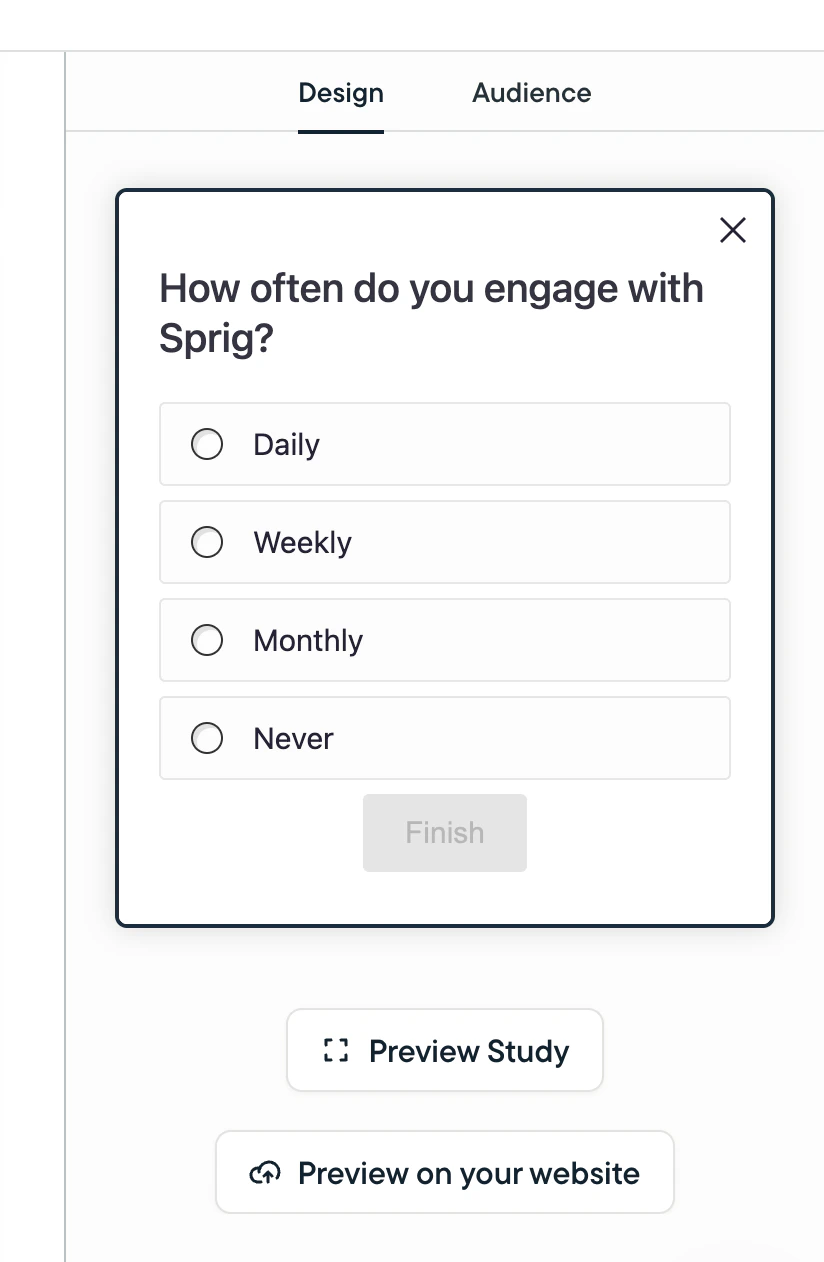
- Enter the website URL or your mobile app’s deep link URL and click Generate preview.
- Make sure to use the correct website domain if you have installed Sprig across different domains and/or with different installation methods.
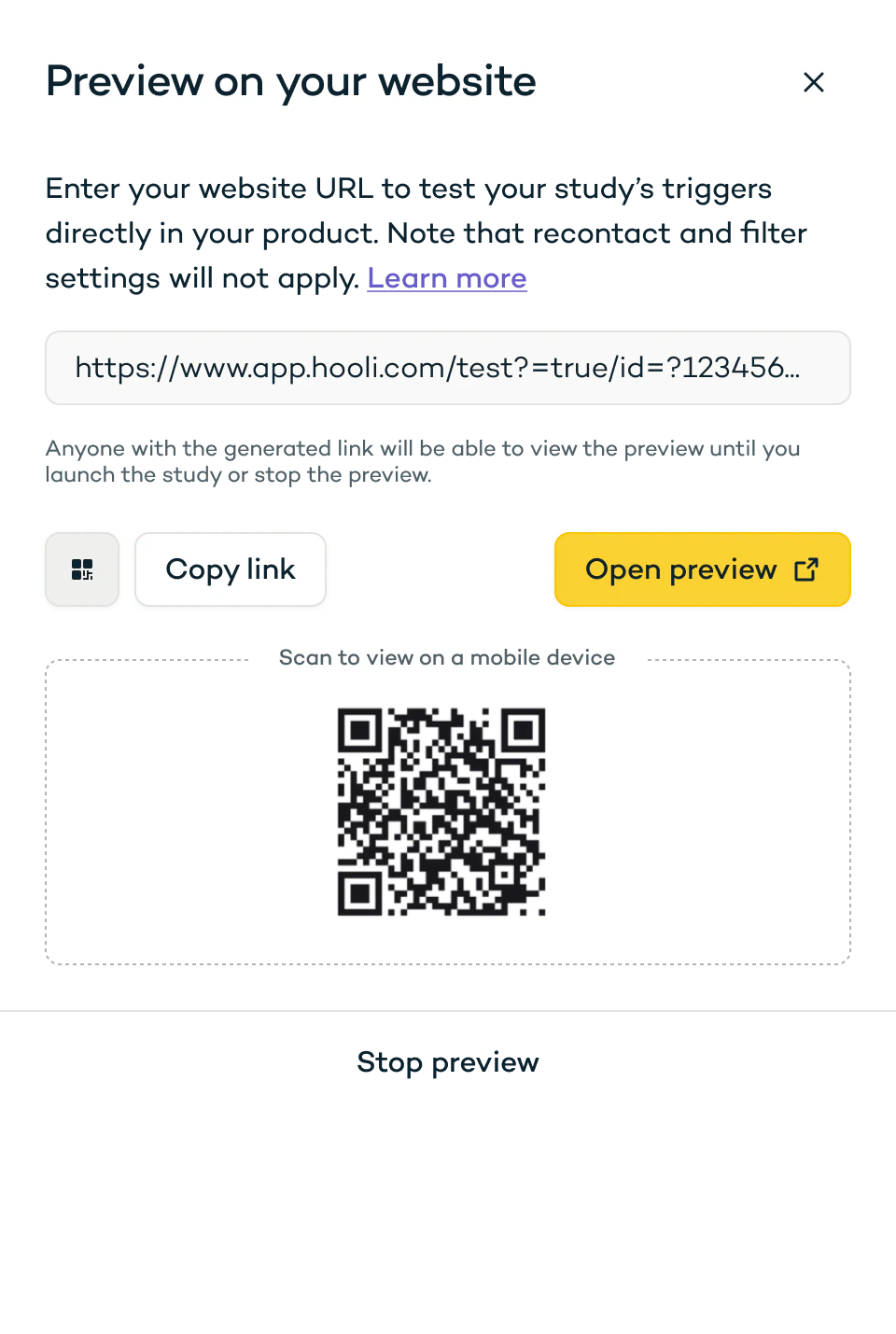
- Click Open preview, scan the QR code to view on a mobile device, or copy the the link directly
- Anyone with the generated link will be able to view the preview until you launch the study or stop the preview
- If you are required to sign into your product after clicking the preview link, you will need to come back to your study in Sprig and repeat steps 2 - 3 before revisiting the preview link
- Replicate the event trigger(s) that should surface your study.
- Attribute filters, response settings or recontact periods you have configured for this study are not considered for the survey preview
- End the preview by launching the study or click Stop preview in the preview modal.
Sending a Preview to Specific Users
Use Send Preview to show a draft study to yourself or teammates in your app. You don’t need a preview link, and you don’t need to recreate the trigger event. Responses to a preview aren’t recorded. Before you get started:- Send Preview works for web and mobile In-Product Surveys that haven’t launched yet (status New or Draft). It isn’t available for Feedback, Heatmaps or Replays, or for launched studies.
- Each recipient must already be known to Sprig in this environment: they’ve opened your app with the Sprig SDK installed and been identified by user ID or email.
- Ensure that your SDK is updated to a supported version.
- In the study preview sidebar, click Send Preview.
- Under Recipients, enter up to 10 user IDs or emails. Press Enter or type a comma after each one.
- Click Send Preview.
- Open your app as that user. The study shows the next time the app sends an event to Sprig, like tapping a button or loading a page. If the study has a trigger event, the card names it so you know what to try. If the study isn’t seen within 30 minutes, it expires.
Send Preview skips your targeting, wait time, response settings and recontact period, so you can check the study right away. The button disappears once the study is launched.
FAQs
Why am I unable to trigger my study in the generated preview?
There are a few reasons this may be happening:- Web Studies
- Current SDK is not a supported version
- SDK update was not made in all places where the Sprig SDK is installed
- Study Event Trigger is an inline URL Event that hasn’t been published yet
- Study Event Triggers may not be configured correctly
- Study is not in one of the following statuses: New, In-Progress, or Draft
- Mobile studies:
- Current SDK is not a supported version
- Note: SDK version must be both updated and pushed out to the device and application that you are using to test a study
- For initial installs before September 2023, an additional code snippet is required: see appropriate install guide (iOS, Android, React Native)
- Incorrect deep link URL was pasted into your the Preview on your website/app modal
- Current SDK is not a supported version
I used Send Preview but don’t see the study. Why?
- The study only shows when your app sends an event to Sprig. Try moving around the app: tapping buttons, searching or submitting a form usually sends events.
- The preview expires if it isn’t seen within 30 minutes. Send it again.
- The user ID or email belongs to a user in a different environment (for example, Development instead of Production).
- Your SDK isn’t on a supported version.