

Clip Playback
Sprig Replays playback modal works similarly to other familiar video playback products. Some key features are identified and outlined below, along side some FAQs regarding Replay clip playback.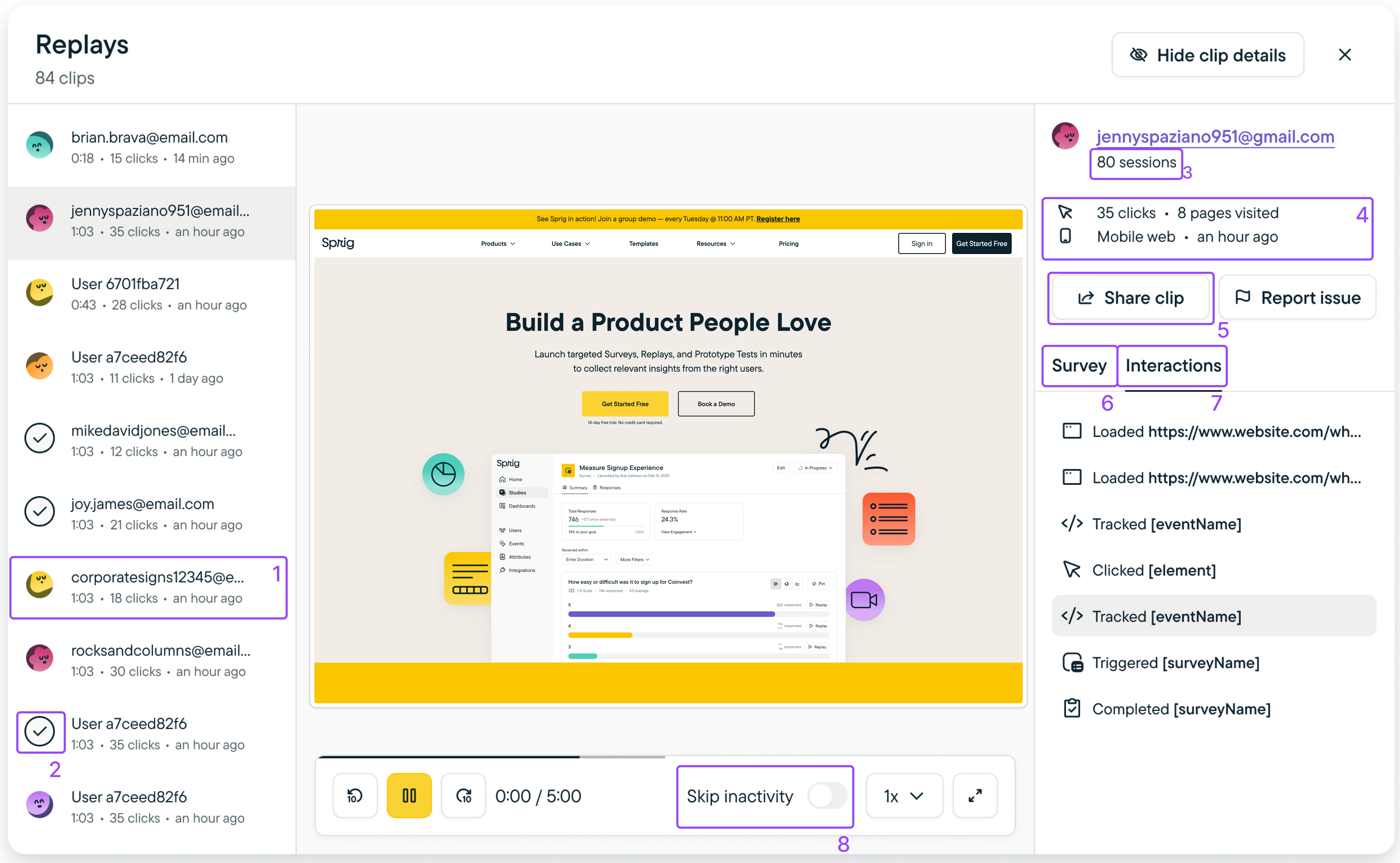
- Emails in Sidebar: Emails are swapped in for Sprig User IDs when sent to Sprig
- Avatars and Checks in Sidebar: Avatars will be swapped for checkbox when a clip is viewed - only for the Sprig user playing the clip (other users will have clips marked as ‘unwatched’ until they view the clip)
- Total Number of User Sessions: “Session” is defined as any activity within a 12 hr period where a user had information sent to Sprig
- Clip Metadata:
- Number of clicks: Number of mouse clicks taken by a user during the session, useful for gauging relative activity of a user
- Pages visited: Number of distinct URLs visited within the duration of the replay clip
- Platform: mobile web or desktop
- Share Clip: Copy clip URL for entire clip or at particular timestamp to share with other Sprig users
- Survey Results Tab: Visible when an In-product Survey w/ Replay
- Interactions Tab: Display of all clicks a user takes in a session, events that are sent to Sprig, and survey interactions
- Skip Inactivity Toggle: When ON, clip will auto-fast forward through periods of clip inactivity (no mouse movement or event triggering) greater than 10s
FAQs
Why does the number of Replay clips not match the number of Survey responses?
There may be a variety of reasons why your In Product Survey with Replay might not have clips for each response:- Sprig will only save clips that are longer than 3 seconds. That means that a user may have quickly answered a survey question and then exited out of the survey before clip length exceeded 3 seconds.
- Clip upload may have been disrupted by something on the end user’s side:
- Browser tab was closed before a clip was uploaded
- Internet signal was disrupted before a clip was uploaded
- If capturing clips either “After” or “Before and After” an event is triggered: the Replay clip is scheduled to upload to Sprig when the clip capture time set on the study has elapsed after the event is triggered. If the user left the page before the set capture time has elapsed, and the users local browser storage is wiped/cleared before the clip can be uploaded back to Sprig upon the users next visit- there will be no clip captured
Note: To capture Replay clips across as many users as possible, you can shorten the Replay capture time “After” event triggering so the clips will be scheduled to upload back to Sprig earlier and there is a reduced risk of the user ending the session before capture completion.
Why are clip lengths different from what I configured?
There may be a variety of reasons why clip lengths are different from what was configured:- When capturing clips “Before” or “Before and After” an event is triggered, the user may have reached the event trigger in a shorter amount of time than the set capture time “Before” the event trigger, yielding a shorter clip time.
- If configured to record “Before and After” a survey, some users may take a survey quicker than others which would result in variable clip lengths
- The user may have navigated away from the web page and back during Replay capture- pausing clip capture and yielding a different Replay capture time than set on the study
Note: Sprig captures and renders clips of user behavior in 30 seconds increments, and Sprig also checks every 5 seconds for new behavior data. Thus, resulting clip capture time should be considered as the best effort minimum clip duration.