

What are Frustration Signals?
Sprig automatically detects rage clicks and dead clicks in Desktop Web Replay clips captured with Sprig Web SDK v2.25.0 or newer, highlighting points of frustration and friction during user sessions.

- Quickly identify points of frustration during user sessions.
- Gain insight into user behavior to optimize the user experience.
- Streamline session analysis by focusing on high-impact areas.
Interacting with Frustration Signals
Frustration Signals now appear in Replay Clip lists, making it easier to spot potential friction and frustration points at a glance. This helps you quickly identify sessions that may need your attention.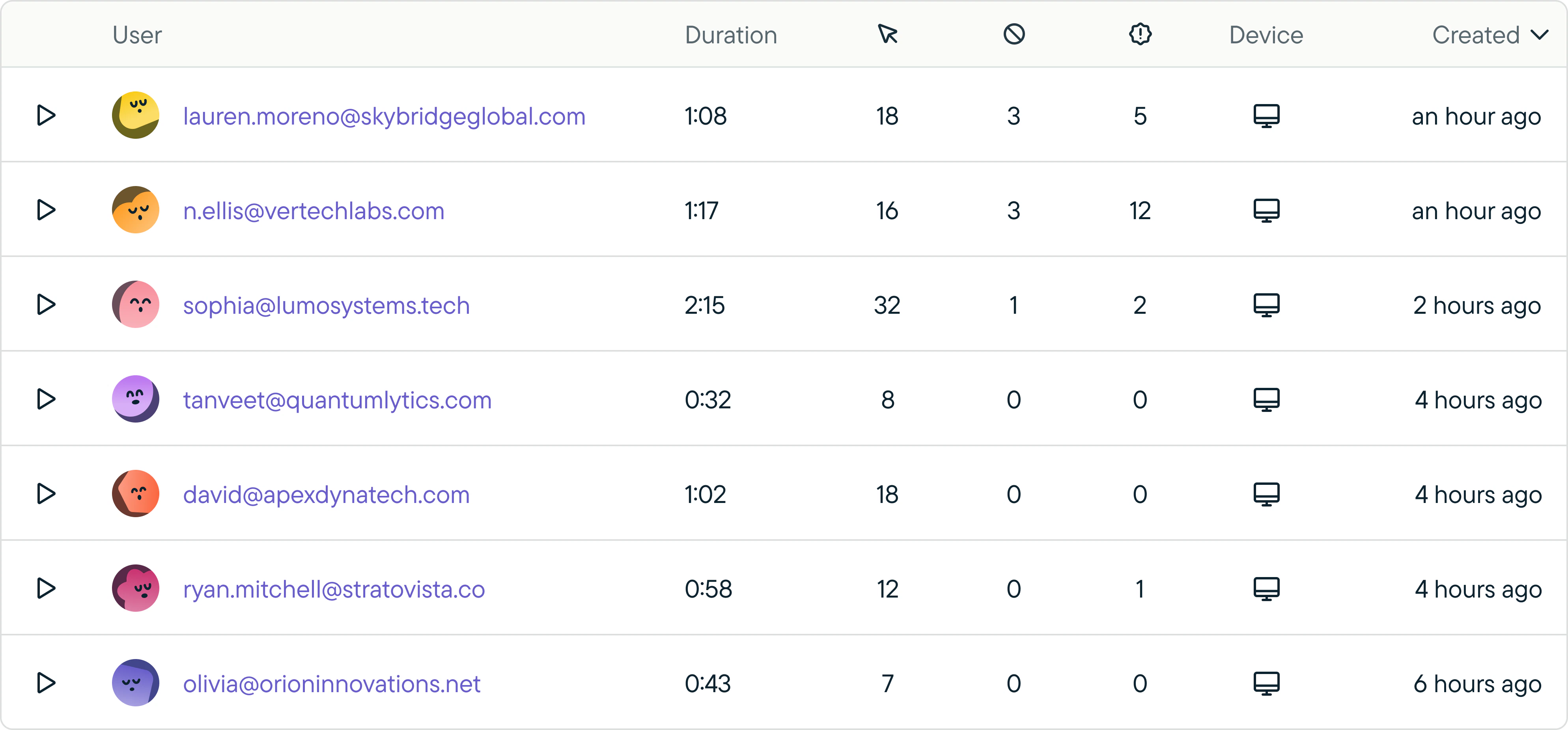
- Easily spot Replay clips with detected Frustration Signals, marked by the rage click and dead click icons.
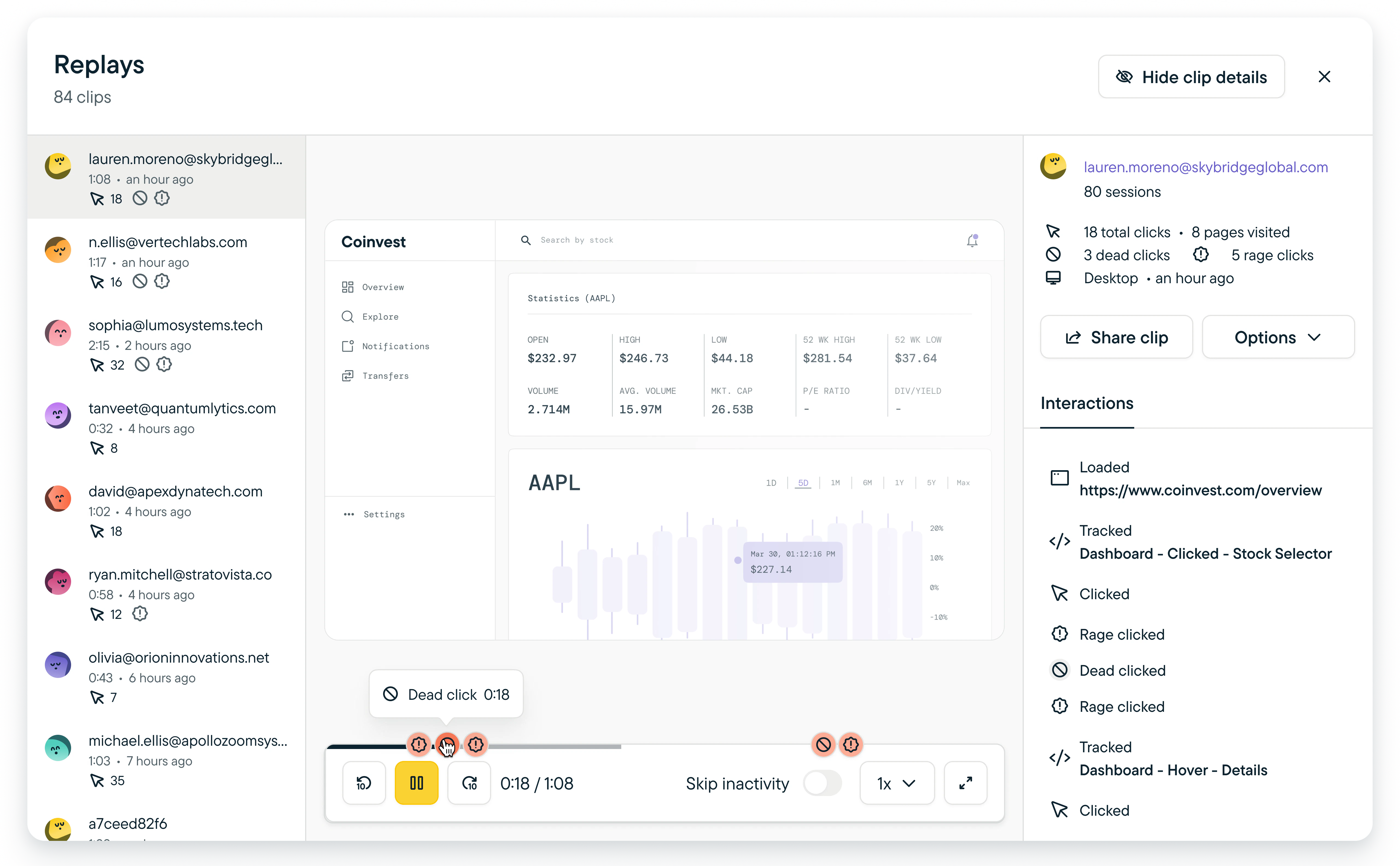
- Hover over the rage click and dead click icons on the progress bar to pinpoint the exact timestamps where the behavior was detected.
- See rage click and dead clicks in context while watching the Replay Clip.
- Click on the rage click and dead click icons on the progress bar or select relevant line items in the interaction bar to jump directly to the detected behavior in the Replay Clip playback.
FAQs
How are Frustration Signals detected in Replay clips?
Sprig currently detects rage clicks and dead clicks through the following methods:- Rage clicks are identified when four consecutive clicks occur within a 60-pixel area over a span of two seconds, with the first click marking the beginning of the sequence.
- Dead clicks are detected when a user clicks a page element, but no measurable change follows within 3.5 seconds—such as a DOM update, URL change, or text selection.