

How it Works
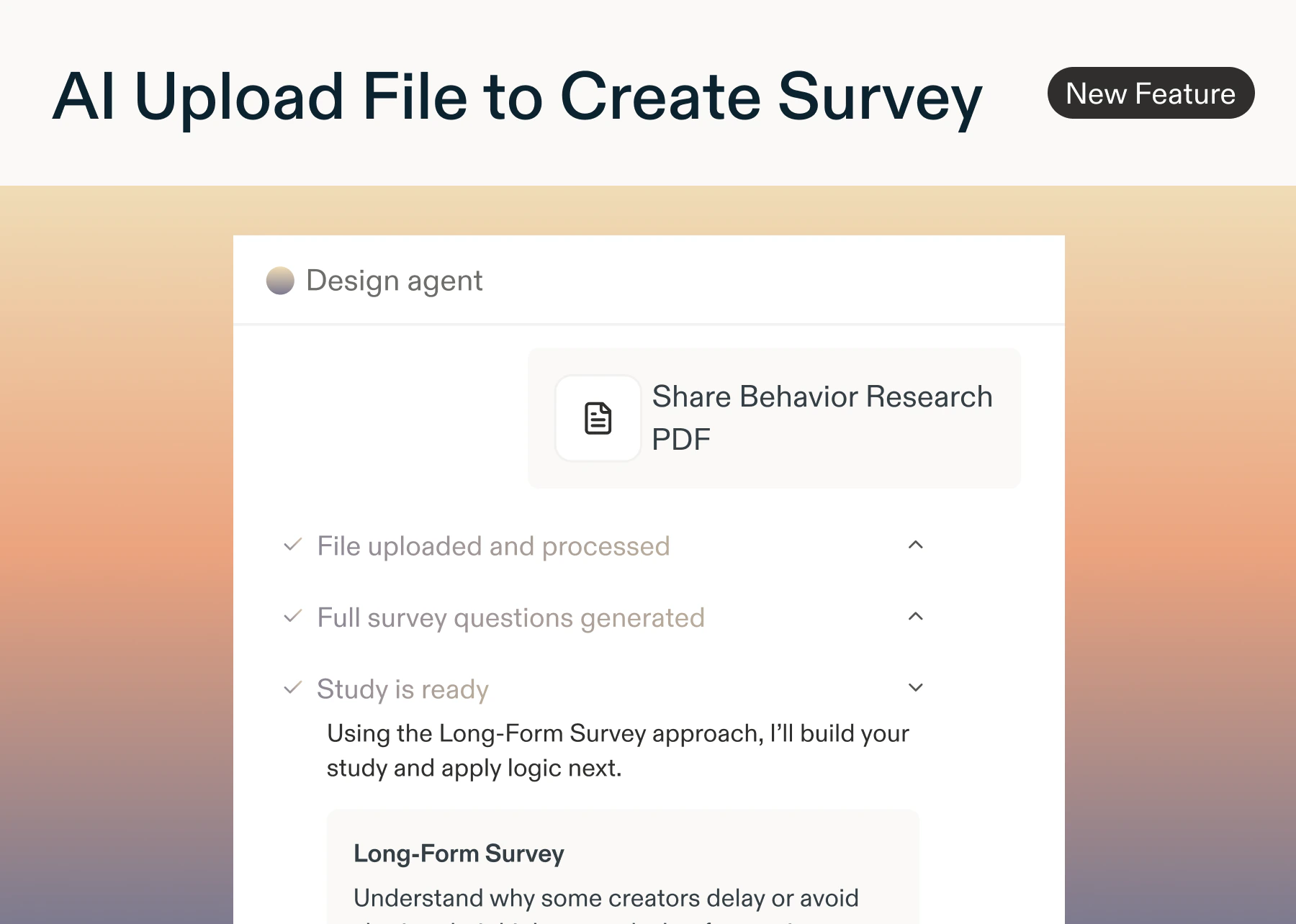
- The AI builder analyzes your research objectives, proposes study approaches, and assembles the full survey with skip logic, mandatory questions, and randomized responses while showing you its reasoning every step of the way.
- Upload your survey document: Drag and drop a PDF, Word doc (up to 25 MB). AI analyzes your content
- Watch in real time as Sprig extracts your research goals and suggests study types
- Review your survey draft: A fully structured survey appears in the builder, pre-loaded with questions, mandatory flags, skip logic, display logic and randomized response options.
- Add AI Follow-Ups or AI Dynamic Questions
- Refine and launch: Edit any question, update the study goal, add AI follow-ups, then launch: all in the same workflow.
Why it Matters?
- Stop starting from scratch: upload any doc and get a complete survey in under 2 minutes
- Best practices, built in to bring over skip logic, and other setup options as specified in your file/document
Available on all enterprise plans.
Using the AI File Upload Builder
- Navigate to + New Study
- Select Upload Survey Draft
- A modal will open, allowing you to upload your .pdf or .docx file for upload. Simply drag+ drop your file into the modal or browse for your file, and select from there.
- Here, you can download a sample file, which outlines the file requirements, boundaries, and more.
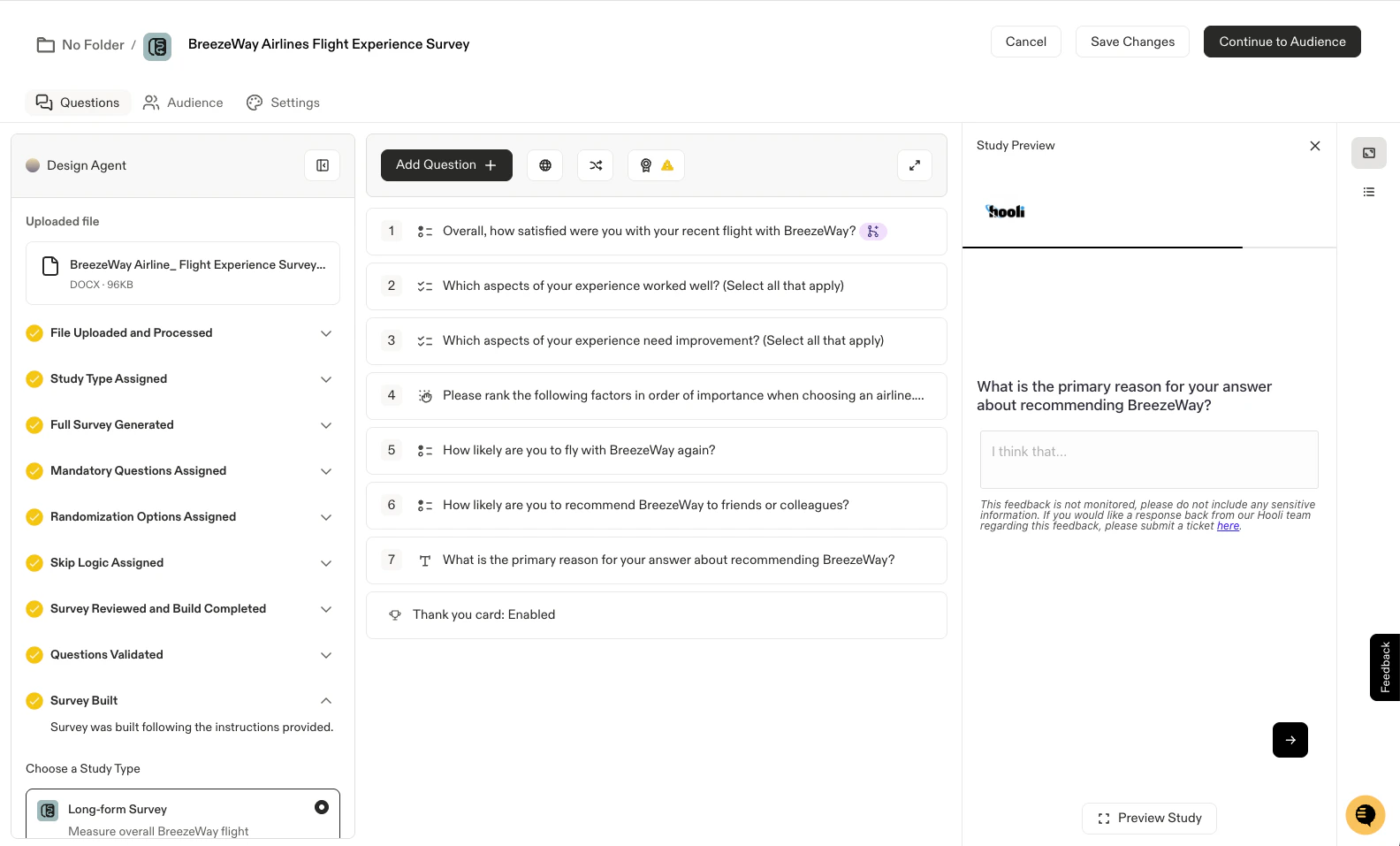
- Sprig’s AI will:
- Process your file
- Select your study type (Survey OR In-Product Survey, which can be changed)
- Generate your study questions and response options
- Set:
- Required/ Optional questions
- Randomization
- Skip Logic
- Display Logic
- Validate the survey, present the final draft, and present a Design Agent audit log documenting each step
How to Structure Your Questions for Perfect Import into Sprig
To ensure the design agent can properly build your survey draft, keep the following formatting rules in mind.Supported Question Types
Supported Question Types
-
[Multiple Choice - Single] - Choose one answer
- List response options with bullet points or dashes.
- Specify response randomization inline
-
[Multiple Choice - Multi] - Choose all that apply, with answer limits respected during import.
- List response options with bullet points or dashes
- Specify response randomization inline
- Specify selection limits for multi-select questions (e.g., “select up to 3”) inline
- [Rating Scale] - Rate on a scale (1-5, 1-10, etc.)
- [NPS] - Net Promoter Score (0-10)
- [Rank Order] - Rank items by preference
-
[Matrix] - Rate multiple items on the same scale
- Specify accordion mode inline
- [Open Text] - Free text response
- [Text/ URL] - Add messaging for survey respondents, or redirect users to an external link directly within a question (such a webpage, Sprig link survey, etc.)
- [Voice & Voice] - Respondents answer by speaking on camera
- [AI Dynamic Question] - Sprig generates the question in real time based on prior responses
-
[Consent / Legal] - Capture respondent consent or legal acknowledgment
- Specify inline whether to collect name
- Specify custom button label inline
File Header
- Enter your study title, goals, or objectives at the top of the document.
- Sprig will bring this in as a draft of the Agent Context for the study.
- Study type detection.
- Sprig respects the intent of your document. Specify “In-Product Survey” or “IPS” anywhere in the file to have Sprig build the study as an IPS by default.
- If no study type is specified, Sprig will generate both an In-Product Survey and a Survey (LFS) variant from a single upload so you can choose which to use.
Questions
- Each question must end with a question mark (?).
- Number your questions clearly (1., 2., 3., etc.).
- Indicate question type in [brackets] if you want to specify the question type (e.g., [Open Text], [Rating Scale], etc.).
- Add mandatory notes using the
REQUIRED:prefix to indicate required questions for respondents. - Add AI Follow-Ups notes inline, for Sprig to ask an intelligent follow-up based on what the respondent says to a certain question
Logic
- Add skip logic notes next to questions using the
SKIP LOGIC:prefix. - Add display logic notes using the
DISPLAY LOGIC:prefix to show a question only when a condition is met. - Add randomization notes using the
RANDOMIZE:prefix.
Pages
Note: using multiple questions on a single page is optional. If no page delegations are set, Sprig will simply show 1 question per page.
- To add multiple questions to a single page (MQSP), clearly mark the beginning and end of the page with page numbers.
- Example:
[Page 1 Start — Onboarding Experience]…[Page 1 End] - You may also include an optional page name
- Sprig uses pages to denote sections within a survey
- Example:
- Note: the following question types cannot be placed inside MQSP pages:
- Consent/Legal, Text/URL Prompt, and Video/Voice
- Prototype links