

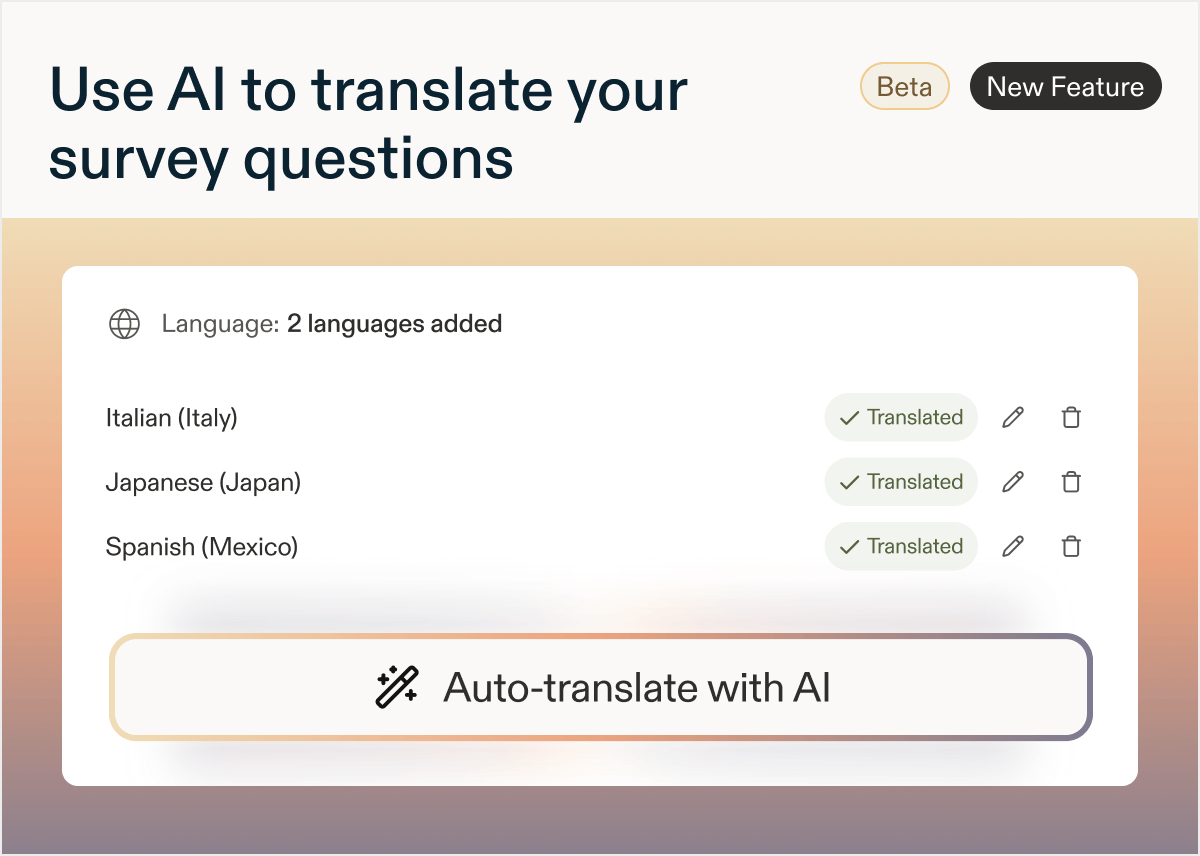
- Detects every translatable field in your study: questions, descriptions, choices, and button labels.
- Generates translations for each language you select, all at once.
- Displays translations inline so you can review them side by side with the original (e.g. English).
- Edit any translation directly, your changes are saved.
- Regenerate anytime if you update your survey questions.
- Note*: regenerating creates new AI translations for every question and field, so any edits you’ve made to existing translations will be lost.*
- Build your survey in your default language.
- Select Add language in the Language card at the bottom of the Questions tab.
- Choose your language(s) from the dropdown menu.
- Press Translate with AI. Sprig generates translations for every translatable field across all selected languages.
- Review the translations inline and edit any field as needed. Then set your language targeting, preview, and launch.