
Delivering Long-Form Surveys
Long-Form Surveys are delivered via unique URLs and can be distributed across multiple channels, including webpages, mobile apps, QR codes, email, and SMS. You don’t need to set up the SDK or involve your engineering team to begin deploying Long-Form Surveys.
You can elect to deliver:
- Through your email or SMS delivery tools, by embedding a survey link
- Through a Sprig In-Product Survey
- By embedding the survey (in an iFrame, in an email, or in a QR code)
The Sprig survey link can also be enriched with metadata (for example: userID's, emails, a first response captured from the delivery email, and more).
Survey Links
When you deploy a Long-Form Survey, you'll receive a link that looks like this: https://a.sprig.com/<alphanumeric-string>. For example, if the alphanumeric string is U0pjVmZxLTdRUX5zaWQ6YT, the survey's link would be: https://a.sprig.com/U0pjVmZxLTdRUX5zaWQ6YT. This link can be used across all Long-Form Survey delivery methods. The remainder of this document explains how to deliver and enrich it.
Delivery
Linking from an In-Product Survey
Users can access a long-form survey by clicking on a link from within an in-product survey. The link is added to the in-product survey with a Text/URL Prompt question. This connection can be set up manually or automatically.
Automatic Link
When using In-Product Surveys to invite participants to take Long-Form Surveys, user IDs and/or email addresses can be appended automatically.
- In a Text/URL question, select Button to link to external URL.
- Click Link to Long-Form Survey.
- The button appears only if you have launched LFSs.
- Select a launched Long-Form Survey; the URL will be inserted automatically.
- If you enrich this link and later choose a different LFS, your enrichment remains.
- You can type to search in this text box.
Automatic Links are not available for Prototype Tests or In-Product Surveys deployed as a Link Study.
Manual Link
- In a Text/URL question, select Button to link to external URL.
- Paste your Long-Form Survey URL.
- (Optional) Add identity parameters using Sprig's injection syntax:
https://a.sprig.com/xyz?user_id={{user_id}}&email={{email}}
Embedding Long-Form Surveys
You can embed or link Long-Form Surveys from webpages, iframes, mobile apps, emails, QR codes, and other surfaces. To embed the first question and store users' clicks as their response to it, see the Embedding the First Question in HTML section below.
Email
When embedding the first question of a survey in an email, automated security bots may click these links and generate false submissions. To help distinguish between real end-user responses and bot responses, we recommend enabling Sprig's Bot Detection feature.
QR Codes
In the launch modal, when you click the QR code button, Sprig generates a QR image. You can download it and place it in:
- Slide decks
- Posters and signage
- Event booths
- Printed materials
The QR code is generated immediately; scanning the QR opens the LFS link directly in a browser.
QR codes are not automatically generated for Prototype Tests or In-Product Surveys deployed as a Link Study.
Recruiting with User Interviews
Long-Form Surveys can be distributed to participants recruited through User Interviews using a shareable survey link. For setup instructions, see our documentation on the User Interviews Integration.
Enriching Links
When sharing a Long-Form Survey link, you can append query parameters to capture additional information with responses.
Enrich With Identity
To store responses with an identified user on Sprig, add ?user_id={{user_id}} or ?email={{email}} to the end of the survey link, depending on what type of information you want to collect (you can also add both parameters using an & to join them).
The system sending the link must populate the appropriate user IDs or email addresses by replacing the {{user_id}} or {{email}}. These are placeholders and must be filled using the variable or merge-tag functionality provided by the tool. Once you've identified the variable that stores your external tool's user identifier, plug it into the enriched link with the merge tag from your tool. The format of tags and the variable names may differ across tools. For example, your tool may have tags that look like this:
https://a.sprig.com/xyz?user_id={{EXT_USER_ID}}&email={{EXT_EMAIL}}
or this:
https://a.sprig.com/xyz?user_id={${person.id}}&email={${person.email}}
How to populate identity parameters
- When sending a Long-Form Survey link that includes the
user_idor- If Sprig doesn’t recognize the ID, it will create a new user record.
- If an email is sent without a user ID, Sprig will create a new user record.
- If both an ID and an email are sent, and the email differs from the existing user, the user's email is updated.
- If the sending system uses a different user ID than Sprig, you’ll need to reconcile those IDs to ensure responses are saved for the correct users.
Enrich with a Response for the First Question
Pre-setting the first question response allows you to record an answer when a user clicks a link, rather than asking them to respond within the survey UI. This is used for embedded experiences where a single click should count as a response. The r parameter can be used to pre-set responses for the following first-question types: NPS, Rating Scale, or Multiple Choice (single-select) questions.
Supported Question Types:
Multiple Choice
For Multiple Choice (Single Select) questions, you can use the r parameter to set the option’s value. For example, if your first question had options "Great", "Good", and "Meh", the configuration of each link is as follows:
https://a.sprig.com/xyz?r=greathttps://a.sprig.com/xyz?r=goodhttps://a.sprig.com/xyz?r=meh
InfoHere are some formatting guidelines when appending your response labels' text values:
- Convert to all letters to lowercase
- Replace any spaces with an underscore
- Remove periods, commas, and apostrophes
- Keep exclamation marks and question marks
Rating Scale & NPS
For Rating Scales or NPS, set r to the numeric value (for example, ?r=2):
https://a.sprig.com/xyz?r=1https://a.sprig.com/xyz?r=2https://a.sprig.com/xyz?r=3https://a.sprig.com/xyz?r=4https://a.sprig.com/xyz?r=5
Embedding the First Question in HTML
In some cases, you may want to embed response links directly into custom HTML, such as on a web page. This pattern records a response for the first question when a user clicks a link, then opens the survey starting at the next question.
When embedding a Multiple Choice question, each button or link should include the query parameter for the selected value.
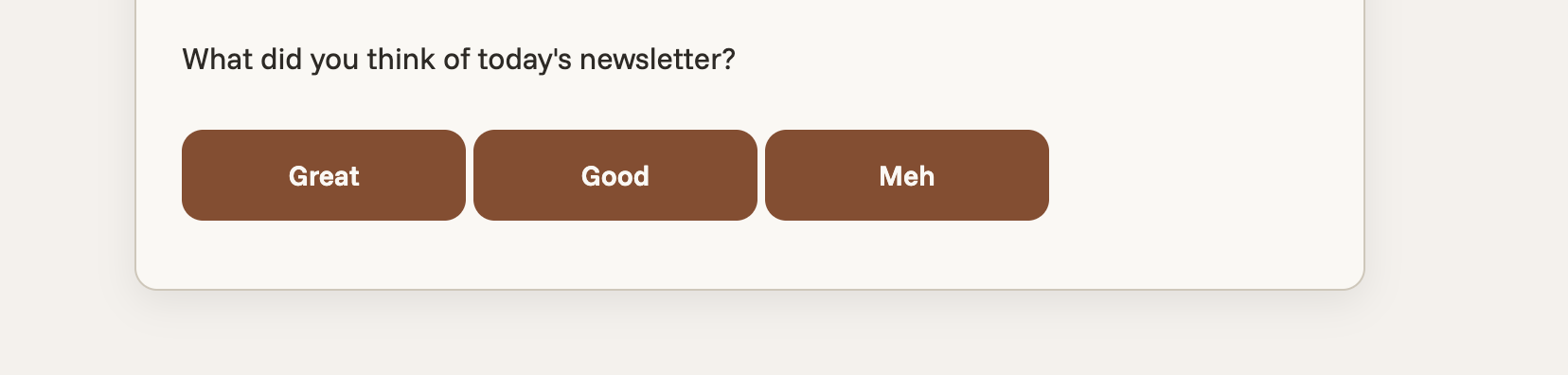
Clicking any of these links records the response and opens the survey with the first question already answered.
<p>How would you rate this week's newsletter?</p>
<span>
  <a href="https://a.sprig.com/U0pjVmZxLTdRUX5zaWQ6YT?r=great">Great</a>
  <a href="https://a.sprig.com/U0pjVmZxLTdRUX5zaWQ6YT?r=good">Good</a>
  <a href="https://a.sprig.com/U0pjVmZxLTdRUX5zaWQ6YT?r=meh">Meh</a>
</span>
For NPS or Rating style questions, the same paradigm applies:
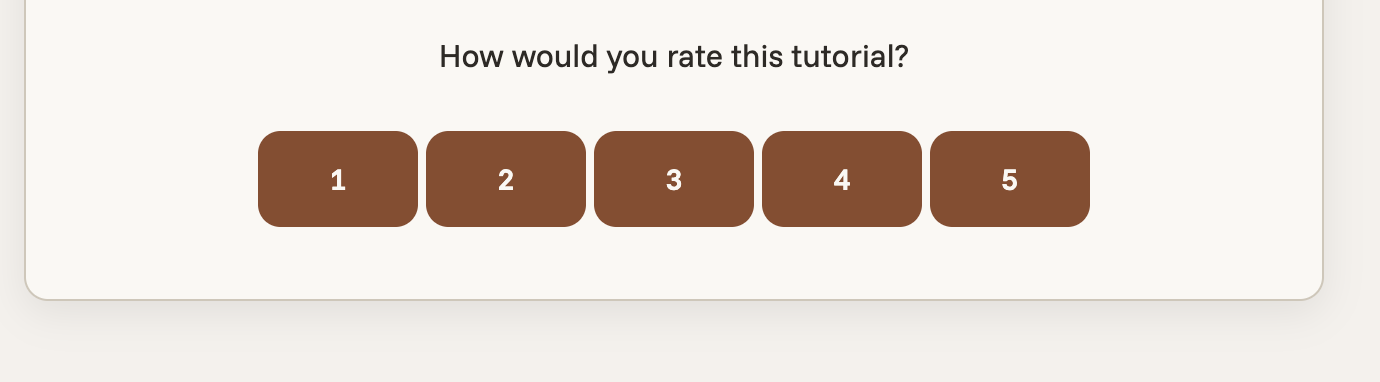
Clicking any of these links records the response and opens the survey with the first question already answered.
<p>How would you rate this tutorial?</p>
<span>
  <a href="https://a.sprig.com/U0pjVmZxLTdRUX5zaWQ6YT?r=1">1</a>
  <a href="https://a.sprig.com/U0pjVmZxLTdRUX5zaWQ6YT?r=2">2</a>
  <a href="https://a.sprig.com/U0pjVmZxLTdRUX5zaWQ6YT?r=3">3</a>
  <a href="https://a.sprig.com/U0pjVmZxLTdRUX5zaWQ6YT?r=4">4</a>
  <a href="https://a.sprig.com/U0pjVmZxLTdRUX5zaWQ6YT?r=5">5</a>
</span>
Enriching Links with Custom Metadata
You can also append custom query parameters to capture additional context about each respondent. A link can include up to 25 parameters and a total of 1,000 characters. Custom parameters you add will only appear under the customMetadata column when you download responses as a CSV file, integrate Webhooks, or utilize our Data Export API. email is a commonly added custom parameter.
Here's an example of an enriched link with several parameters:
https://a.sprig.com/xyz?r=4&user_id=bl317518&plan=pro&[email protected]
This will:
- attach responses to your user with ID
bl317518, creating the user if they don't already exist - add or update user
bl317518's email to be[email protected] - open for the user to view the second question, storing the response to the first question as
4 - attach
customMetadatato this response, containing all custom query parameters (including identity parameters). This specificcustomMetadatawill be formatted like so:{ "user_id": "bl317518", "email": "[email protected]", "plan": "pro", }
- Note that the
rvalue does not populate in thecustomMetadataobject. Instead, it will pre-fill the first question's response.- The query parameter
visitor_idis reserved for Sprig usage.
Delivery Notes for Other Link-Based Surveys
This document focuses on delivery mechanics for Long-Form Surveys. Prototype Testing and Link Studies use similar delivery patterns, but there are important differences and limitations to be aware of.
Prototype Testing
Prototype Testing remains available because it supports Recorded Tasks, which are not yet supported in Long-Form Surveys. If Recorded Tasks are not required, Long-Form Surveys can display prototypes and support all other Prototype Testing functionality.
Link Studies
Link Studies were In-Product Surveys via a URL instead of as an intercept on web/mobile. This feature is no longer supported. However, existing link-deployed In-Product Surveys will continue to function with their prior behavior. For new URL-based surveys, use Long-Form Surveys.
Updated about 2 months ago