
AI Study Report
Go from raw responses to insights and opportunites in minutes with Sprig's Synthesize Agent.
This feature is currently in Beta.
AI Study Report is only available for customers on the Enterprise plan.
What is an AI Study Report?
An AI Study Report is a structured document that gives you a leg up on the time-consuming process of analyzing, summarizing, and extracting meaningful insights from raw study responses. Study Reports are created by Sprig's Synthesize Agent and they use the responses in the study, the Agent Context provided for the study, and a consistent format based on best practices.
AI Study Reports make it easy to share insights and learnings from studies by including the following sections:
- Executive Summary - high-level summary of the study and what was learned
- Research Objective - the focus and purpose of the study (this is heavily influenced by input to the study's Agent Context)
- Key Insights - the main takeaways from the study
- Opportunities - areas to focus on in terms of next steps
AI Study Reports are available for Long-Form Surveys, In-Product Surveys, and Feedback studies. Report content will always be in English.
Generate an AI Study Report
To generate a report for a study, click the Generate button in the upper right corner of the "Report" tab. In order to be able to generate a report, a few criteria must be met first:
- A study must have collected at least 10 responses.
- The Agent Context for that study must be filled in.
Generation can take anywhere from a minute or two to over 10 minutes for studies with significant response volume (100,000 responses for instance). Only users with the Editor or Admin roles can generate reports. As the report generates you can review summarized responses on the Data tab (formerly called "Summary"), or the raw responses, you do not have to stay on the Report tab (or even that study) while the generation process runs.
AS long as a report was not manually generated while a study was in-progress, when the study completes a report will automatically be generated as long as the Agent Context has been filled in. If a report had been created and edited while the study was in-progress, no automatic generation will occur.
Edit, share, or download a report
Once a report has been generated, anyone with an Editor or Admin role can edit the report and save changes. All roles can download a report or use the share button to copy the link to the report. After saving edits the editor's name and a timestamp will be visible at the top of the report to help other people on the team understand who last worked on it.
Until a report is generated, the study will default to opening the Data tab with the question-by-question-summary of study responses.
If new responses have been collected since the report was last generated or edited, an indicator with the number of new responses since the last edit/generation will show at the top of the report.
Updating the Agent Context for a study or clicking the Generate button will cause any previous edits to an existing report to be overwritten.
FAQs
Which study types can I create a report for?
AI Study Reports are available for Feedback studies, In-Product Surveys, and Long-Form Surveys.
How many responses are required before I can generate a report?
10 responses must be collected before a report can be generated.
What can I do with a report that was generated?
You can edit the report directly in Sprig, download it in various formats, share the link to the report, and generally enjoy having spent less time creating shareable content!
Do I have to stay on the page while the report generates
No, you can work on other things in Sprig while the report generates. Once it's done the animation will be replaced by the report.
What data is used to create a report?
The Synthesize agent uses the Agent Context you provided before generating the report, responses to the study, AI Insights that were generated for the study, and details about the study like what platform it ran on, how many people submitted replies, and their attributes, to create the report's content. Sprig ensures that only the data from that study was used to generate the insights, opportunities, and strengths.
Any statistics created by the agent are linked back to the data for the relevant questions so you can quickly verify or dive in deeper. Hover over the link icon in the report to see what data was referenced for that insight.
Where is all the information I used to see when opening an existing study?
The question-by-question data visualizations are now available on the "Data" tab of a study. Nothing about these analyses has been changed.
The quick summary of the study's progress is now in the top right of the page header instead of in the Summary tab. Hover over it to see the same details that were previously available.
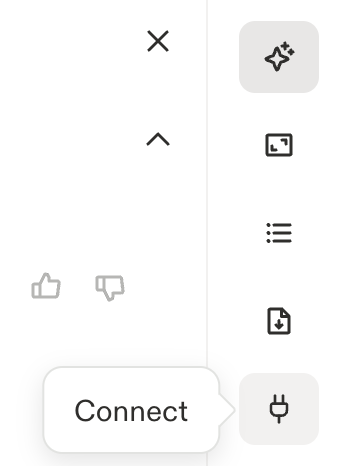
Where is the Connect tab I used to set up a connection to Slack to send responses there in real-time?
This same functionality is now available in the last icon on the right side of the study page, below the Preview and Study Details:
Updated 13 days ago