
Prototype Testing
Prototype Tests let you collect feedback on early designs, wireframes, messaging, interactive prototypes, AI-generated prototypes, and more.
Prototype Testing can be accomplished with Sprig in two distinct ways:
- Embedding prototype links within Sprig Long-Form Surveys
- Share a Sprig link
a.sprig.com/....with your respondents - This requires no installation; just plug a prototype URL into the Sprig Long-Form Survey.
- You have access to all the question types; some, like MaxDiff, are only available on Long-Form surveys.
- Share a Sprig link
- Integrating Sprig In-Product Surveys into AI Prototypes.
- Share a Prototype link with your respondents (this can be a url like
*.lovable.app, or*.vercel.app,*.figma.site, etc) - Install Sprig into that prototype and set up events to trigger in-product studies based on user actions.
- Since the Sprig SDK is installed on the actual site, you also have access to Heatmap and Replay studies.
- Share a Prototype link with your respondents (this can be a url like
Watch a demo video here!
Embedding Prototype Links within Sprig Long-Form Surveys
You can embed prototypes from popular design tools and gather insights on usability, comprehension, and visual design, all without setting up any code. With support for prototype tools like Figma, Miro, Lovable, and even Google Drive, Sprig Long-Form Surveys can easily accommodate a wide gamut of use cases, such as:
- Message Testing
- Monadic Concept Testing
- Usability Testing
- Design Testing
- Mobile Concept Testing
- ...and more!
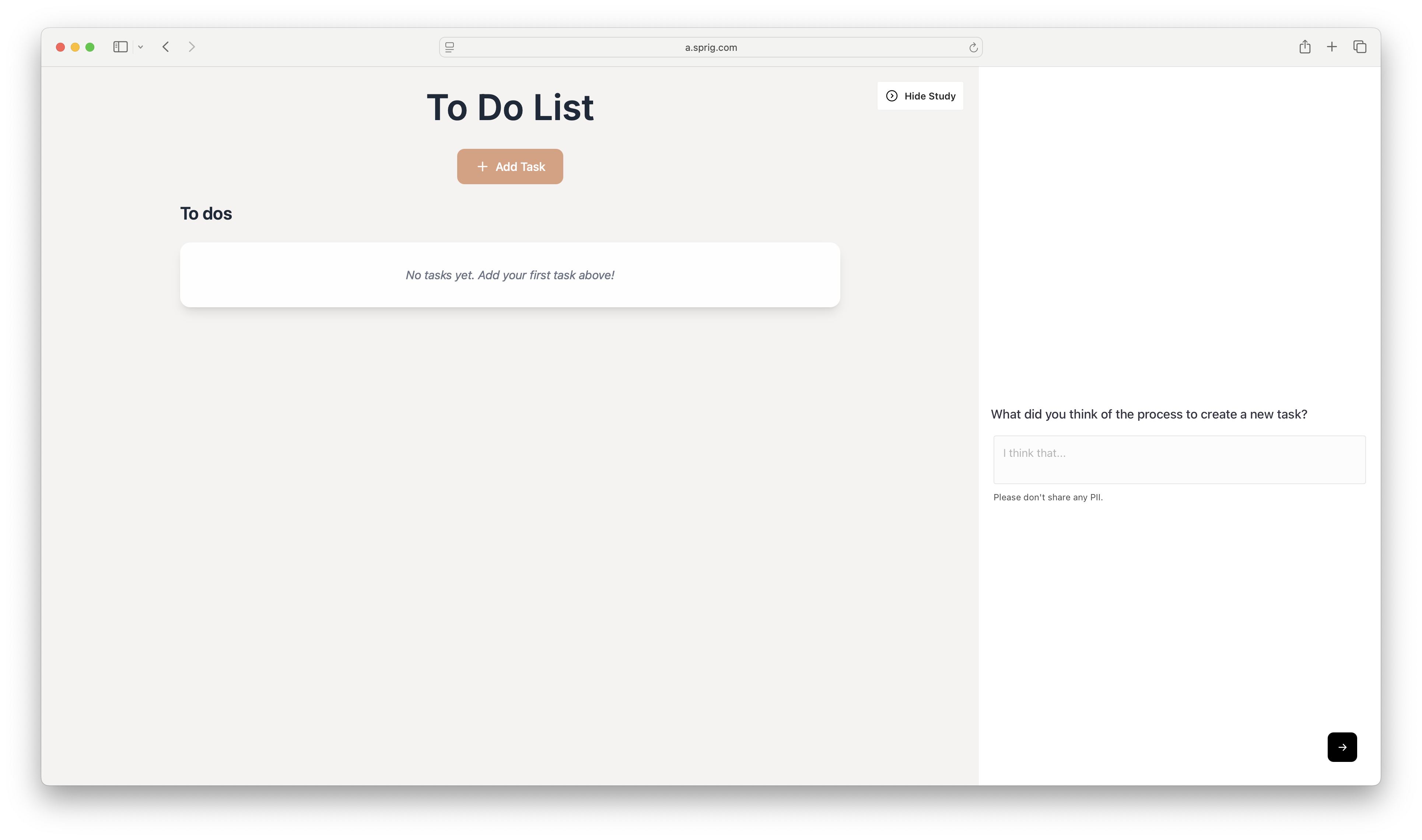
Getting Started
Sprig Long-Form Surveys are the foundation of prototype testing. Simply add a prototype URL to questions of interest in the Sprig survey builder, and Sprig will host the prototype side-by-side with corresponding survey questions. See the prototype testing section to learn more.
Embed Sprig In-Product Surveys within AI-Generated Prototypes
You can easily embed Sprig In-Product Surveys within AI-generated prototypes made with tools like Lovable and Figma Make to capture feedback from your respondents as they engage with new concepts.
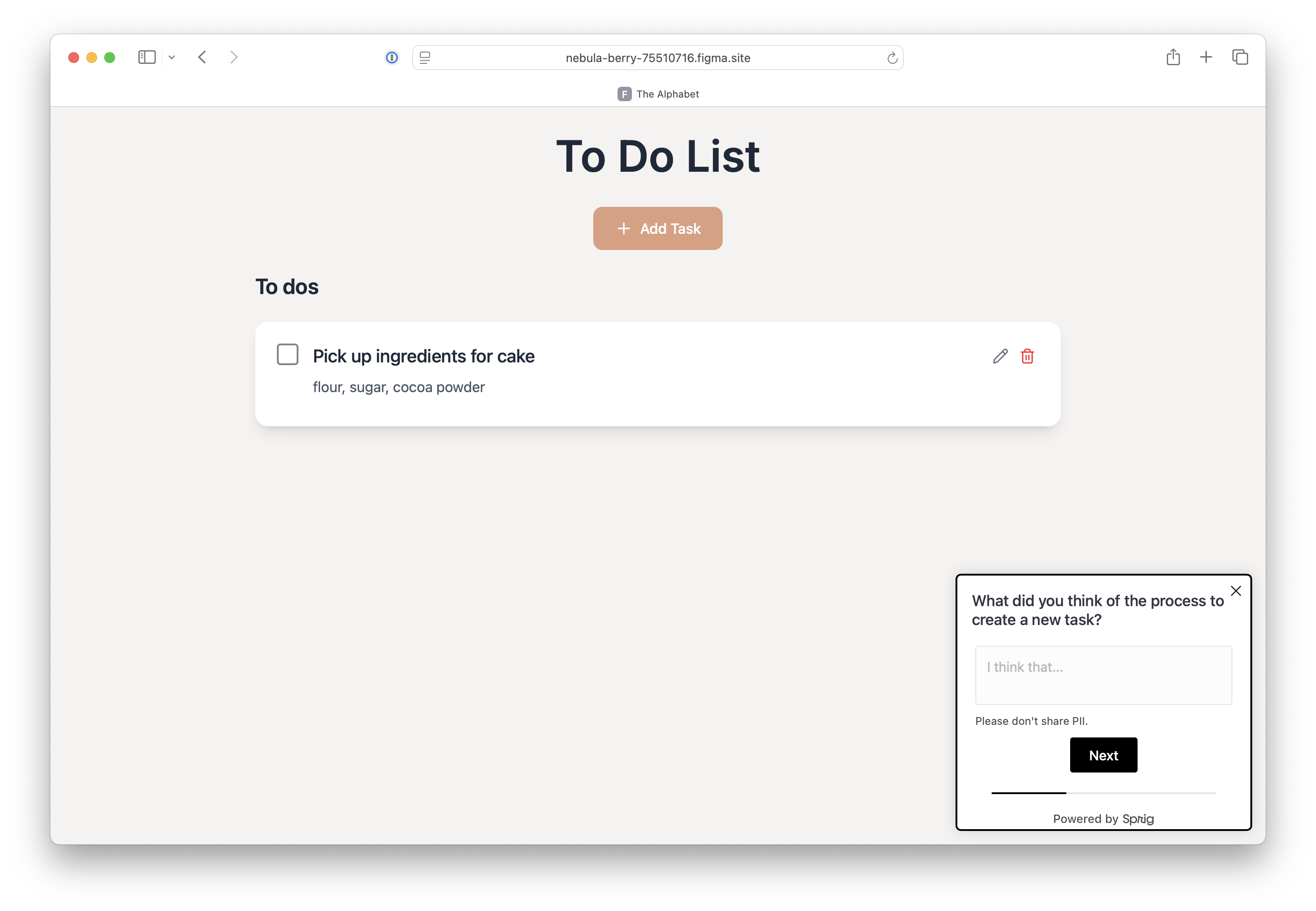
Sprig In-Product Survey displaying in a published Figma Make prototype.
Getting Started
Installation is simple, and follows the same process as installing Sprig In-Product Surveys on your website or mobile app. That said, some AI-generated prototypes work better with certain installation methods than others. We've verified the following methods and tools work well together:
Prototype Tool | Verified Installation Method |
|---|---|
Lovable | |
Figma Make | HTML snippet or npm |
Replit | HTML snippet or npm; |
Vercel v0 | HTML snippet or npm |
AI Studio |
Other AI-powered prototype tools may support embedding Sprig surveys, you'll just need to test to see which installation method works with your preferred tool. If you find a method that works for another tool, we'd love to know! Please let us know what you find by emailing [email protected].
Note: in order for the survey to show up in the prototype you'll need to publish the prototype first.
Once the Sprig SDK is installed, navigate to your Sprig instance, create a new In-Product survey or feedback study, build the questions, and set up Targeting criteria (you can use Events or URLs). It's as easy as that! You'll be able to see the survey in your prototype once it's published. As users explore the prototype and fill out the survey, response data will flow to Sprig as normal.
Watch an On-Demand Demo Video
Updated 10 days ago